All

    Contact Us

    If you still have questions or prefer to get help directly from an agent, please submit a request.
    We'll get back to you as soon as possible.

    Please fill out the contact form below and we will reply as soon as possible.

    • Product
      • Eats365 Products
      • Merchant Guide
      • Modules
      • Membership
      • Integrations
      • Hardware
    • Operations
      • Staff Operations
      • Roles & Permissions
      • Payments
      • Reports
    • News
      • What’s New
      • Release Notes
    • Tools
      • Troubleshooting
      • Simulators
      • Glossary
      • Troubleshooter
      • System Status
    • Login
    English (US)
    Cantonese
    Mandarin
    English (US)
    • Product
      • Eats365 Products
      • Merchant Guide
      • Modules
      • Membership
      • Integrations
      • Hardware
    • Operations
      • Staff Operations
      • Roles & Permissions
      • Payments
      • Reports
    • News
      • What’s New
      • Release Notes
    • Tools
      • Troubleshooting
      • Simulators
      • Glossary
      • Troubleshooter
    Login
    • Home

    Membership

    All Product

    Contact Us

    If you still have questions or prefer to get help directly from an agent, please submit a request.
    We’ll get back to you as soon as possible.

    Please fill out the contact form below and we will reply as soon as possible.

        • Create a new member
        • Add a member to an order
        • Add a customer to a membership plan
        • Manage member information and order history
        • Manage member points and credits
        • Create a Custom Member Field
        • Import and Export Customer Lists
        • Create and manage membership plans
        • Set up and manage a Top-up Credit Item
        • Configure CRM settings
        • Create Points Earning and Spending Rules
        • Create and manage Membership Cards

    Table of Contents

    Add a customer to a membership plan

    Learn how to add customers to a membership plan in your restaurant's loyalty program.

    The Eats365 CRM feature enables you to enroll customers in loyalty membership plans and assign them to specific membership tiers. 

    For more information on creating membership plans, refer to Create and manage membership plans.

    In this article, you'll learn how to add customers to a membership plan in your restaurant's loyalty program. 

    Assign a customer to a membership plan

    To add a customer to a membership plan, follow the steps below:

    1. Log in to the Eats365 POS.
    2. At the top right, tap Member . 
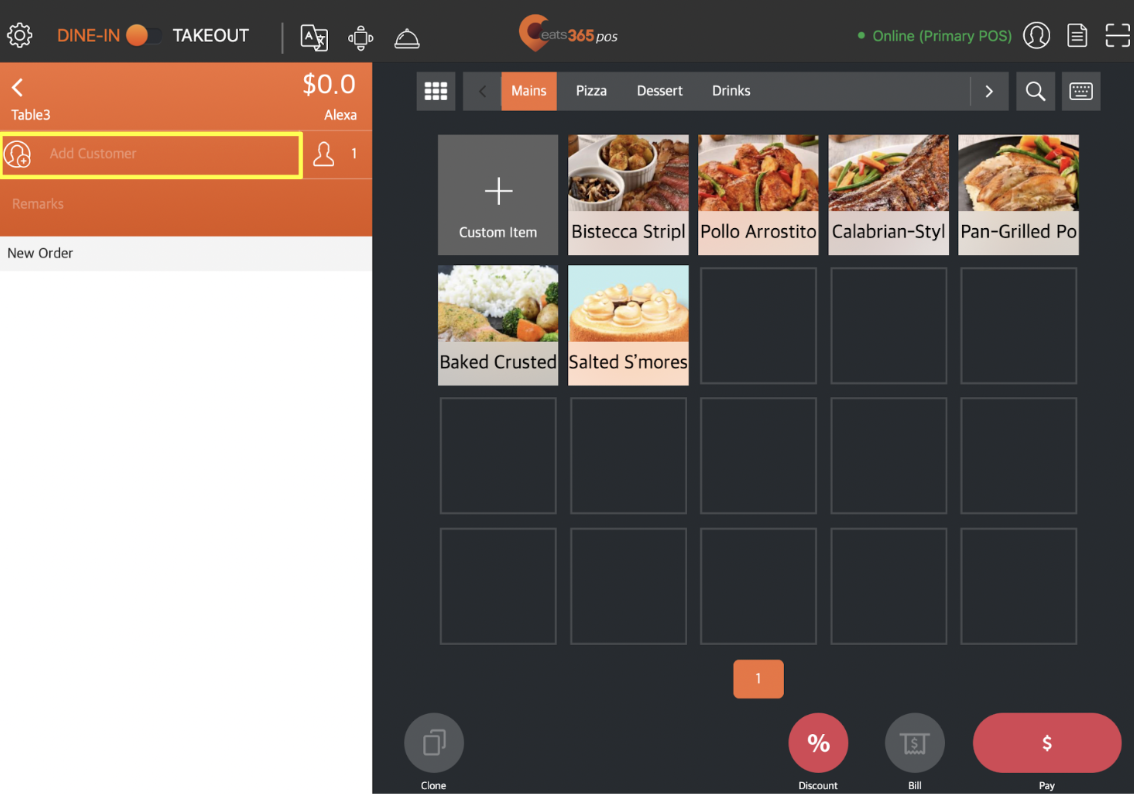
      • Alternatively, you can add a member from the order-taking screen. On the left panel, tap Add Customer .

    3. Search for the customer's member account.
      • For new members: Tap Create Member and fill out the customer's membership information. For more information on how to create a member account, refer to Create a new member.
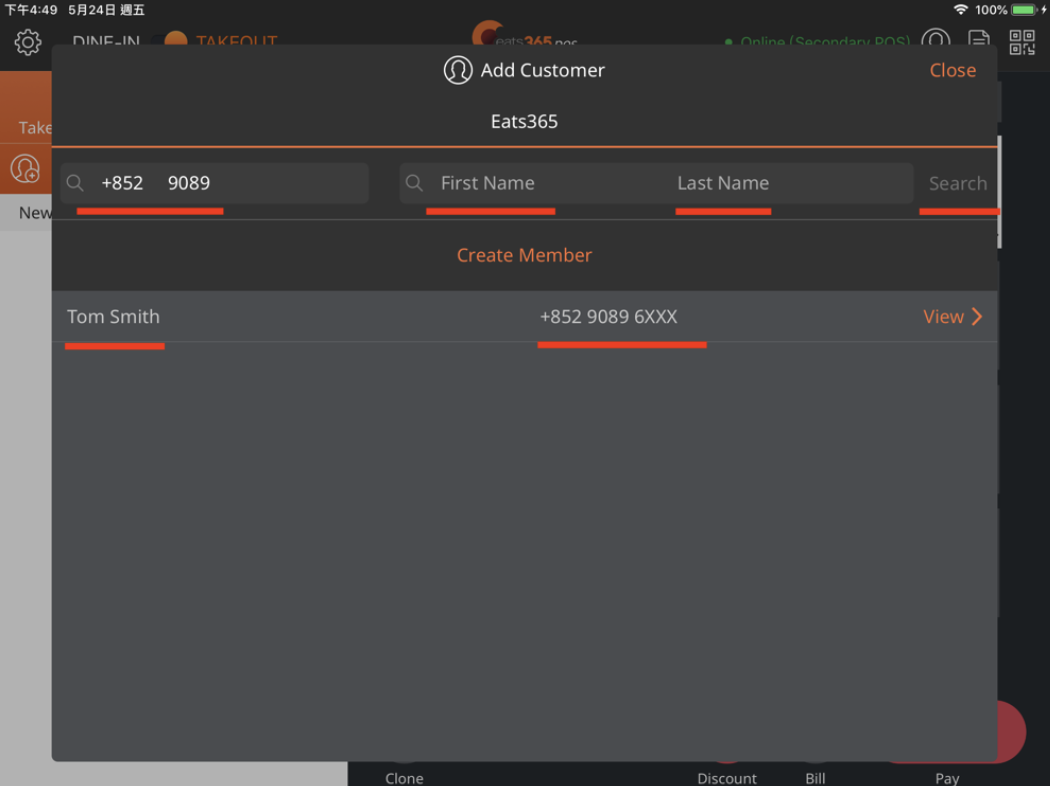
      • For existing members: Enter the phone number, first name, or last name of the member and tap Search. Then, select the member's name on the list.
    4. Tap the Plan tab.
    5. Under "Membership Plan," tap Choose and select from the available membership plans.

    6. At the top right, tap Done or Checkout to proceed. 
      • If the membership plan requires an enrolment fee to join, tap Checkout. You'll be redirected to the payment page. Complete the payment to continue. 

      • If the membership plan doesn't require an enrolment fee to join, tap Done.

    Change a member's membership plan

    To move a member to a different membership plan, follow the steps below: 

    1. Log in to the Eats365 POS.
    2. At the top right, tap Member .
      • Alternatively, you can add a member from the order-taking screen. On the left panel, tap Add Customer .

    3. Enter the phone number, first name, or last name of the member and tap Search. Then, select the member's name on the list.
    4. Tap the Plan tab. 
    5. At the top right, tap Change Plan.

    6. Under "Membership Plan," tap Choose the new plan that you want to assign to the member.

    7. At the top right, tap Done or Checkout to proceed. 
      • If the membership plan requires an enrolment fee to join, tap Checkout. You'll be redirected to the payment page. Complete the payment to continue. 
      • If the membership plan doesn't require an enrolment fee to join, tap Done.
    membership membership plan add membership plan enroll customer to a membership plan add customer to a member plan member plan change membership plan change member plan

    Was this article helpful?

    Yes
    No
    Give feedback about this article

    Related Articles

    • Create and manage membership plans
    • Use member credits for payments
    • Secure member credit payment on the branded online store
              • Products
                • POS
                • mPOS
                • Eats365 Biz
                • Eats365 Marketplace
                • Branded Online Store
                • Kitchen Display System
                • Expedite Display
                • Scan-to-Order (BYOD)
                • Self-Service Kiosk
                • PhotoMenu
                • Queue Kiosk
                • Dynamic Digital Menu
                • Queue Display
                • Pickup Display
                • Customer Facing Display
              • Solutions
                • Online Ordering
                • Contactless Dining
                • Front of House
                • Guest Retention
                • Back of House
                • Back Office (Store End)
                • Multi-brand/Location Management (Enterprise)
                • Paperless Operation Experience
                • Payment
              • Restaurant Types
                • Quick Service Restaurant
                • Full Service Restaurant
                • Bars
                • Food Court
                • Cloud Kitchen
                • Food Retail
                • Self-service Restaurant
                • Enterprise
                • All-You-Can Eat (Buffet)
              • Resources
                • Eats365 Knowledge Base
                • Blog
                • Supported Hardware
              • Company
                • About Us
                • Success Stories
                • Referrals
              • Get In Touch
              • Contact Us
                • Eats365, Inc.
                • Sales info@eats365.com
                • Support support@eats365.com
          • Contact Us
            • Eats365, Inc.
            • info@eats365.com
            • www.eats365pos.com
          • Get In Touch
            • Apple Mobility Partner
              twitter facebook eats365 linkedin
          • eats365
            © 2023 Eats365 Incorporated. All rights reserved.

    Knowledge Base Software powered by Helpjuice

    Expand