 Eats365 Products
 Merchant Guide
 Modules
 Membership
 Integrations
 Hardware
 Staff Operations
 Roles & Permissions
 Payments
 Reports
 What’s New
 Release Notes
 Troubleshooting
 Simulators
 Glossary
 Troubleshooter
 System Status
Membership
All Product
Table of Contents
Add a customer to a membership plan
Learn how to add customers to a membership plan in your restaurant's loyalty program.
The Eats365 CRM feature enables you to enroll customers in loyalty membership plans and assign them to specific membership tiers.
For more information on creating membership plans, refer to Create and manage membership plans.
In this article, you'll learn how to add customers to a membership plan in your restaurant's loyalty program.
Assign a customer to a membership plan
To add a customer to a membership plan, follow the steps below:
- Log in to the Eats365 POS.
- At the top right, tap Member
 .
. - Alternatively, you can add a member from the order-taking screen. On the left panel, tap Add Customer
 .
.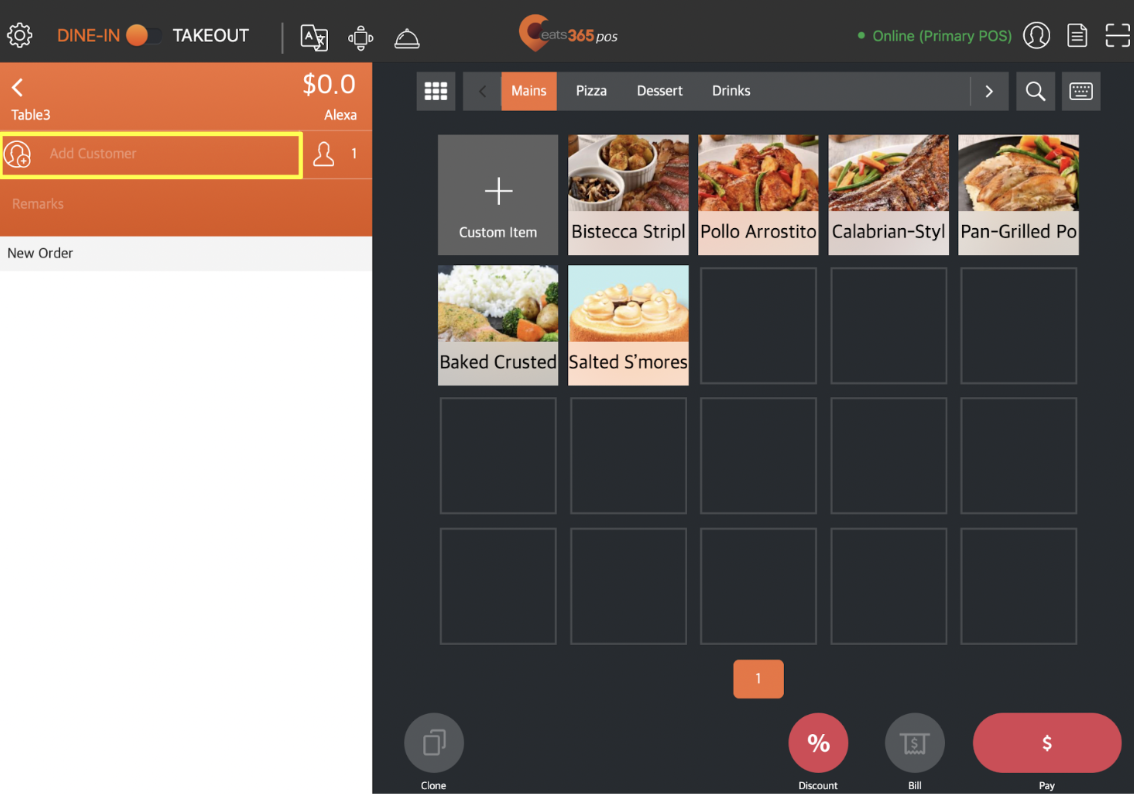
- Alternatively, you can add a member from the order-taking screen. On the left panel, tap Add Customer
- Search for the customer's member account.
- For new members: Tap Create Member and fill out the customer's membership information. For more information on how to create a member account, refer to Create a new member.
-
For existing members: Enter the phone number, first name, or last name of the member and tap Search. Then, select the member's name on the list.
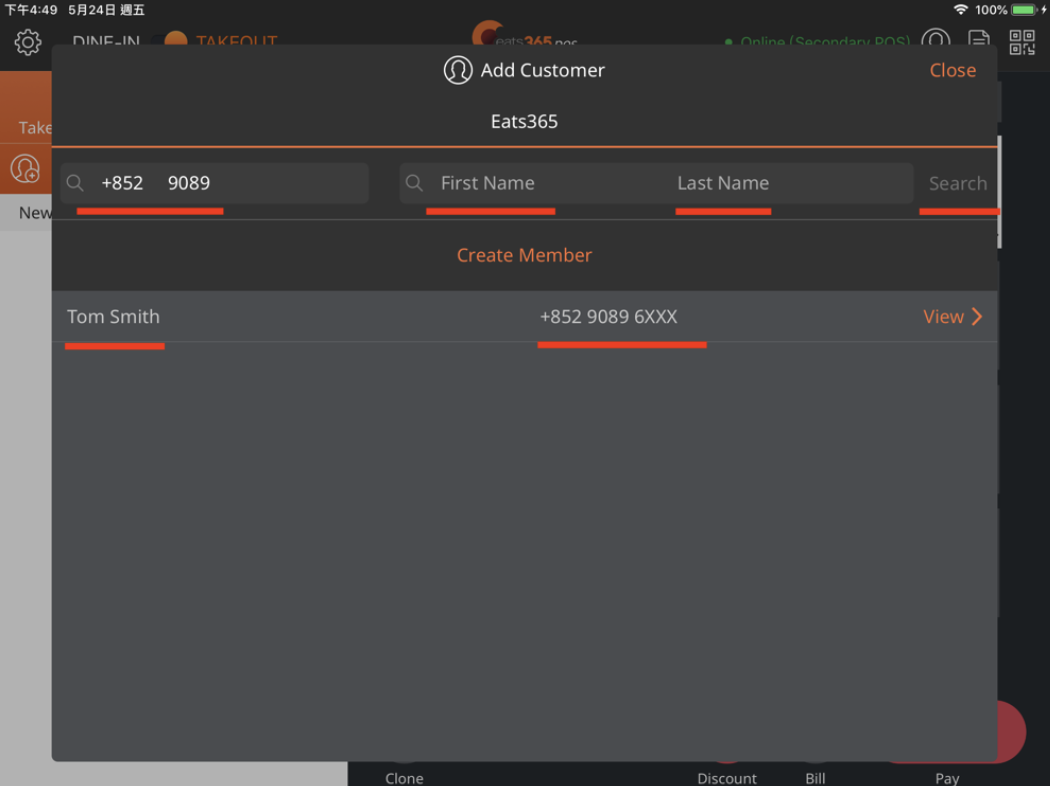
- Tap the Plan tab.
- Under "Membership Plan," tap Choose and select from the available membership plans.

- At the top right, tap Done or Checkout to proceed.
- If the membership plan requires an enrolment fee to join, tap Checkout. You'll be redirected to the payment page. Complete the payment to continue.

- If the membership plan doesn't require an enrolment fee to join, tap Done.

- If the membership plan requires an enrolment fee to join, tap Checkout. You'll be redirected to the payment page. Complete the payment to continue.
Change a member's membership plan
To move a member to a different membership plan, follow the steps below:
- Log in to the Eats365 POS.
- At the top right, tap Member .
- Alternatively, you can add a member from the order-taking screen. On the left panel, tap Add Customer .
- Alternatively, you can add a member from the order-taking screen. On the left panel, tap Add Customer
- Enter the phone number, first name, or last name of the member and tap Search. Then, select the member's name on the list.
- Tap the Plan tab.
- At the top right, tap Change Plan.

- Under "Membership Plan," tap Choose the new plan that you want to assign to the member.

- At the top right, tap Done or Checkout to proceed.
- If the membership plan requires an enrolment fee to join, tap Checkout. You'll be redirected to the payment page. Complete the payment to continue.
- If the membership plan doesn't require an enrolment fee to join, tap Done.