 Eats365 Products
 Merchant Guide
 Modules
 Membership
 Integrations
 Hardware
 Staff Operations
 Roles & Permissions
 Payments
 Reports
 What’s New
 Release Notes
 Troubleshooting
 Simulators
 Glossary
 Troubleshooter
 System Status
FAQs
Table of Contents
FAQs
Get answers to your commonly asked questions with our FAQ page.
This article answers common questions about our services and products, covering everything from general inquiries to specific product details.
Account Management
What are the different restaurant modes available in Eats365?
Eats365 offers two basic modes for the Eats365 POS and its Modules, which include Full Service and Quick Serve modes. We also have special restaurant modes for Virtual Shop, Cloud Kitchen, and Food Court operations. For more information about restaurant modes, refer to Restaurant service modes.
DeleteCan I switch to a different restaurant mode?
You can switch to a different restaurant mode, provided that the module you’re using supports the restaurant mode that you want to switch to. For example, the Eats365 POS supports both Full Service and Quick Serve modes, allowing seamless switching between the two. However, if you’re using mPOS, transitioning from Full Service to Quick Serve isn’t possible, as mPOS doesn’t support Quick Serve mode. For more information about restaurant modes, refer to Restaurant service modes.
DeleteHow do I switch to a different restaurant mode?
Please contact Eats365 to switch from a Quick Serve to a Full Service restaurant or vice-versa.
DeleteWhen do I need to use the Merchant ID?
Your Merchant ID is used to identify your restaurant. You can use your Merchant ID for the following:
- Log in to the Eats365 POS.
- Identify your restaurant for troubleshooting purposes. When you encounter troubleshooting issues with POS operations, you may need to provide the Merchant ID for identity verification when contacting the Eats365 team by phone.
- Purchase additional licenses.
Where can I find my Merchant ID?
You can find the Merchant ID in the POS settings under “About,” or in the Merchant Portal dashboard. For first-time users, the Merchant ID is the same as the Restaurant code provided in your invitation email.

How do I change my POS password?
To change your password on the POS, follow the steps below:
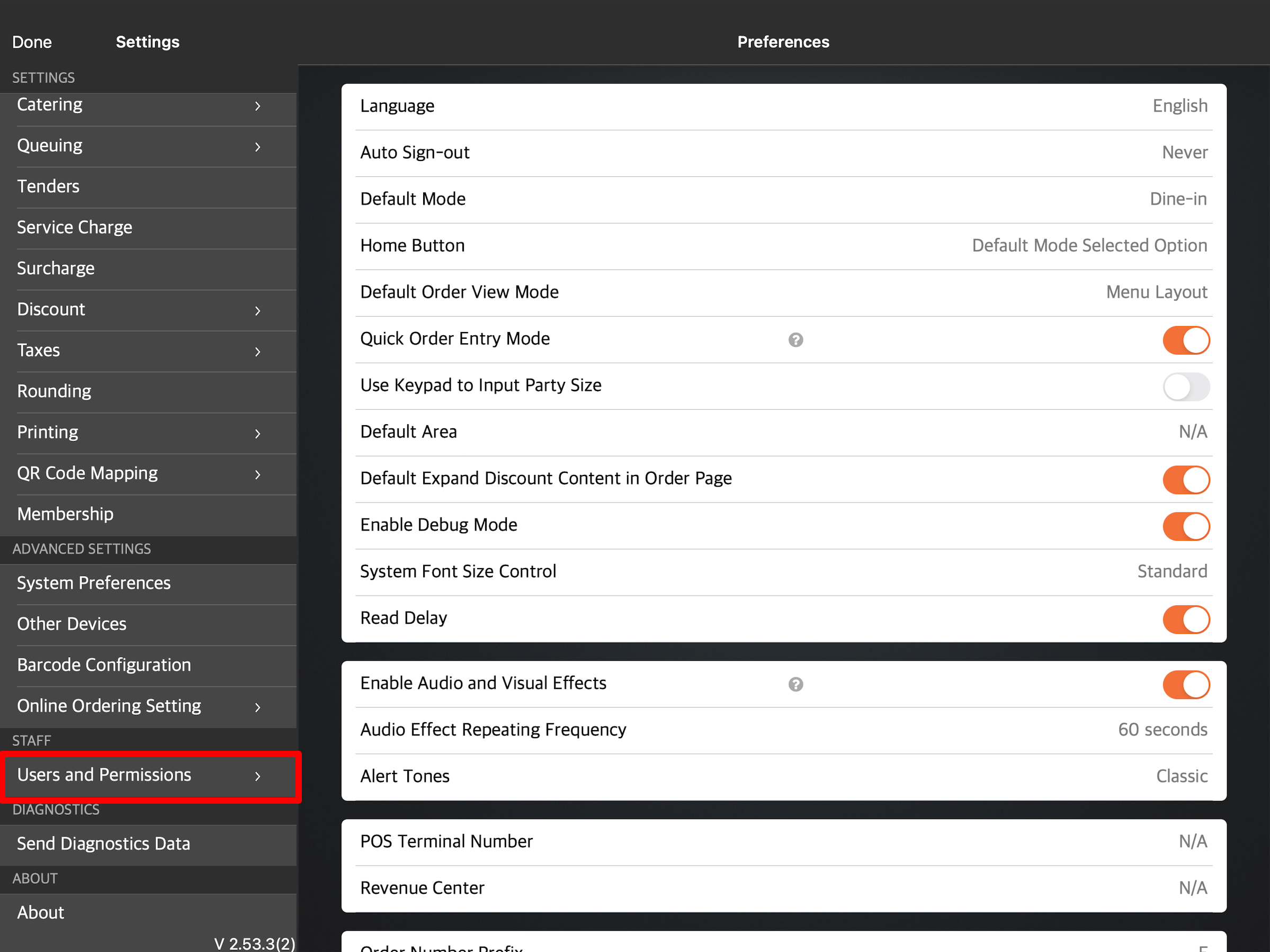
- On the Eats365 POS, tap Settings
 .
. - Under “Staff List,” tap Users and Permissions.
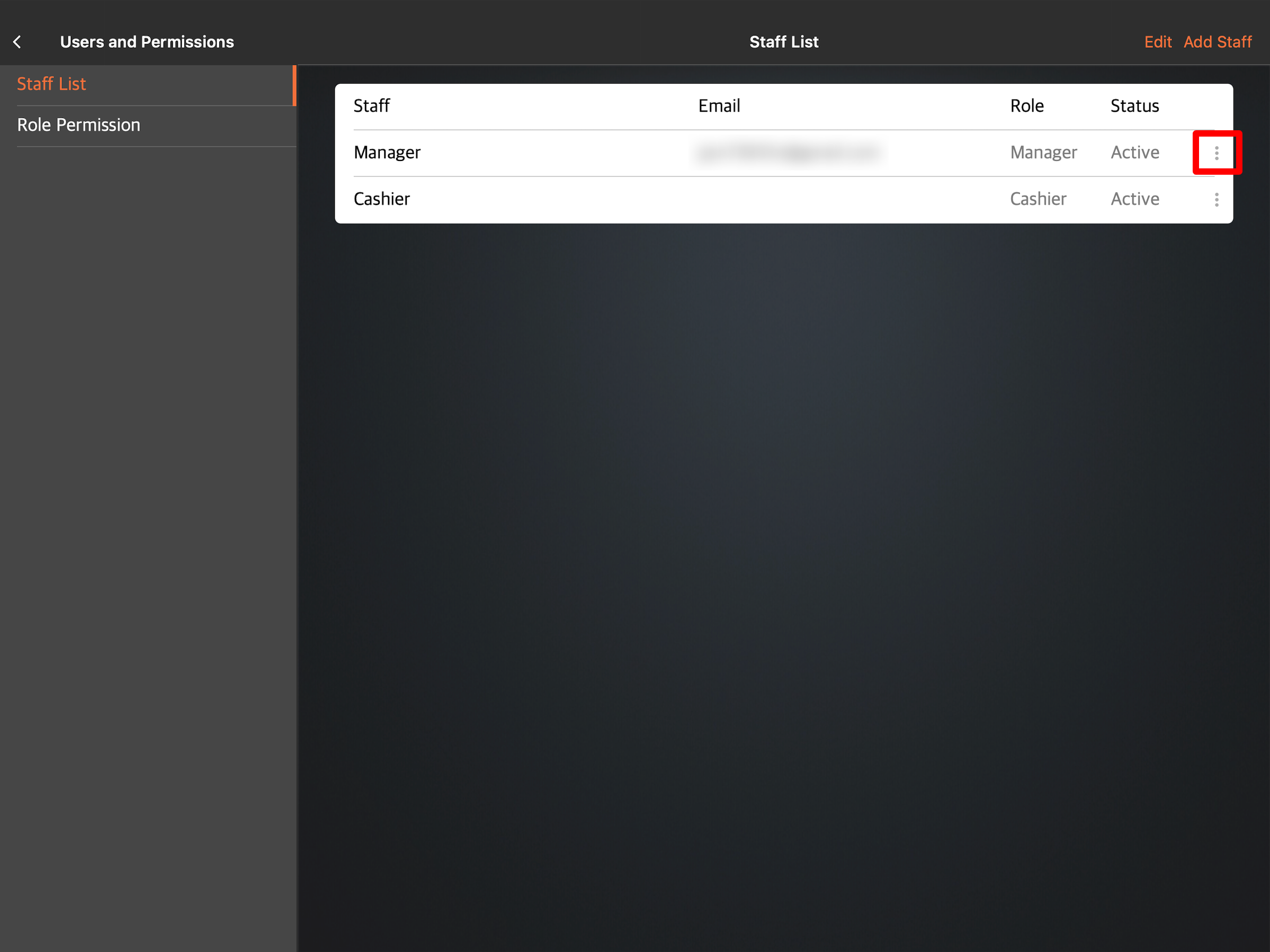
- Under “Staff List,” tap a user account.
- Next to the “Password” field, enter the new password.
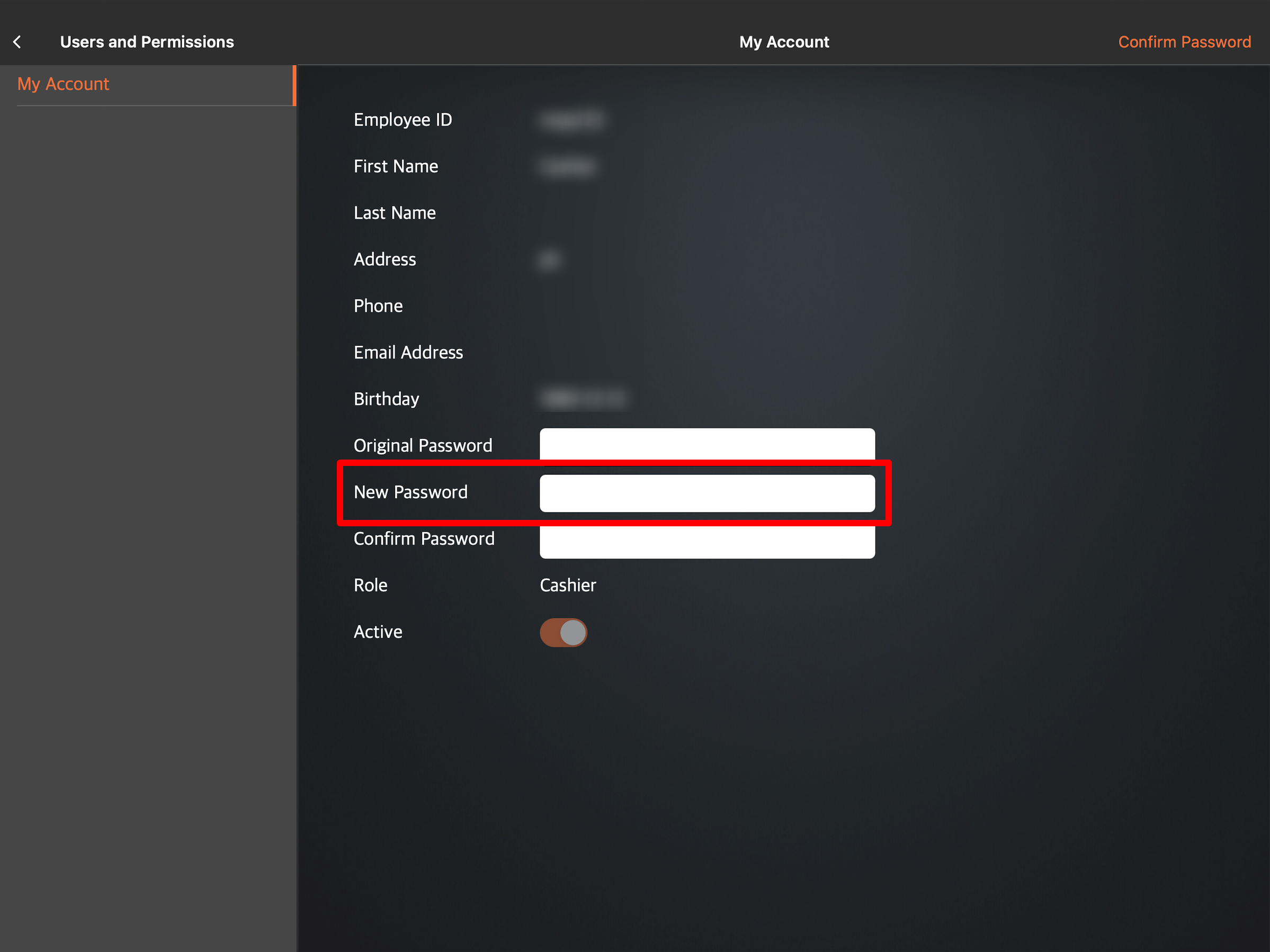
- At the top right, tap Update.
For more information about changing the POS password, refer to Change POS password.
DeleteHow do I change my Merchant Portal password?
To change your password on the Merchant Portal, follow the steps below:
- Log in to the Merchant Portal.
- At the top right, click on your account name.

- Select Change Password.

- Next to the “Existing Password” field, enter your old password.

- Next to the “New Password” and “Retype Password” fields, enter your new password.
- Click on Save to confirm.
For more information about changing your Merchant Portal password, refer to Change the Merchant Portal password.
DeleteCan I change my email address?
Yes, you can. To change your activation email and phone number, follow the steps below:
- Log in to the Merchant Portal.
- On the left panel, click on Restaurant Settings.
- Click on Basic Information. Then, select POS Activation Settings.
- Enter the new email and phone number that you want to use to receive your activation code.
- Click on Save to confirm.
For more information, refer to Change activation email or phone number.
DeleteHow do I update my restaurant’s information?
You can change your restaurant’s information from the restaurant settings. For more information on how to update your restaurant information, refer to Set up Restaurant Information.
DeleteWhy does the login page of the POS show the User ID instead of the first name?
If the “First Name” field is left blank when creating a new staff record, the User ID becomes the default name displayed on the login page.
DeleteCan I request to clear data after the trial operation?
Yes. Make sure to specify the days you want to clear data, as this action can only be done once.
DeleteDevice Management
How do I set up an Eats365 POS?
For detailed instructions on how to set up an Eats365 POS, refer to Set up and Install the Eats365 POS app.
DeleteDo I need someone from your team to set up my POS or can I do it by myself?
The Eats365 POS is easy to set up. You can set up the Eats365 POS on your own, as long as you already have an existing POS license. To set up your Eats365 POS, refer to Set up and Install the Eats365 POS app. Alternatively, our Customer Success Team can help you set up the Eats365 POS upon deployment.
DeleteHow many POS can I have in my restaurant?
You can have as many POS as your restaurant requires. However, you’ll need the following if you wish to create a multi-POS setup:
- An advanced subscription
- One POS license for each device
- An iPad device that can be used for each POS terminal
Do I need an internet connection to use Eats365 POS?
Yes. Since the Eats365 POS is cloud-based, you need a stable internet connection to use the Eats365 POS and sync all your data to the system. You can connect your devices through a wired or wireless connection. For a list of recommended network connections, refer to Types of internet networks.
DeleteCan I connect my iPad to a mobile Wi-Fi hotspot when using the POS?
The Eats365 POS requires a stable internet connection from a reliable network. A mobile Wi-Fi hotspot is not considered a reliable network. To learn more about connecting your iPad to a network, refer to Connect an iPad to a network.
DeleteCan I still use the Eats365 POS if there’s an issue with my network?
In case of a sudden network outage, the Eats365 POS has a built-in Offline mode feature that lets you continue using the POS during network outages and system downtime. For more information on how the Offline mode works, refer to Maintain restaurant operations using Offline Mode.
DeleteHow do I fix a POS that cannot connect to the Internet issue?
If your POS can’t connect to the internet, you can try the following troubleshooting steps:
- Check if the POS is connected to the correct network. If you have multiple networks available, double-check that the POS is connected to the same network that your other devices, such as printers and modules, are connected to.
- Try connecting to the restaurant's network using your phone.
- Reboot the router. Unplug the router from the power outlet for one minute, then plug it back in.
- If the problem persists, you may need to contact your internet service provider.
For detailed instructions on how to troubleshoot a POS that can’t connect to the internet issue, refer to POS unable to connect to the internet.
DeleteWhy is my POS showing that it has expired?
If your POS is showing that it has already expired, you may reach out to Eats365 and provide us with your Merchant ID to renew the license.
You can find the Merchant ID in the POS settings under "About," or in the Merchant Portal dashboard.

How do I log in to my POS on a new iPad device?
If you are replacing your old iPad device with a new iPad, you must log out and reset the Eats365 POS app on the old iPad device first before you can log in to the new device. For more information on how to reset the POS, refer to Reset the Eats365 POS.
After the reset has been done, on the new iPad device, download the Eats365 POS app. Then, log in to the new device using your Merchant ID.
DeleteHow do I activate the POS?
To activate the Eats365 POS, you must enter your Merchant ID on the POS. You can check the Merchant ID from the Merchant Portal dashboard. For first-time users, the Merchant ID is the same as the Restaurant code provided in your invitation email.
- Open the Eats365 POS app.
- At the bottom, tap Activate with Merchant ID.
- Enter your Merchant ID. Then, tap Get Activation Code.
- Choose how you want to receive the activation code. You can get the code either through SMS or through email. You should receive the activation code within a minute. If you didn’t receive a code, tap Request again.
Tip: You can change your activation email or phone number later on from the Merchant Portal. Refer to Change activation email or phone number. - Enter the activation code, then tap Activate.
For more information on setting up the POS, refer to Set up and install the Eats365 POS app.
DeleteHow do I reset the POS?
Before you reset the POS, make sure that the current shift has already been closed. To reset the POS, follow the steps below:
- On the POS, tap Settings .
- Beside the user name, tap Sign-out.

- On the login page, tap Reset.

- Enter your Merchant ID to confirm the reset.
- Tap Confirm to finish the reset.
For more information about resetting the POS, refer to Reset the Eats365 POS.
DeleteHow do I update the POS?
To update the POS, follow the steps below:
- Log in to the Eats365 POS.
- At the top left, tap Settings .
- Under “General,” tap Update.
- At the top right, tap Update All. Alternatively, you can update each setting individually. Under the setting that you want to update, tap Update Now.

For more information about updating the POS, refer to Update the Eats365 POS.
DeleteMenu Management
Can I transfer my menu from my existing POS to Eats365 POS?
Yes. The Eats365 POS is equipped with importing tools that make transferring your menu information easy to do. For more information on how you can import your menu, refer to How to use Import Tools. Alternatively, our Customer Success Team can help you upload your menu information to the POS upon setting up your device.
DeleteDoes Eats365 POS support multi-language menus?
Yes. The Eats365 POS, as well as its Modules, support multi-language menus. To learn how to create a menu in the language that you want, refer to Set up and manage a Single Item.
DeleteHow do I set up my menu?
For information on how you can set up your menu, refer to Menu Setup. Alternatively, our Customer Success Team can help you upload your menu information to the POS upon setting up your device.
DeleteHow do I move an item to a different category?
Moving an item to a different category is currently not supported. You can instead create a duplicate of the item and assign it to a new category. For more information about creating a copy of an item, refer to Set up and manage a Single Item.
DeleteHow do I assign a Combo Item to a Kitchen Station?
Combo Items cannot be assigned automatically to a Kitchen Station. Kitchen Tickets are printed depending on which Kitchen Station a Single Item is assigned. For more information on how to assign a Kitchen Station to a Single Item, refer to Set up and manage a Single Item.
DeleteCan I switch to a different menu during specific periods? For example, I want to use a different menu during the holidays.
Yes. The Eats365 POS allows you to create customizable menu templates that you can save and use whenever you need them. For information on how to create menu templates, refer to Create and manage a Menu Template.
DeleteCan I switch to a different menu at different times of the day?
Yes. The Eats365 POS allows you to create custom menus that can be configured to automatically appear at specific times of the day. For example, you can create a custom menu for lunch hour, and a different menu for dinner time. For more information on how to create custom menus, refer to Set up and manage a Custom Menu.
DeleteOrder Management
Dine-In
How do I place a dine-in order?
For information on how to place a dine-in order, refer to Add items to an order.
DeleteHow do I modify a dine-in order?
To modify a dine-in order, you can refer to the following articles:
DeleteHow do I void a dine-in order?
For information on how to void or cancel an order, refer to Payment Returns.
DeleteHow do I modify an order that’s already paid?
If an order is already paid, you can no longer make any changes to the order. You can instead void the order and create a new order. For more instructions on how to void an order, refer to Payment Returns.
DeleteCan Eats365 help us change an incorrect order?
Incorrect orders caused by system errors can be resolved by reaching out to the Eats365 ServiceDesk Team through WhatsApp. For all other reasons, an incorrect order can no longer be changed. Alternatively, an order can be canceled or voided. For more information about canceling or voiding orders, refer to the following articles:
DeleteCan I change the table number font size to be bigger?
Changing the table number’s font size is currently not supported.
DeleteWhat’s the difference between order received and processing?
Order received means an order is placed and accepted on the POS. Meanwhile, Processing means a Kitchen Ticket has been printed and the order is already being processed in the kitchen.
DeleteHow do I lock an order after the bill has been printed?
To lock an order, you must enable "Order Lock" from the Dine-In settings.
- Log in to the Eats365 POS.
- At the top left, tap Settings , then tap Dine-In.
- Under “Workflow settings,” turn on Order Lock
 .
.
You can also enable Order Lock from the Merchant Portal.
- On the left panel, click on Restaurant Settings.
- Click on Dine-In, then select Workflow.
- Under “Workflow,” you can then enable Order Lock
 .
.
For more information on how to enable Order Lock, refer to Set up Dine-In settings.
DeleteCan drinks be ordered separately and then automatically be included in a combo?
Yes. If Quick Combo is turned on, the POS will analyze newly added items and determine whether they can be included in an existing combo order. To turn on Quick Combo, open the POS and tap Settings . Then, tap System Preferences and turn on Quick Combo .

What do the Hold and Fire buttons mean?
By default, all items in an order get sent to the kitchen printer to be printed. However, if you hold an item, the item will not be included in the items to be printed on the kitchen ticket. You can use the Fire button to manually send the item you put on hold to the kitchen printer. For more information, refer to Fire and Hold Items.
DeleteIf I have inventory tracking enabled, do the quantities for menu items and Modifiers return to their original amount after being added to an order and then canceled or voided?
Once an order has been confirmed, the inventory for the menu items and modifiers is deducted according to the quantity ordered. Canceling or voiding the order does not reverse or restore the deducted inventory amount.
DeleteAre customers required to pay a deposit for table reservations?
There’s no deposit required for dine-in reservations.
DeleteTakeout and Delivery
How do I place an order for delivery or pickup?
For information on how to place a takeout and delivery order, you can refer to the following articles:
DeleteHow do I modify a pickup or delivery order?
To modify a pickup or delivery order, you can refer to the following articles:
DeleteHow do I void a pickup or delivery order?
For information on how to void or cancel an order, refer to Payment Returns.
DeleteWhy do I need to enter a check name every time a takeout order check is generated?
Requiring a check name is an optional advanced setting that you can turn off in System Preferences. To do this, from the POS app, go to Settings . Under "Advanced Settings," tap System Preferences, then turn off Require Check Name  . For more information, refer to Manage System Preferences.

How do I change a delivery address?
You can't change the delivery address once the order has been accepted. To make a correction, the order must be voided and a new delivery order must be created with the correct address.
DeleteHow can customers check the current order status of their orders?
Customers can check their order status on the branded online store by tapping Account  and selecting My Orders & Order History to view the order progress. As long as the customer provided an email, they will also receive status emails, including "Order Confirmation," "Order Submitted," and "Order Packed and Completed."

You may also enable "SMS Notification" so customers can be notified of their order status on their mobile devices. For more information on how to enable SMS Notification, refer to Set up SMS Notification.
DeleteCatering
How do I place a catering order?
For information on how to place a catering order, refer to Add items to an order.
DeleteHow do I modify a catering order?
To modify a catering order, you can refer to the following articles:
DeleteHow do I void a catering order?
For information on how to void or cancel an order, refer to Payment Returns.
DeleteWill I receive an email about an upcoming catering order?
By default, you won’t receive any emails regarding upcoming catering orders. However, you can enable "Order Notification" from the Catering setting to create an email list so you and selected staff members can be notified of next operation period pre-orders and catering orders placed on the Branded Online Store. For more information, refer to Set up Catering settings.
You can also check scheduled orders through the Pre-Order Report on the Merchant Portal, or check upcoming orders from the Order List by tapping Order List  and selecting Scheduled.

Are customers required to pay a deposit for catering orders?
Once an order is placed, you can ask the customer to pay a certain amount first, then pay for the remaining amount after the order has been picked up or delivered.
DeleteAll You Can Eat
When both the regular Scan to Order and All You Can Eat Menu modes are enabled, why do regular Scan to Order items appear in the All You Can Eat Menu?
Regular scan-to-order items are considered available for ordering at any time period, so they appear in the All You Can Eat Menu as well. To learn how to activate the All You Can Eat menu mode, refer to Use All You Can Eat mode on the Eats365 POS.
DeleteCan customers order à la carte after the All You Can Eat time limit is over?
By default, the system restricts ordering from the All You Can Eat menu once the timer hits zero. To allow further ordering, staff can either extend the customer's dining time by adding a time extension item or by creating a new order.
DeleteOnline Ordering
How do I accept an online order?
To accept an order, follow the steps below:
- At the top right of the POS, tap Order List.
- Tap New.

- Select the order that you want to accept.
- To accept the new order, tap Accept.

Alternatively, you can enable "Auto Accept Orders" to skip the order confirmation process.
For more information about managing online orders, refer to Manage New Orders.
DeleteHow do I reject an online order?
To reject an order, follow the steps below:
- At the top right of the POS, tap Order List.
- Tap New.
- Select the order that you want to reject.
- To reject the new order, tap Reject.

For more information about managing online orders, refer to Manage New Orders.
DeleteIf the customer settles the bill at the table before the ordering time has ended, can they continue to place orders?
Once the bill is paid, ordering is closed. Customers can still browse the menu.
DeleteWhy are there two identical QR codes with the same table number in my Static QR code file?
Duplicate QR codes for the same table number can appear when a table code is generated twice. To avoid identical QR codes, you must delete any unnecessary copies.
DeleteWhy can customers still place an order when there is 00:00 remaining ordering time?
00:00 represents "hour:minute," so it means there are still 59 seconds remaining, and customers can still place an order.
DeleteHow do customers know they can no longer place an order?
When the time is up, customers will no longer be able to place their order, and there will be a reminder below the shopping cart saying that the ordering time has ended.
DeleteWhy isn’t the remaining ordering and dining time displayed on my QR code ordering screen?
There can be two reasons why the ordering time reminder doesn’t appear:
- You have set a Turn Time without setting up a Cut-off Time.
- Neither the Turn Time nor the Cut-off Time has been set.
For more information on how to set up a Turn Time and a Cut-Off Time, refer to the following articles:
- Configure Dining Time settings
- Configure Scan to Order settings (Full Service)
- Configure Scan to Order settings (Quick Serve)
- Configure Scan to Order settings (Food Court)
Why do I get an error when I try to set a cut-off time?
The error may appear if you have set the Cut-off Time without setting the Turn Time. For more information on how to set up a Turn Time, refer to Configure Dining Time settings.
DeleteCan I switch to a different table number after opening a table?
Yes. After switching tables, the customer's QR code URL can still be used. There’s no need to print a new QR code for the customer, and they can place orders on the new table through the original link.
DeleteWhat is the purpose of the avatar or the account image in the top right corner?
It represents the user of the registered store's website. This is also where they can check for current orders and order history.
DeleteHow can customers log in to their Ocard membership?
If you use the Ocard membership, customers need to register as a store user. If the registered phone number matches the Ocard registration phone number, the points can be accumulated.
DeleteAre online ordering settings also shared with QR code ordering?
Yes. The restaurant’s branded online store and QR code ordering are set together and can be adjusted in the Merchant Portal or on the POS. For more information, refer to the following articles:
- Configure Scan to Order settings (Full Service)
- Configure Scan to Order settings (Quick Serve)
- Configure Scan to Order settings (Food Court)
The item name on the POS is quite long, but I want the full item name to be shown in Scan to Order. Can I edit the item name in the POS only?
Yes. You can edit the item name under Menu Setup  Layout Editor. Tap the three-dot menu
 next to the item then, enter the Item Key Name. For more information, refer to Customize the Menu Layout.

Why did an order come through Scan to Order, but no ticket was printed?
Make sure that the primary POS is connected to the internet and that there is a stable internet connection. An unstable internet connection can cause syncing issues between the POS and your printer. For more information on troubleshooting printing issues, refer to POS can’t connect to a printer.
DeleteCan customers use any device to access the website?
Yes. Customers can use any device to enter your restaurant’s website. They only need a mobile device or a computer that has a browser and an internet connection.
DeleteHow do I extend my Branded Online Store license?
If you wish to extend your license or purchase additional Eats365 Branded Online Store licenses, contact our Sales Team.
DeleteHow do I restrict customers from using scan-to-order anytime? I want them to be able to use it only after being seated.
You can enable the “Order Creation is Required When Ordering with Table QR Code” setting to lock table QR codes when the table is not in use. When this setting is enabled, the static QR code on the table is temporarily disabled. Staff must first seat the customer and create an order before the QR code becomes available to scan.
To enable this setting, follow the steps below:
- Log in to the Merchant Portal.
- On the left panel, click on Restaurant SettingsDine-InScan to Order.
- Under "Scan to Order," enable Order Creation is required when ordering with Table QR Code .
What happens to online orders if the POS goes offline?
The Branded Online Store server constantly checks if the POS is online. If the POS is offline, it won’t be able to communicate back to the server that it’s ready to continue receiving orders. If the POS is unable to communicate back to the server after 15 minutes, the Online Order feature becomes temporarily disabled.
In case of prolonged network issues, restaurants can opt to disable online ordering through the Merchant Portal so customers can also be aware that ordering is unavailable and to limit the number of backlogs when the POS syncs back up.
DeleteStaff management
How do I add more staff?
To add more staff to the Staff List, follow the steps below:
- On the POS, tap Settings .
- Under “Staff List,” tap Users and Permissions.
- Under “Staff List,” tap Add Staff.

- Enter the required information.
- Tap Save to confirm.
For more information on how to add more staff to your staff list, refer to Set up and manage Staff List.
DeleteWhat is the maximum number of staff I can have in the POS?
There is no limit to the number of staff you can add. You can set up as many as you want as long as you have the Advanced Subscription.
DeleteCan I use a staff card to log in to the POS?
Yes. For more information on how to set up a staff card, refer to Set up and manage Staff List.
DeleteHow can I remove or limit my staff’s access to reports?
You can assign roles to your staff and configure the features, functions, and reports that each role can access.
To define Role Permissions, follow the steps below:
- Log in to the Eats365 POS.
- At the top left, tap Settings .
- Under “Staff,” tap Users and Permissions. Then, select Role Permission.

- Tap the role that you want to edit. You can also tap the three-dot menu, then tap Edit Permissions
 .
.
- Update the role’s permissions.
- At the top right, tap Update to confirm.
Where can I view staff clock-in records?
To check your staff's clock-in and clock-out information, follow the steps below:
- Log in to the Merchant Portal.
- On the left panel, click on StaffTime Clock.
- Next to “Staff,” click the drop-down menu and select the name of the staff member whose record you want to check.
Note: By default, all staff records will appear on the screen.
From this page, you can manage your staff's time sheet records, including manually adding a new entry, editing an entry, and exporting the whole report. For more information, refer to Manage staff time sheet.
DeleteCRM / Membership
How do I add a customer to my restaurant’s loyalty program?
To add a customer to your restaurant’s loyalty program, follow the steps below:
- Log in to the Eats365 POS.
- At the top right, tap Member
 .
. - Tap Create Member.
- Enter the necessary customer information.
- At the top right, tap Done to confirm.
For more information, refer to Create a new member.
DeleteHow do I assign a member to a membership plan?
To add a member to a membership plan, follow the steps below:
- Log in to the Eats365 POS.
- At the top right, tap Member .

- Enter the member’s information. Then, tap Search.

- Next to the member’s information, tap View.

- Tap the Plan tab.

- Tap Plan and select the membership plan that the customer would like to avail.

- At the top right, tap Done to confirm.
For more information on adding a member to a membership plan, refer to Create a new member.
DeleteCan I update the member’s information from the Eats365 POS?
Yes. However, you can only update the member’s name, email address, birthday, and gender from the POS. To update the member’s phone number, you must use the Merchant Portal.
DeleteCan I show the entire mobile number whenever I add a member to an order?
Eats365 places security as a top priority. To prevent exposing personal customer information, mobile numbers become partially or fully masked.
DeleteWhy isn’t the receipt displaying the remaining membership points?
To display a member’s remaining membership points on the receipt, you must enable the option "Select Loyalty Information to print on Receipt" from the Receipt Template settings. Then, the member must be added to an order. For more instructions on adding members to an order, refer to Add a member to an order.
DeleteCan a customer use their member credit points for payments on the POS, Branded Online Store, or the User App?
Yes. As long as the customer is part of your restaurant’s loyalty program and has a verified phone number. For more information on how to use credit points, refer to Use membership points for payments and discounts.
DeleteAre there any other authentication methods I can use besides entering the customer’s phone number in the POS if the customer wants to use their credit points during payment? The customer might get worried that whoever has their phone number can use their credit points.
You can turn on "Require card" to require the customer to show their membership card upon payment. You can enable this setting under Loyalty Member Plan. For more information, refer to Create and manage membership plans.
If I forgot to add a member to an order and the payment has been completed, can I still add points to the member’s account?
Yes. To add points to the member’s account, you may choose to void the order and create a new order to add the member. Once payment is done, points will be credited to them. Alternatively, you can add the points manually in the Merchant Portal. To do this, follow the steps below:
- On the left panel, click on CRM.
- Click on Customer List.
- Click on the member’s name.
- Next to “Point Balance,” click on Edit
 .
.
- Add the points accordingly.
Can we set a rule to spend points by redeeming items instead of discounts?
No. For our Point Spending Rule, we only have one type of reward, which is to obtain a discount of Y amount for every X points spent.
DeletePayments
How do I add a tender option on the POS?
To add a new tender option, follow the steps below:
- On the Eats365 POS, tap Settings .
- Scroll down and select Tenders.
- Under “Custom Tender Types,” tap Add Custom Tender Types.
- Configure the tender type’s settings.
- Tap Save to confirm.
For detailed information on creating custom tenders, refer to Set up and manage Tenders.
DeleteHow can I add tender options for third-party delivery platforms like foodpanda or Deliveroo?
Direct payments from third-party delivery platforms are currently not supported. However, you can create specific tender options for them in the Eats365 POS app.
DeleteHow do I delete a payout transaction?
There’s no option to modify a past Pay In or Payout transaction. You can instead create an opposite transaction to balance out the difference. For example, to balance out a $50 Payout, create the same $50 transaction as Pay In.
DeleteWhy am I getting an incorrect amount after applying a discount to an order?
If a service charge or a surcharge is applied to an order, it won't be included in the total discounted amount. A discount cannot be added to a service charge or a surcharge.
DeleteCan I manually open the cash drawer if I accidentally close it? I do not want to use the pay-in/payout function.
Yes, you can. To do this, follow the steps below:
- On the POS, tap Settings .
- Scroll down to “Staff” then tap Users and Permissions and select Role Permission.
- Select the role that you want to grant permission to manually open the cash drawer.
- Under “Other Operation Permission,” turn on Open till with "No Sale" button, and turn off Not allowed to open till after shift starts.

- On the order-taking screen, the No Sale button will appear on the bottom right. Tap No Sale and the cash drawer will open.
Discounts / Gift Cards / Cash Vouchers
Discounts
How do I rearrange the order of discounts?
Rearranging the order of discounts is currently not supported.
DeleteWhy doesn’t the User App Discount appear on the POS?
User App Discount is a discount type for customers who use the Eats365 app, and only applies to the Eats365 app.
DeleteIf an order has been voided and a discount coupon was used, can the coupon be used again?
Yes. After voiding an order, the original discount coupon can be reused. Once voided, the coupon will be marked as "Available for redemption" in the backend.
For more information, refer to Cancel or void gift cards, vouchers, and coupons.
DeleteWhat if I don't have enough coupon issuance? Can I add more?
If the coupon redemption is high and you run out of coupons, you can issue additional ones. For more information on creating coupons, refer to Create and manage Discount Coupons.
DeleteGift Cards
What should I do if the quantity of my gift cards is not sufficient? Can I add more?
Yes. If the gift card quantity is not enough, you can issue more. For more information on creating gift cards, refer to Create and manage Gift Cards.
DeleteIf an order has been voided and a gift card was used, will the voided amount return to the gift card?
Yes. Once the order has been voided, the gift card will automatically be available for reuse. For more information, refer to Cancel or void gift cards, vouchers, and coupons.
DeleteWhy don’t I see the “Gift Card” button on my Merchant Portal?
You must have the necessary access to the Group or Organization view to show the Gift Card button in the Merchant Portal. To switch to a Group or Organization view, at the top, select All Groups. If you are using the Merchant Portal 2.0, click on the “Group” drop-down list and select a group.
DeleteCash Vouchers
If an order has been voided and a cash voucher was used, can the voucher be used again?
Yes. After voiding an order, the original cash voucher can be reused. Once voided, the voucher will be marked as "Available for redemption" in the backend.
For more information, refer to Cancel or void gift cards, vouchers, and coupons.
DeleteWhat should I do if the quantity of my cash vouchers is not sufficient? Can I add more?
Yes. If the cash voucher quantity is not enough, you can issue more vouchers. For more information on creating cash vouchers, refer to Create and manage cash vouchers.
DeleteCan I use coupons as cash vouchers? I need to issue invoices for cash vouchers as they are equivalent to cash.
Coupons are typically used to reduce the price of an item. You can use our separate feature for cash vouchers instead. This way, when customers use them, you can issue invoices for the cash voucher amount. For more information on creating cash vouchers, refer to Create and manage cash vouchers.
DeleteHow can I use product vouchers with Eats365 POS?
Product vouchers are issued with an immediate invoice upon selling the voucher, but no invoice is issued during consumption. You can create product vouchers by using the voucher creation method for promotional vouchers. For more information on creating cash vouchers, refer to Create and manage cash vouchers.
DeletePrinting
How many printers can I connect to the POS?
You can pair as many printers as your restaurant needs. You can also pair different types of printers to the Eats365 POS including receipt printers, ticket printers, and label printers.
DeleteHow do I print separate kitchen tickets for identical items?
To print separate kitchen tickers for identical items, you must turn on the “Print Identical Single Items combined” setting.
To print separate kitchen tickets for identical items, follow the steps below:
- Log in to the Eats365 POS.
- At the top left, tap Settings .
- Under “Settings,” tap Printing. Then, select Ticket Printing.

- Turn on Print Separate Ticket for Each Single Item .

- At the top left, tap the back button to go back to the POS settings.

- Under “Advanced Settings,” tap System Preferences.

- Turn on Individual Item Entry Mode .
 Note: When this setting is enabled, multiple quantity items will be listed on the receipt in separate rows.
 - On the left panel, tap Printing again. Then, select Receipt Template.

- Turn on Print Identical Single Items combined .

How do I change Kitchen Ticket settings?
Please refer to Configure Kitchen Printers for each Kitchen Station for setup, and Manage Kitchen Ticket printing settings for Kitchen Ticket settings.
DeleteHow do I remove the order number on the Kitchen Ticket?
If you don’t want to show the order number on the Kitchen Ticket, you can change the settings on Eats365 POS or Merchant Portal by following the steps below:
- Eats365 POS: Tap Settings
 Printing
 Ticket Template. Then, turn off Show Dine-In Order Number .
 - Merchant Portal: Click on Restaurant Settings
 Printing
  Ticket Settings Ticket Template tab. Then, turn off Show Dine-In Order Number .
For more information about customizing the Ticket Template, refer to Customize the Ticket Template.
DeleteHow do I make the table number bigger on the Kitchen Ticket?
You can change the table number font size on the Kitchen Ticket on the Eats365 POS or Merchant Portal by following the steps below:
- Eats365 POS: Tap Settings Printing Ticket Template. Then, tap the Order Number Font Size drop-down and select your preferred font size.
-
Merchant Portal: Click on Restaurant SettingsPrinting Ticket Settings Ticket Template tab. Then, click on the Table Name / Check Name Font Size drop-down and select your preferred font size.
For more information about customizing the Ticket Template, refer to Customize the Ticket Template.
DeleteIf Items are combined in kitchen ticket printing, will there be a dotted line between each item so that it’s easier to view?
Adding a dotted line between each item is currently not supported.
DeleteWhy is the Order Ticket showing “Retry”?
This usually happens when the network is unstable. During printing, if there is intermittent network disconnection, the printer may not be able to determine if the printing is completed, resulting in "Retry" orders being printed.
DeleteWhy is the kitchen printer not printing kitchen tickets?
There could be several factors why the kitchen printer isn’t printing kitchen tickets, this includes connectivity and printer setup issues. If your kitchen printer isn’t printing any kitchen tickets, you can do the following:
- Make sure that there’s a stable internet connection. Check if there’s an exclamation point displayed beside the Wi-Fi icon. An exclamation point can mean internet connection issues.
- Check that the printer is connected to the same network as the POS.
- Check if the printer's network cable is loose.
- Try unplugging the printer and then plugging it back in.
- Try turning off the printer and then turning it back on.
- Check if the printer has a red light on. A red light could mean that an error has occurred.
For detailed information on how to resolve kitchen ticket printing issues, refer to Printer is unable to print (hardware issue).
DeleteReporting
Why is the report showing different amounts for Sales (show by item) and Sales (show by category)?
The Sales (show by item) displays the total amount of sales before discount. Meanwhile, the Sales (show by category) displays the total amount of sales after the discount has been added.
DeleteWhy do some transactions appear as “Undefined” on a Sales By Period report?
The Sales By Period report shows a summary of all sales during a selected period, as defined by a restaurant’s operation hours. If a period hasn’t been created, or if the selected time range for the report is before or after the period, the transaction would fall under “Undefined.” For more information about Sales By Period, refer to View and manage Sales by Period report.
DeleteWhere do I find the total sales of a specific item?
To check the total sales of an Item, you can generate a report for Sales by Item. For more information about generating reports, refer to View and manage Sales by item report.
DeleteCan I generate a report showing orders processed by staff?
You can view which orders were processed by staff through the Transaction Report.
DeleteWill the amount shortage affect reporting?
Amount shortage only affects the till amount at the end of the day. Amount shortage won’t affect the sales report since the report only shows the sales amount and not the actual amount collected.
DeleteWhat does "Shift" mean?
"Shift" allows restaurants to separate operations on the same day into different shifts, allowing them to record a day’s transactions separately. This includes the till amount at the start and the end of the shift.
DeleteWhy is the Shift Report not showing online order transactions?
The Shift Report only shows transactions placed on the POS. For a summary of online order transactions, you can generate a Daily Closing Report. For more information about generating a Daily Closing Report, refer to View and manage Daily Closing Report.
DeleteHow do I make Combo Items appear in reports?
To show Combo Items in all reports, follow the steps below:
- On the Merchant Portal, click on Advanced Settings, then select System Preferences.
- Click on General, then click on the Reporting tab.
- Under “Daily Closing Report Settings,” turn on Show Sales by Menu Item .

What does Sales by Menu Item mean?
The Sales By Item report shows a summary of all sales categorized by Item over a selected period of time. You can check the Sales by Item report if you want to view the total sales per item after discount and excluding service charges.
DeleteWhy is the Total sales showing a different amount from the Daily sales?
Total sales display the total amount of sales from the start of the shift until the end of the shift. Meanwhile, Daily sales display the total amount of sales from the start of the day (00:00) to the end of the day (23:59).
DeleteWhy are Sales and Net Sales showing different amounts?
Sales are inclusive of the total order amount, including any discounts, but excluding service charges. Meanwhile, Net Sales shows the total sales amount, including service charge.
DeleteWhere do I find comped and discounted items on the report?
The Shift Report and Daily Closing Report only indicate what items are free. To get the full report, access the Discount Report on the Merchant Portal.
DeleteCan the sales report categorize sales by Dine-In, Takeout, and Delivery?
Yes. You can create a Revenue Center to have this overview. For more information on how to create a Revenue Center, refer to Manage System Preferences.
DeleteAre the opening and closing times of a shift and the restaurant's day included in the Sales Summary?
No. The start and end times of a staff member's shift and the restaurant's day are not included in the Sales Summary.
DeleteWhy can’t I find an order from the transaction report?
If an order or a receipt is missing from the system, you may reach out to the Eats365 ServiceDesk team via WhatsApp and provide us with the order number and the date the order was processed.
DeleteWhat is the difference between a Shift Report and a Daily Closing Report?
A Shift Report records all transactions processed on a POS terminal by a staff member during their shift. Meanwhile, the Daily Closing Report is the master financial record for the entire day across all shifts and provides a comprehensive breakdown of all transactions and sales processed in all POS terminals, Modules, and third-party integrations.
DeleteModules
Why is my Module suddenly not working?
There can be a lot of factors to consider if a Module has suddenly stopped working. Our support team will need to investigate these cases thoroughly. You may reach out to our Eats365 ServiceDesk team via WhatsApp and provide details such as which specific Module you’re having issues with, along with your Merchant ID.
You can find the Merchant ID in the POS settings under "About," or in the Merchant Portal dashboard.
Can I use my existing kitchen display with Eats365 POS?
Proprietary kitchen displays from other brands may not be able to synchronize completely with the Eats365 POS. As an alternative, you can use the Eats365 Kitchen Display System (KDS) to ensure full compatibility. A supported Apple iPad is needed to install the Eats365 Kitchen Display System. Refer to List of compatible devices to check if your device is supported.
DeleteHow many Modules can I connect to the POS?
There’s no limit to how many Modules you can pair with the POS, however, you’ll need to purchase a separate license for each Module that you’ll pair.
DeleteIntegrations
How do I integrate third-party payments with the POS?
For instructions on how to integrate third-party payments on the POS, refer to Set up and manage integrated payments.
DeleteHow do I show my restaurant’s menu on delivery platforms?
To display your menu items on a delivery platform, you must sync your menu with the integrated delivery platform. For more information, refer to Sync menus for takeaway platform integrations.
DeleteDo I need to pay an extra fee for third-party integrations?
You may be asked to pay for an integration fee to set up third-party integrations on the Eats365 POS. You may contact our Sales Team for more information.
DeleteWhat scenarios would prompt me to contact BBPOS directly instead of contacting Eats365 support?
Eats365 support can address most concerns regarding the POS and its modules. If you experience any issues regarding BBPOS, you can refer to the following sample scenarios to determine when to contact BBPOS directly:
- QR code payment was successfully scanned, however, the payment didn’t register successfully in the POS.
- The POS successfully processed a payment, but the amount wasn’t deducted from the customer’s account.
Note: Displaying credit card information on the receipt is currently not supported in BBPOS transactions.
DeleteHow do I process a refund for Octopus payments?
Octopus doesn’t support refund transactions. All payments received through Octopus are automatically transferred to the restaurant. If the customer asks for a refund, you can process a cash refund instead. For more information about processing refunds, refer to Payment returns.
DeleteWhy is Octopus showing an inaccurate amount?
Octopus payments may show an inaccurate amount if you’ve used an Octopus terminal that is not integrated with the Eats365 POS. When this happens, the staff will need to manually process the payment on the POS and then input the amount on the Octopus terminal, which is susceptible to human error.
The Octopus device may also show an inaccurate amount if there is a scheduled upload of transactions. In this case, any transactions made on the Octopus after the uploading time will be treated as transactions made on the next day.
Delete