Eats365 Products
 Merchant Guide
 Modules
 Membership
 Integrations
 Hardware
 Staff Operations
 Roles & Permissions
 Payments
 Reports
 What’s New
 Release Notes
 Troubleshooting
 Simulators
 Glossary
 Troubleshooter
 System Status
Device Management
Contact Us
If you still have questions or prefer to get help directly from an agent, please submit a request.
We’ll get back to you as soon as possible.
- Explore Eats365 products
- Set up and Installation
- Menu Setup
- Set up and manage a Category (Full Service)
- Set up and manage a Category (Quick Serve)
- Set up and manage a Category (Food Court)
- Set up and manage Product and Sub Product Type
- Set up a Single Item (Full Service)
- Set up a Single Item (Quick Serve)
- Set up a Single Item (Food Court)
- Set up a Combo Item (Full Service)
- Set up a Combo Item (Quick Serve)
- Set up a Combo Item (Food Court)
- Set up Catering Items
- Manage menu items
- Set up and manage a Custom Menu
- Set up a tax-inclusive menu
- Set up and manage Modifiers
- Set up and manage Modifier Masters
- Set up and manage Modifier Presets
- Set up and manage Tier Pricing Rules
- Allocate item sales to different sales categories
- Set up and manage a Kitchen Station
- Set up a Pickup Station
- Set up a Pickup Station (Food Court)
- Customize the menu layout
- Set up and manage Special Request Quick Keys
- Set up and manage Menu Tags
- View and manage Inventory
- Set up courses
- Display supplementary notes for selected modifier combinations
- Set up Beverage Container Return Scheme (Singapore)
- Table Map Setup
- Restaurant Settings
- Dine-In Settings
- Takeout Settings
- Catering settings
- Queuing Settings
- System Preferences
- Manage General Preferences
- Manage System Preferences (Full Service)
- Manage System Preferences (Quick Serve)
- Manage System Preferences (Food Court)
- Set up and manage Ordering Quantity Limit
- Modify Action Button options
- Set up a Revenue Center
- Enable Sequential Order Number
- Configure Audit Log settings
- Set up pre-checkout item prompts
- Device Management
- Set a primary POS
- Reset the Eats365 POS
- Update the Eats365 POS
- Change POS device name
- Configure POS to sign out automatically
- Maintain restaurant operations using Offline Mode
- Configure POS login preferences
- Available features when in Offline Mode
- Create a home screen shortcut for the Merchant Portal
- Account Management
- Reservation
- Import Tools
- Time Sheets
- Menu Template
- Scan to Order
- All You Can Eat Menu
- Food Court Settings
Table of Contents
Update the Eats365 POS
Learn how to update the Eats365 POS to the latest version and synchronize your menu and operational configurations with the Merchant Portal.
Regularly updating your Eats365 POS ensures you have access to the latest features, performance improvements, and security patches. Keeping your app updated also guarantees seamless data synchronization between your physical terminal and the cloud-based Merchant Portal.
In this article, you'll learn how to update the Eats365 POS app to its latest version and how to sync the POS with the Merchant Portal.
Update the Eats365 POS app version
To update the Eats365 POS app to its latest version, follow the steps below:
- On the iPad, open the App Store
 .
. - Search for "Eats365 POS."
- Tap Update.

Sync the Eats365 POS with the Merchant Portal
Whenever you make updates to your menu, pricing, or system settings within the Merchant Portal, you must update the POS app to manually reflect the changes.
To update the POS and sync with the Merchant Portal, follow the steps below:
- Make sure that the iPad is connected to a stable internet connection.
- Log in to the Eats365 POS.
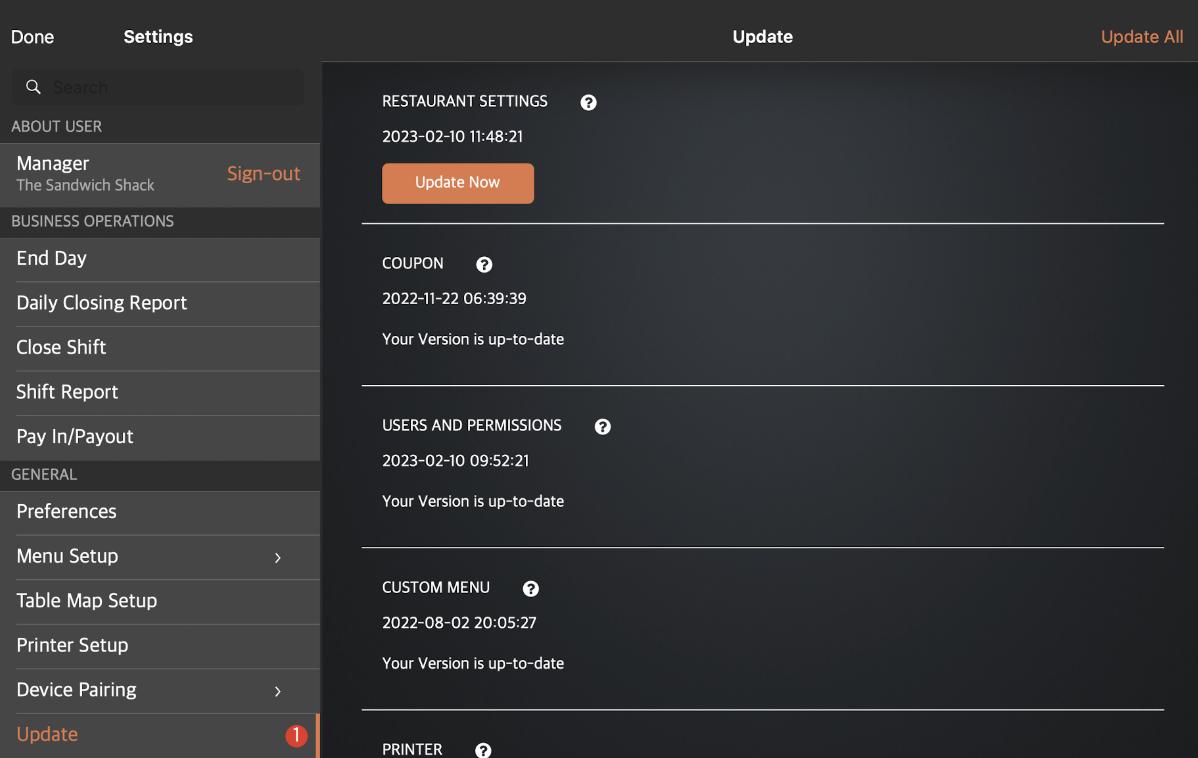
- At the top left, tap Settings
 .
. - Under "General," tap Update.
Tip: A red notification bubble appears to indicate the number of updates available.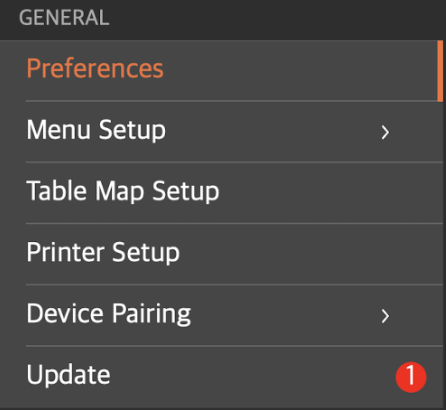
- At the top right, tap Update All. Alternatively, you can update each setting individually. Under the setting that you want to update, tap Update Now.