All

    Contact Us

    If you still have questions or prefer to get help directly from an agent, please submit a request.
    We'll get back to you as soon as possible.

    Please fill out the contact form below and we will reply as soon as possible.

    • Product
      • Eats365 Products
      • Merchant Guide
      • Modules
      • Membership
      • Integrations
      • Hardware
    • Operations
      • Staff Operations
      • Roles & Permissions
      • Payments
      • Reports
    • News
      • What’s New
      • Release Notes
    • Tools
      • Troubleshooting
      • Simulators
      • Glossary
      • Troubleshooter
      • System Status
    • Login
    English (US)
    English (US)
    Mandarin
    Cantonese
    • Product
      • Eats365 Products
      • Merchant Guide
      • Modules
      • Membership
      • Integrations
      • Hardware
    • Operations
      • Staff Operations
      • Roles & Permissions
      • Payments
      • Reports
    • News
      • What’s New
      • Release Notes
    • Tools
      • Troubleshooting
      • Simulators
      • Glossary
      • Troubleshooter
    Login
    • Home
    • Merchant Guide

    Menu Setup

    All Product

    Contact Us

    If you still have questions or prefer to get help directly from an agent, please submit a request.
    We’ll get back to you as soon as possible.

    Please fill out the contact form below and we will reply as soon as possible.

      • Explore Eats365 products
          • Explore the Eats365 POS interface
          • Restaurant service modes
        • Guides by restaurant type
            • Use Eats365 in a fine dining setup
            • Use Eats365 in a fast food setup
            • Use Eats365 in a casual dining setup
            • Use Eats365 in a specialty restaurant setup
            • Use Eats365 in an all-you-can-eat setup
      • Set up and Installation
          • Set up and install the Eats365 POS app
          • List of compatible devices
          • Connect an iPad to a network
          • Log in to the Eats365 Merchant Portal
          • Hardware Setup
      • Menu Setup
          • Set up and manage a Category (Full Service)
          • Set up and manage a Category (Quick Serve)
          • Set up and manage a Category (Food Court)
          • Set up and manage Product and Sub Product Type
          • Set up a Single Item (Full Service)
          • Set up a Single Item (Quick Serve)
          • Set up a Single Item (Food Court)
          • Set up a Combo Item (Full Service)
          • Set up a Combo Item (Quick Serve)
          • Set up a Combo Item (Food Court)
          • Set up Catering Items
          • Manage menu items
          • Set up and manage a Custom Menu
          • Set up a tax-inclusive menu
          • Set up and manage Modifiers
          • Set up and manage Modifier Masters
          • Set up and manage Modifier Presets
          • Set up and manage Tier Pricing Rules
          • Allocate item sales to different sales categories
          • Set up and manage a Kitchen Station
          • Set up a Pickup Station
          • Set up a Pickup Station (Food Court)
          • Customize the menu layout
          • Set up and manage Special Request Quick Keys
          • Set up and manage Menu Tags
          • View and manage Inventory
          • Set up courses
      • Table Map Setup
          • Set up and manage Areas and Tables
      • Restaurant Settings
          • Set up restaurant information
          • Restaurant Codes
          • Set up and manage Media Promotion
          • Set up and manage a Reporting Period
          • Create and manage Shop Tags
          • Enable SST Registration (Malaysia)
      • Dine-In Settings
          • Set up Dine-In settings (Full Service)
          • Set up Dine-In settings (Quick Serve)
          • Set up Dine-In settings (Food Court)
          • Configure Dining Time settings
          • Set up Self-checkout for dine-in orders
      • Takeout Settings
          • Set up Takeout settings
          • Set up Takeout settings (Food Court)
      • Catering settings
          • Set up Catering settings
      • Queuing Settings
          • Set up Queuing
          • Set up VIP Queuing
          • Set up Online Queuing
      • System Preferences
          • Manage General Preferences
          • Manage System Preferences (Full Service)
          • Manage System Preferences (Quick Serve)
          • Manage System Preferences (Food Court)
          • Set up and manage Ordering Quantity Limit
          • Modify Action Button options
          • Set up a Revenue Center
          • Enable Sequential Order Number
          • Configure Audit Log settings
          • Set up pre-checkout item prompts
      • Device Management
          • Set a primary POS
          • Reset the Eats365 POS
          • Update the Eats365 POS
          • Change POS device name
          • Configure POS to sign out automatically
          • Maintain restaurant operations using Offline Mode
          • Configure POS login preferences
          • Available features when in Offline Mode
          • Create a home screen shortcut for the Merchant Portal
      • Account Management
          • Change POS password
          • Change the Merchant Portal password
          • Change activation email or phone number
          • Switch between Merchant Portal themes
      • Reservation
          • Set up Reservation
      • Import Tools
          • How to use Import Tools
      • Time Sheets
          • Manage staff time sheet
      • Menu Template
          • Create and manage a Menu Template
          • Set up and manage a Location Group
          • Apply pricing changes to shops in a Location Group
      • Scan to Order
          • Set up Static QR code
          • Set up Dynamic QR Code
          • Configure Scan to Order settings (Full Service)
          • Configure Scan to Order settings (Quick Serve)
          • Configure Scan to Order settings (Food Court)
      • All You Can Eat Menu
          • Create an All You Can Eat Menu
          • Configure general All You Can Eat Menu settings
          • Enable All You Can Eat mode on the Eats365 POS
          • Set up a Menu Tier for All You Can Eat Menu
      • Food Court Settings
          • Add a vendor to a food court restaurant
          • Assign a vendor to a POS terminal (Food Court)
          • Set up unique menus for each food court vendor (Food Court)
          • Set up a centralized cashier (Food Court)

    Table of Contents

    Manage menu items

    Learn how to create and manage menu items on the Eats365 POS or on the Merchant Portal.

    This article discusses how to modify, delete, or create a copy of an existing item. For information on how to create a new item, refer to the following articles: 

    • Set up a Single Item (Full Service)
    • Set up a Single Item (Quick Serve)
    • Set up a Single Item (Food Court)
    • Set up a Combo Item (Full Service)
    • Set up a Combo Item (Quick Serve)
    • Set up a Combo Item (Food Court)
    • Set up Catering Items

    Update a menu item

    To modify an item, follow the steps below:

    Eats365 POS

    1. Log in to the Eats365 POS. 
    2. At the top left, tap Settings .
    3. Under "General," tap Menu Setup, then select Item.
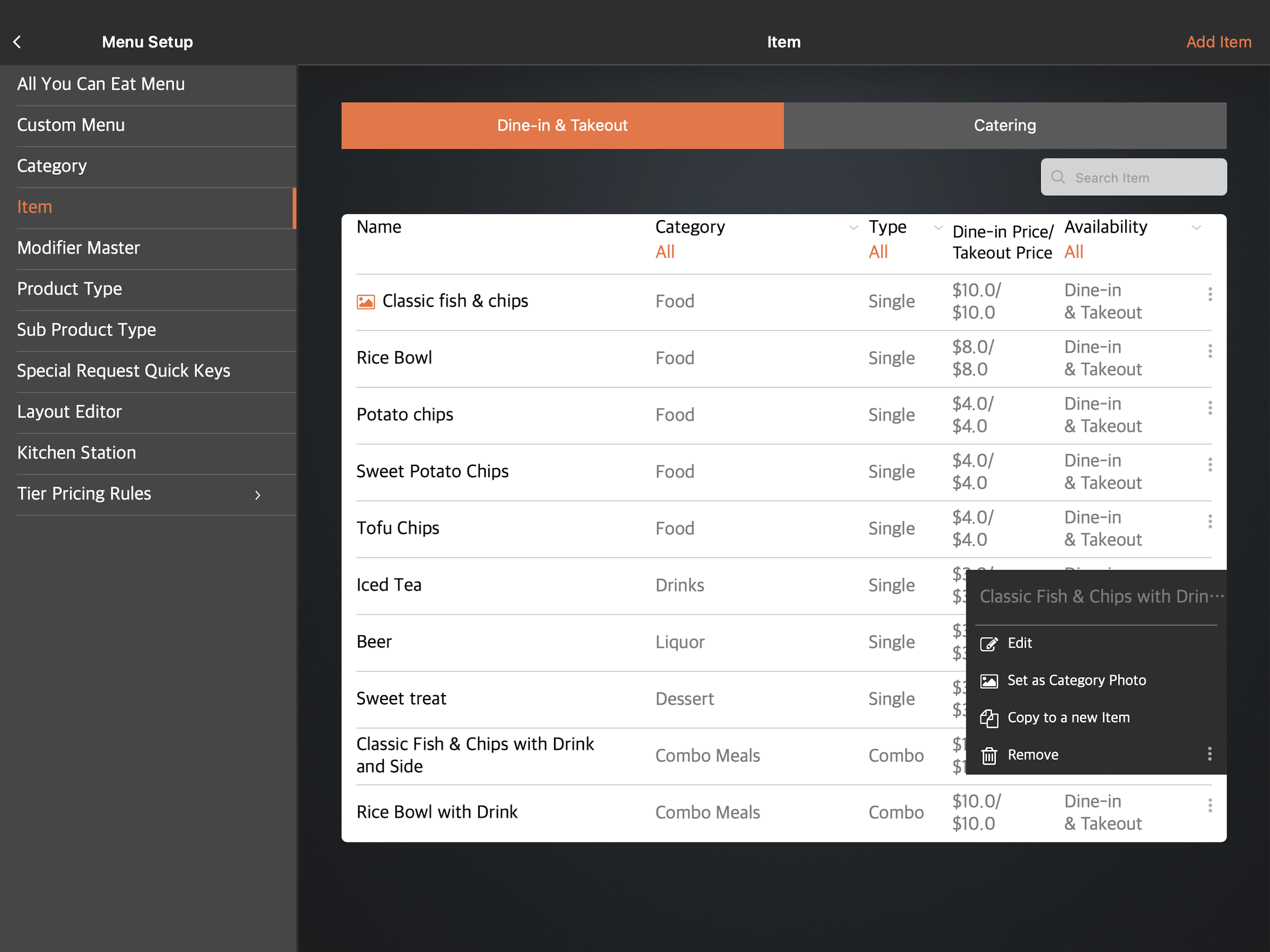
    4. Tap the item that you want to edit. You can also tap the three-dot menu, then tap Edit.
    5. Update the item.
    6. At the top right, tap Update to confirm.
    Delete

    Merchant Portal 2.0

    Delete

    Tip: To switch themes, at the top right, click on the account name. Then, select Back to Classic Theme.

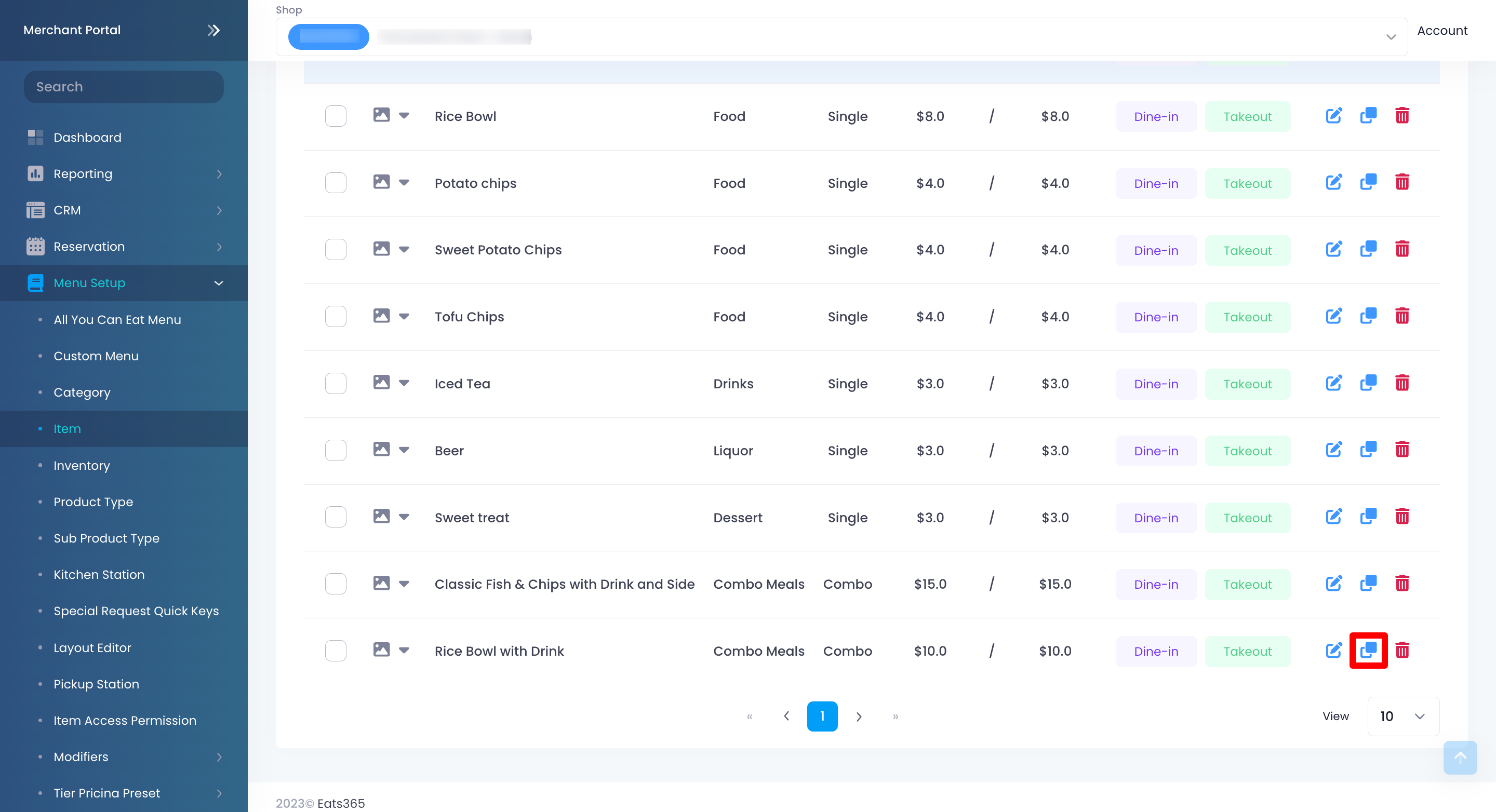
    1. Log in to the Merchant Portal. 
    2. On the left panel, click on Menu Setup, then select Item.
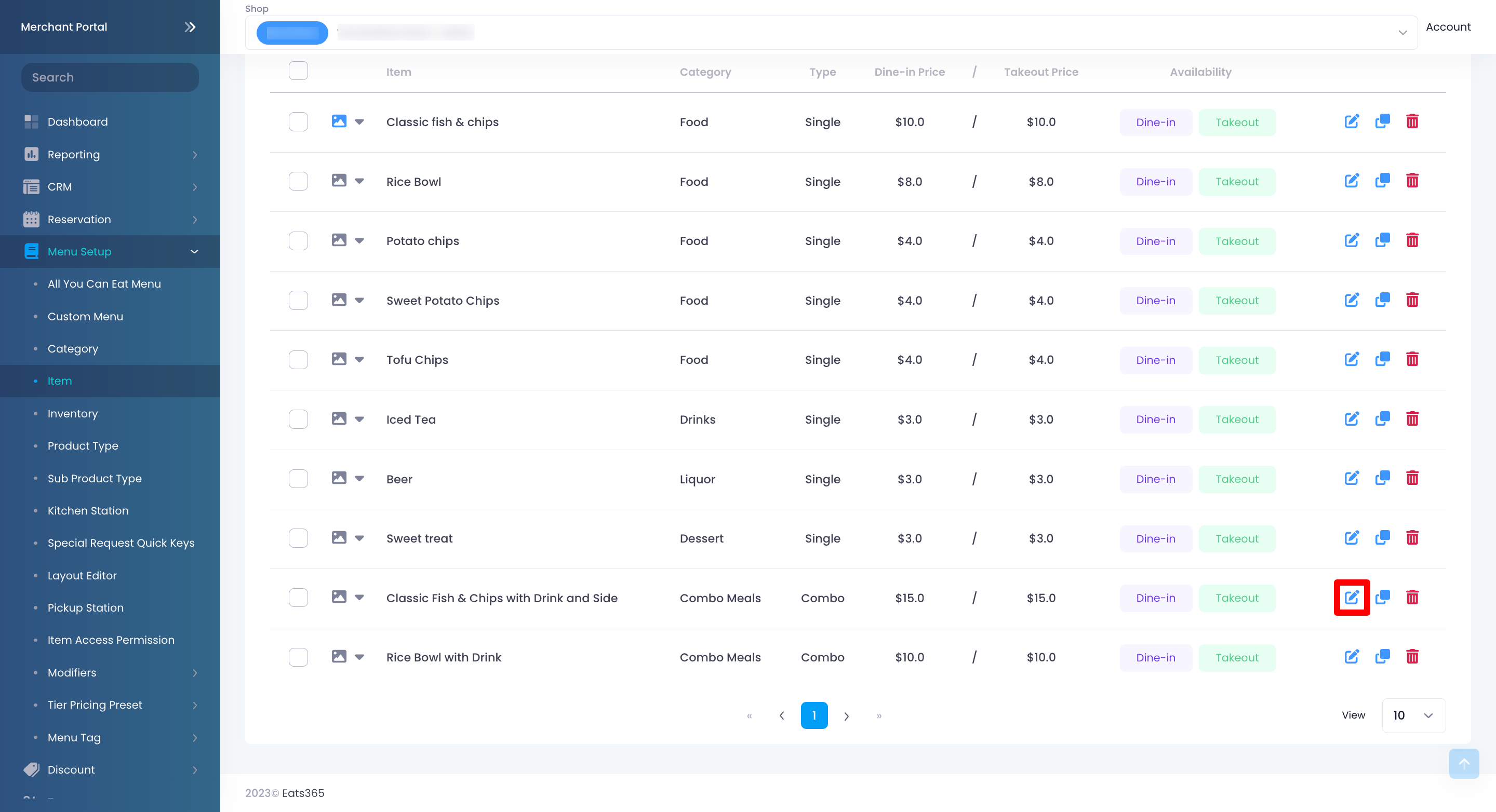
    3. Select the item that you want to edit. Then, click on Edit.
    4. Update the item.
    5. At the top right, click on Save to confirm.
    Delete

    Merchant Portal (Classic Theme)

    Delete

    Tip: To switch themes, at the top right, click on the account name. Then, select Experience Merchant Portal 2.0.

    1. Log in to the Merchant Portal.
    2. On the left panel, click on Menu Setup, then select Item.
    3. Select the item that you want to edit. Then, click on Edit .
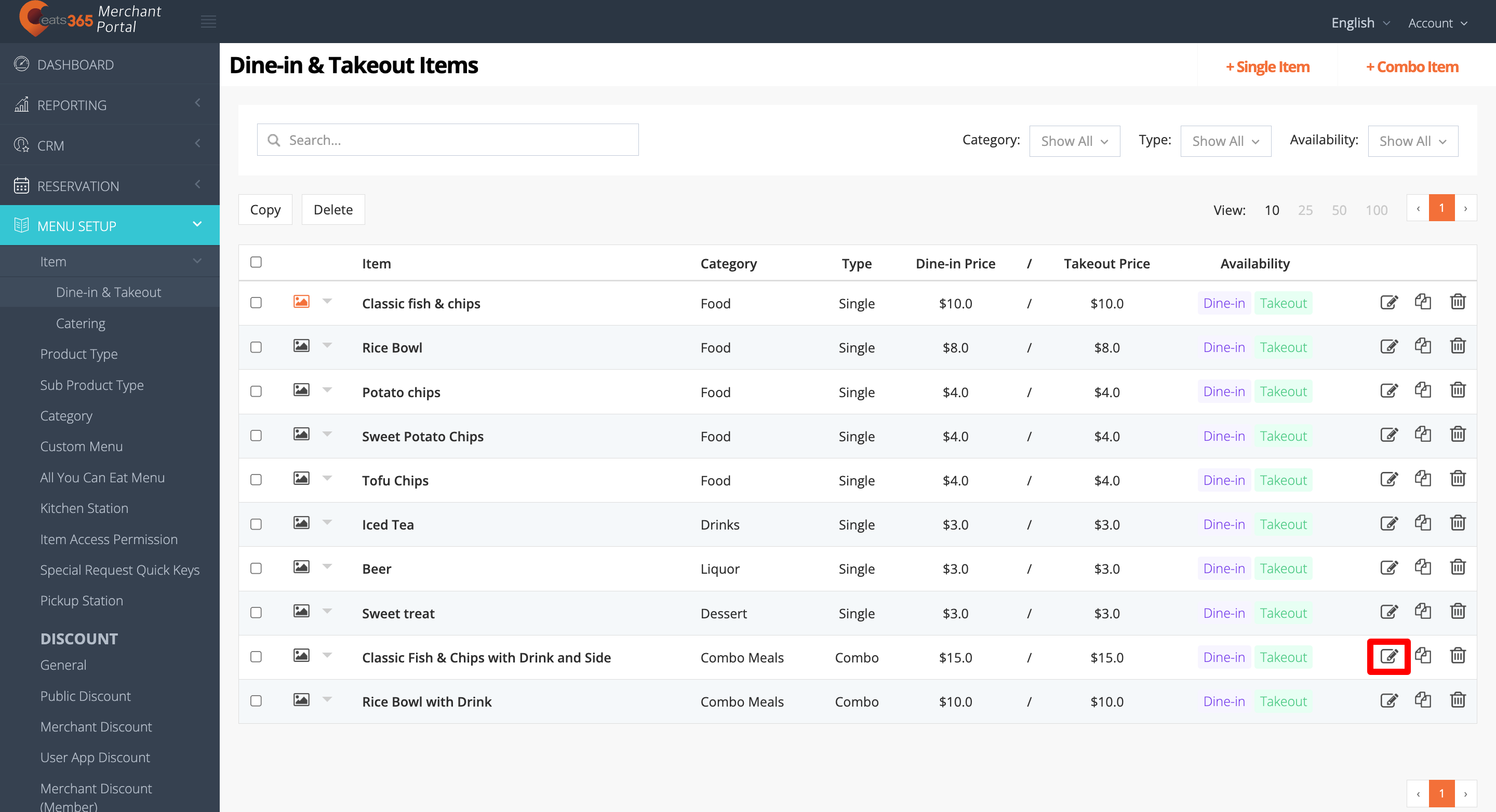
    4. Update the item.
    5. At the top right, click on Save to confirm.
    Delete

    Delete a menu item

    To remove an item, follow the steps below:

    Eats365 POS

    1. Log in to the Eats365 POS. 
    2. At the top left, tap Settings .
    3. Under "General," tap Menu Setup, then select Item.
    4. There are two ways to delete an item:
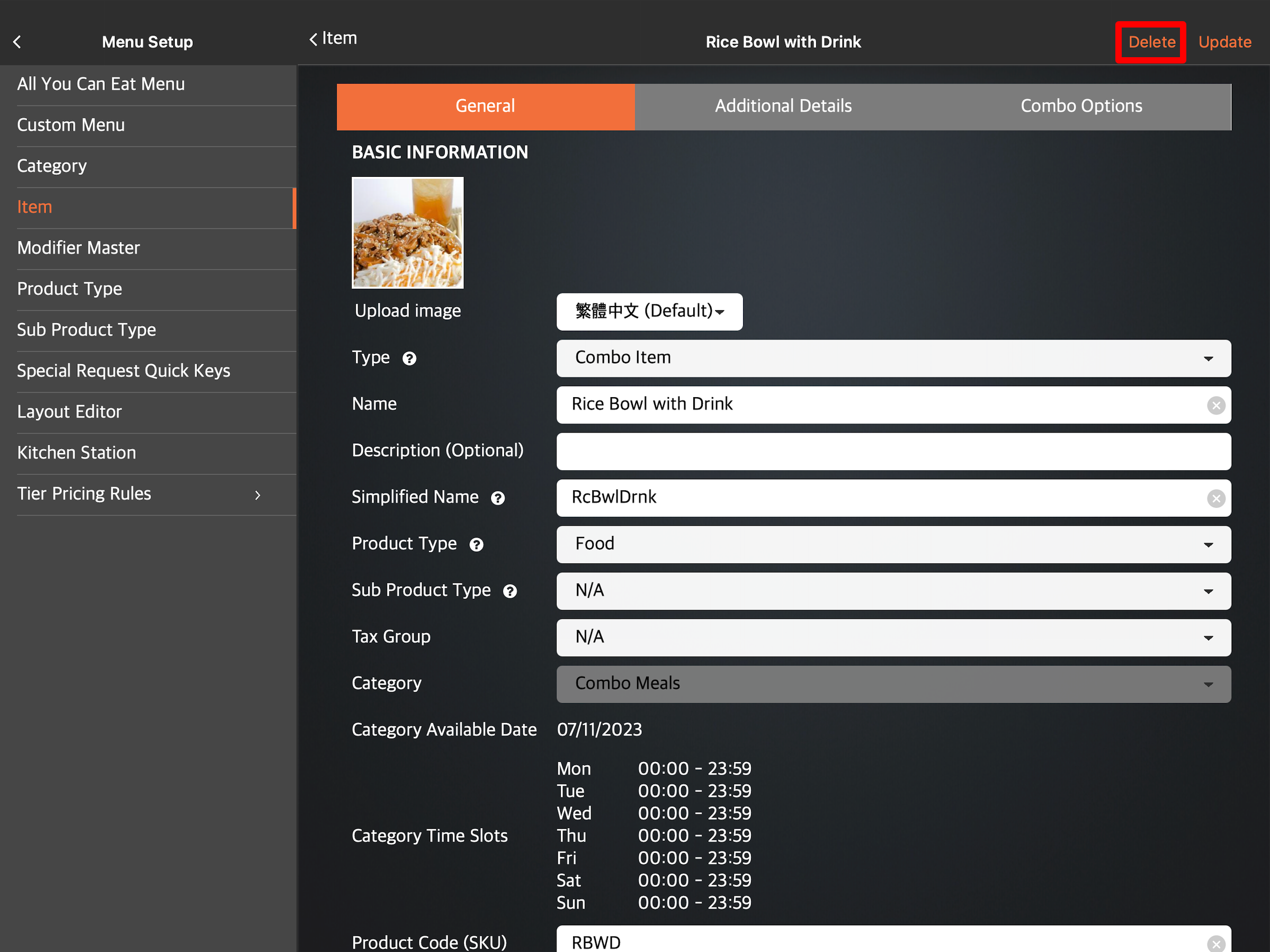
      • Tap the item you want to delete. At the top right, tap Delete. A prompt appears if you want to remove the item.
      • Tap the three-dot menu, then tap Remove. A prompt appears if you want to remove the item.
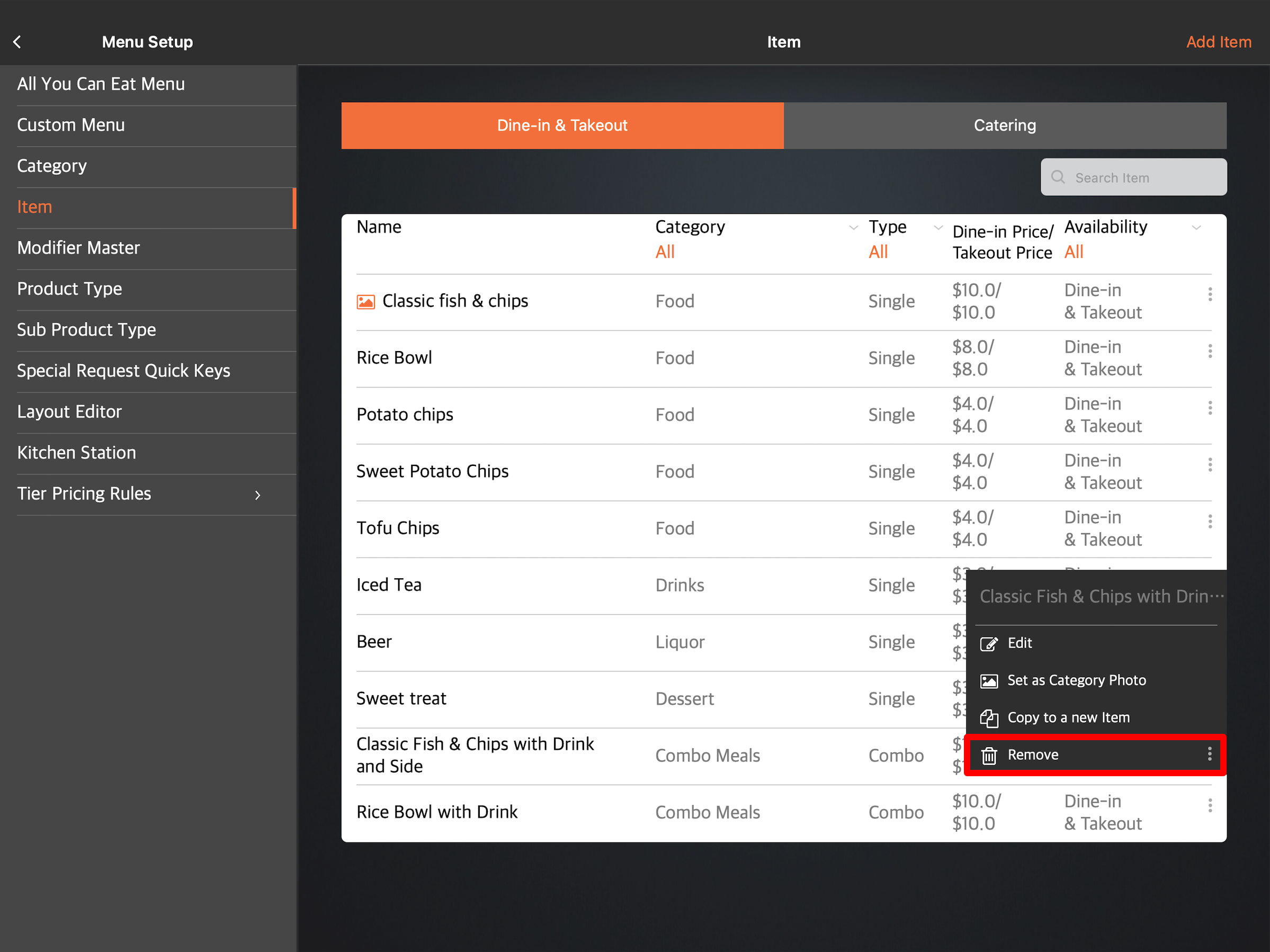
    5. Tap Delete to confirm.
    Delete

    Merchant Portal 2.0

    Delete

    Tip: To switch themes, at the top right, click on the account name. Then, select Back to Classic Theme.

    1. Log in to the Merchant Portal. 
    2. On the left panel, click on Menu Setup, then select Item.
    3. Select the item that you want to delete. Then, click on Delete. A prompt appears to confirm if you want to delete the item.
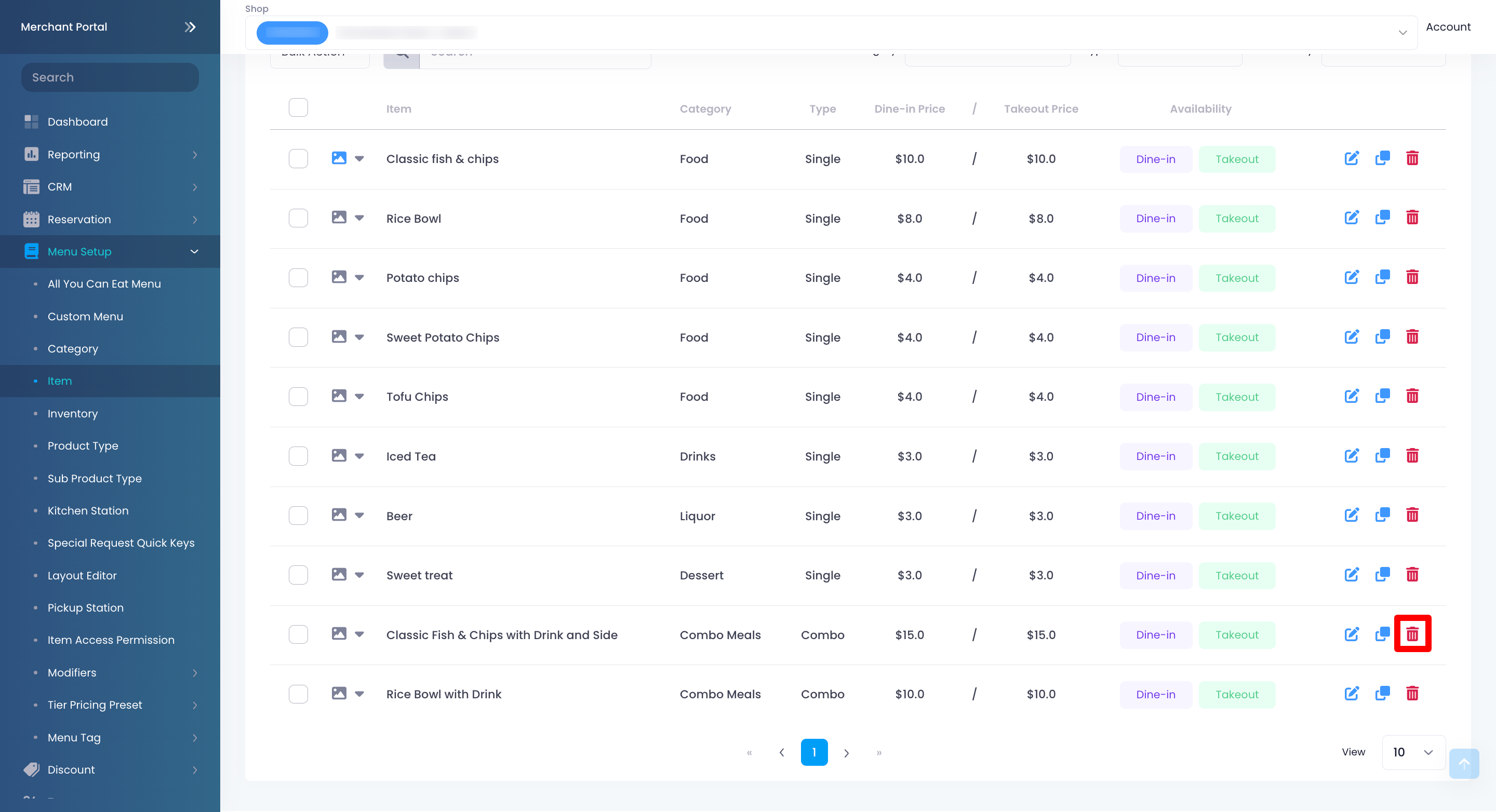
    4. Click on Confirm to delete.
    Delete

    Merchant Portal (Classic Theme)

    Delete

    Tip: To switch themes, at the top right, click on the account name. Then, select Experience Merchant Portal 2.0.

    1. Log in to the Merchant Portal.
    2. On the left panel, click on Menu Setup, then select Item.
    3. Select the item that you want to edit. Then, click on Delete . A prompt appears to confirm if you want to delete the item.
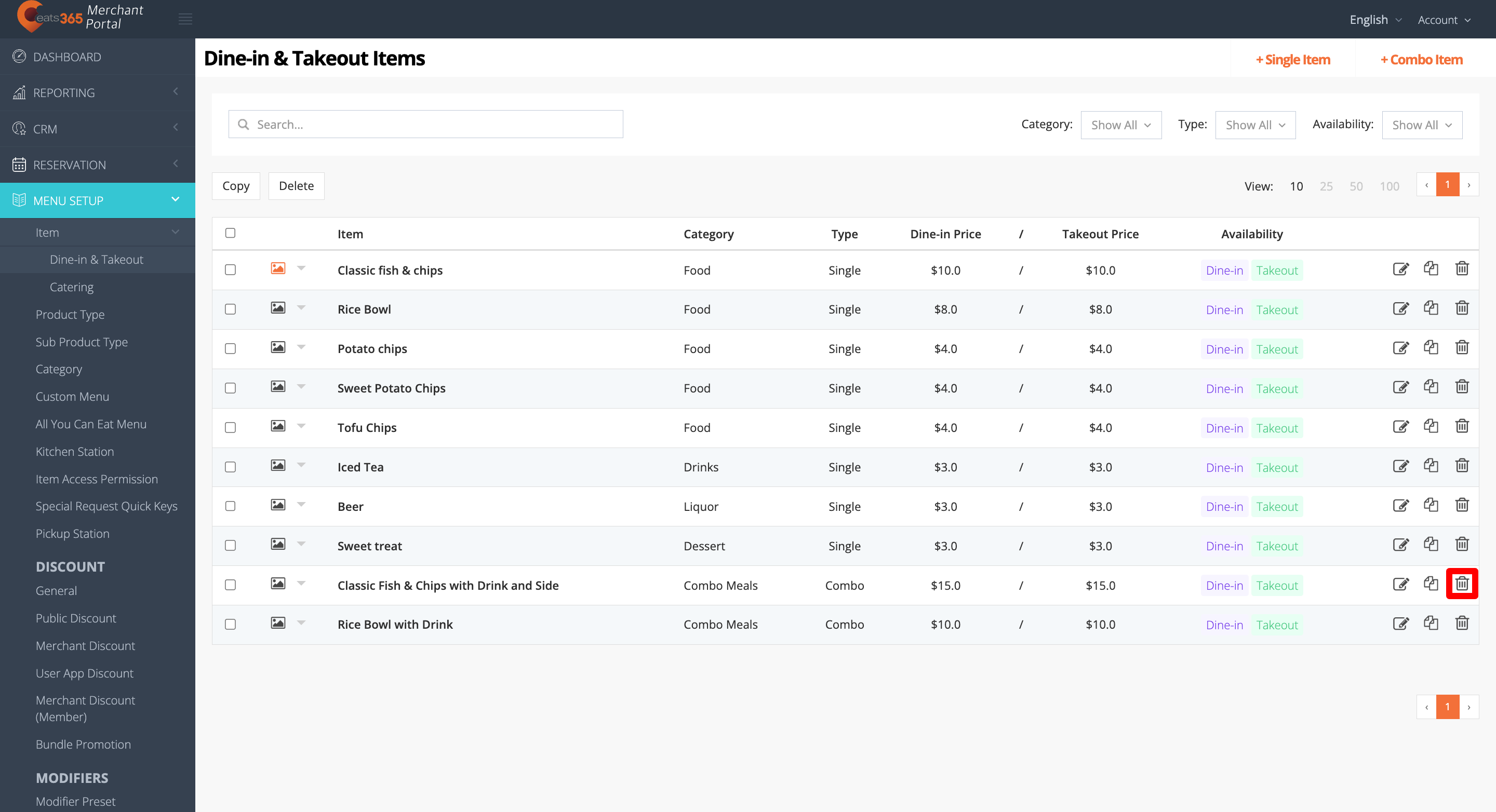
    4. Click on Confirm to delete.
    Delete

    Delete multiple items

    To delete multiple items simultaneously, follow the steps below:

    Merchant Portal 2.0

    Delete

    Tip: To switch themes, at the top right, click on the account name. Then, select Back to Classic Theme.

    1. Log in to the Merchant Portal. 
    2. On the left panel, click on Menu Setup, then select Item.
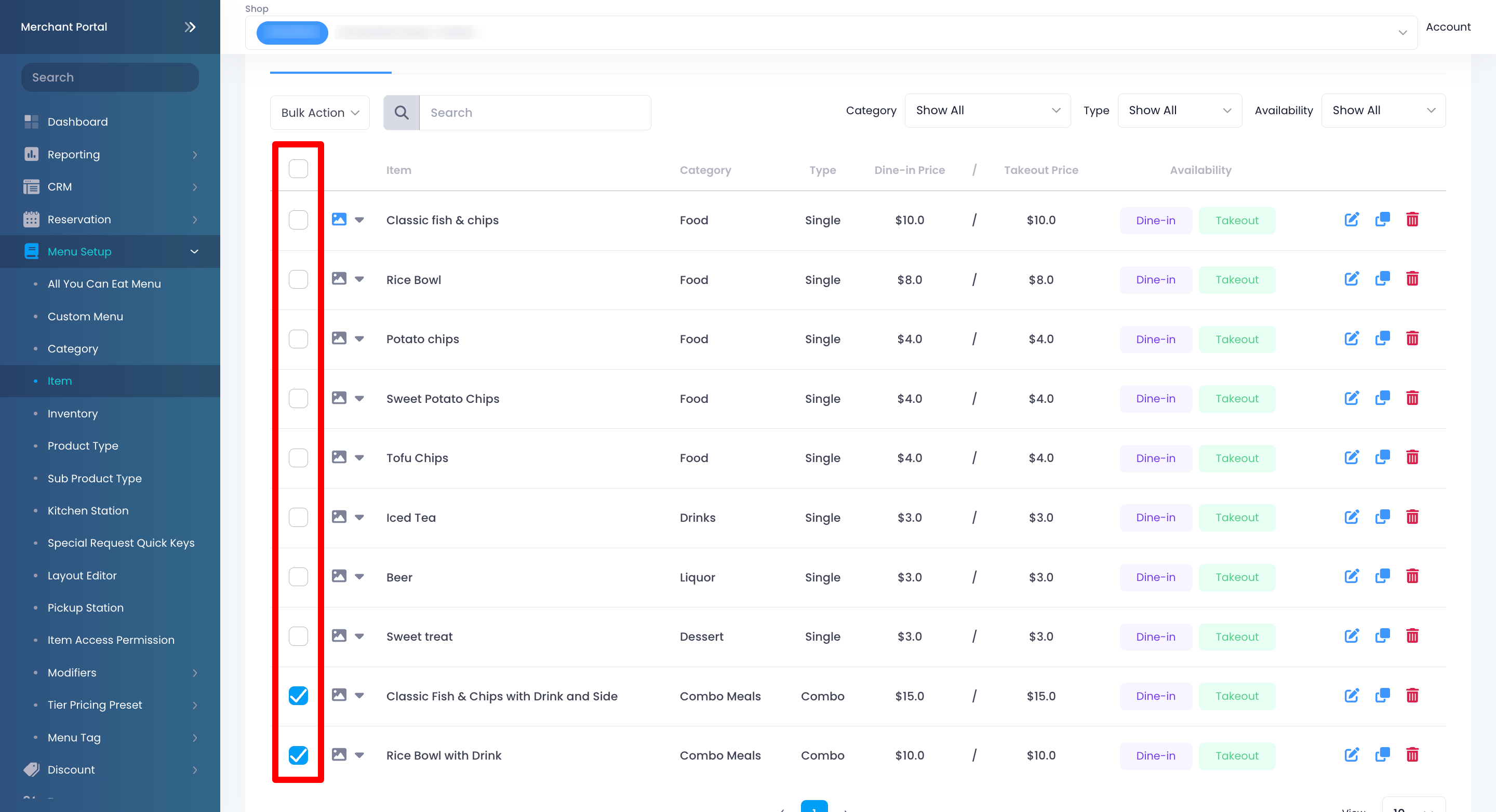
    3. Next to the items that you want to delete, click on the check box .
    4. From the bulk action drop-down list, click on Delete. A prompt appears to confirm if you want to delete the item. 
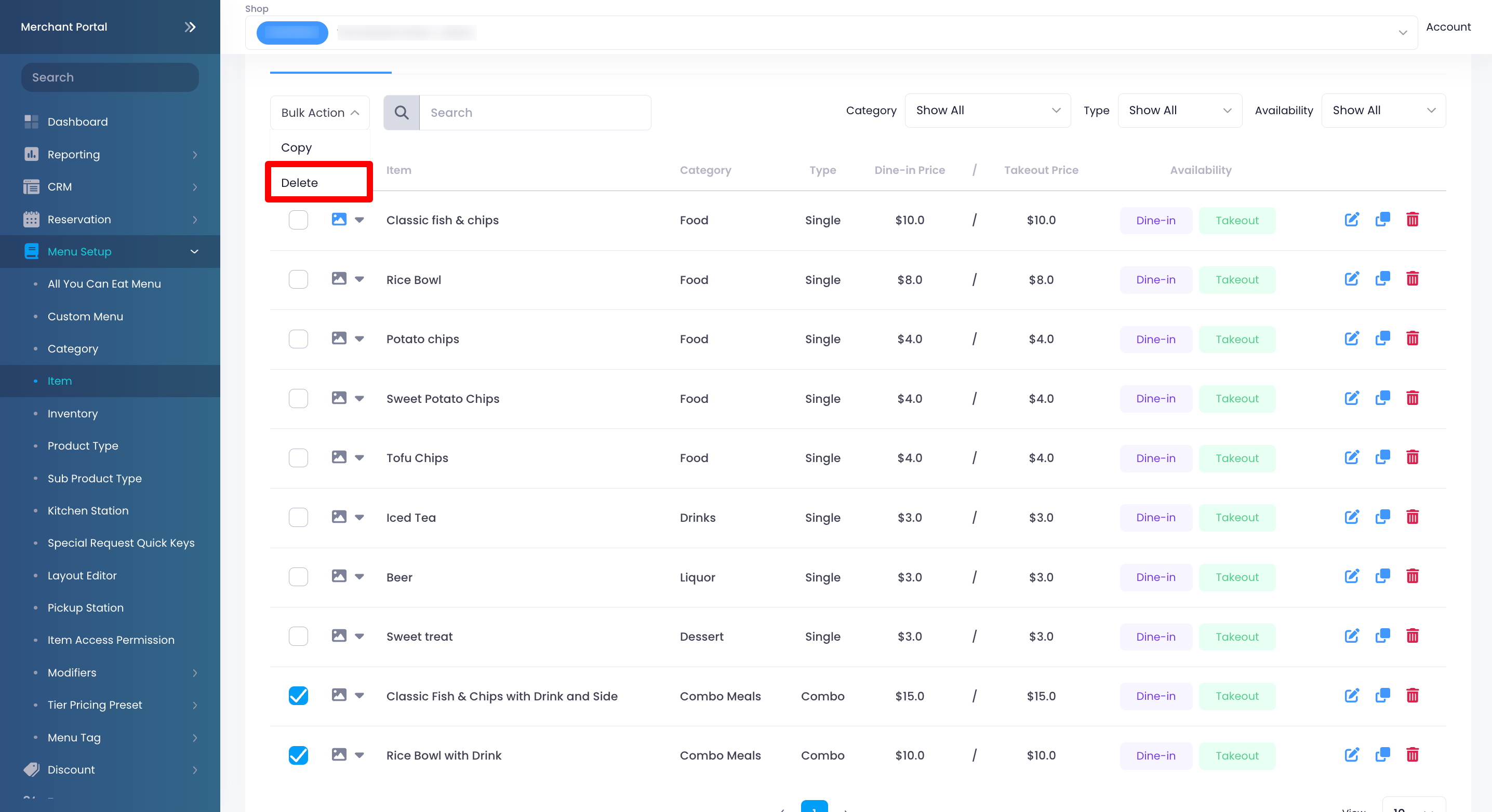
    5. Click on Confirm to delete.
    Delete

    Merchant Portal (Classic Theme)

    Delete

    Tip: To switch themes, at the top right, click on the account name. Then, select Experience Merchant Portal 2.0.

    1. Log in to the Merchant Portal.
    2. On the left panel, click on Menu Setup, then select Item.
    3. Next to the items that you want to delete, click on the check box.
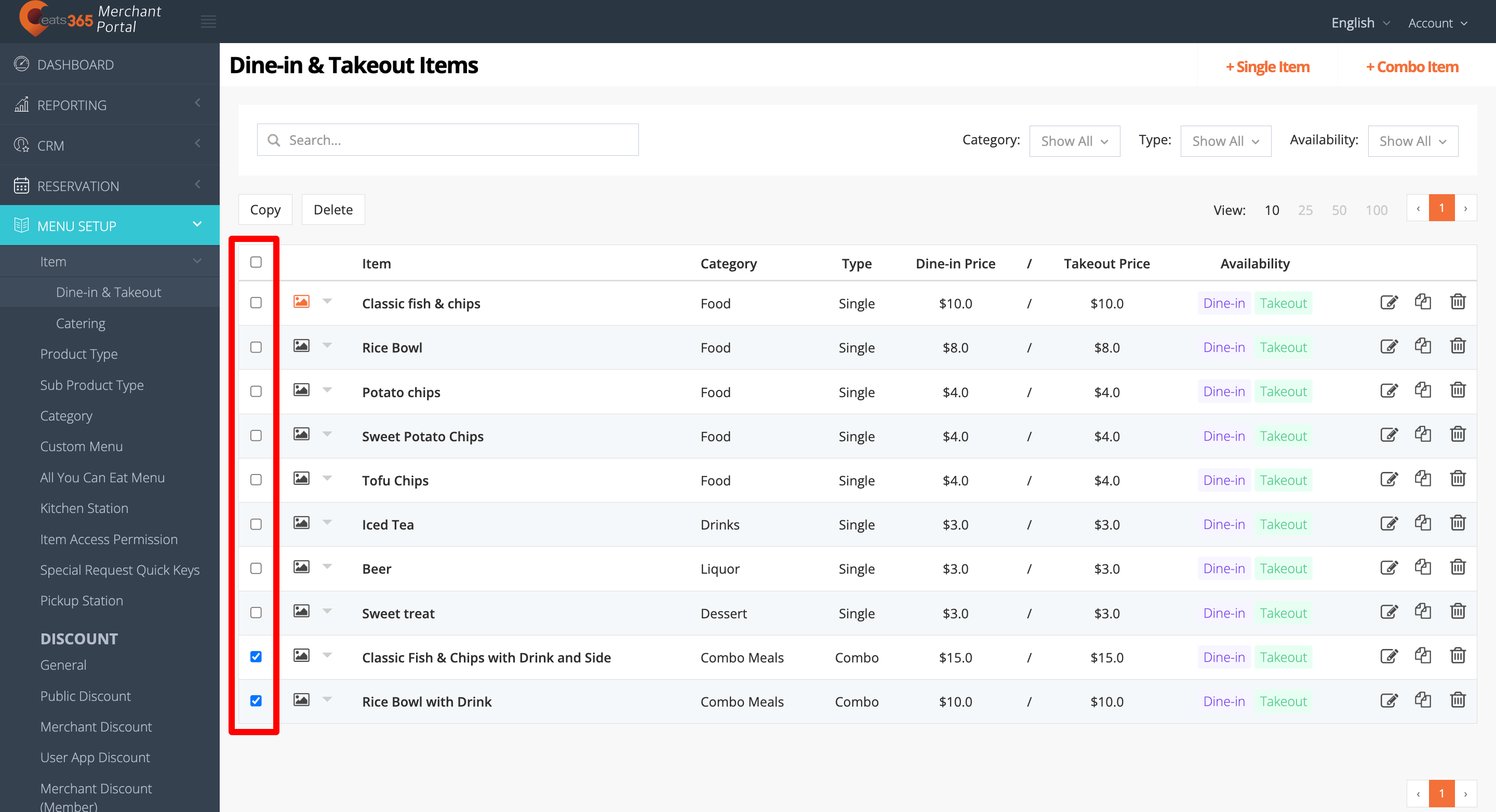
    4. At the top of the items, click on Delete. A prompt appears to confirm if you want to delete the item.
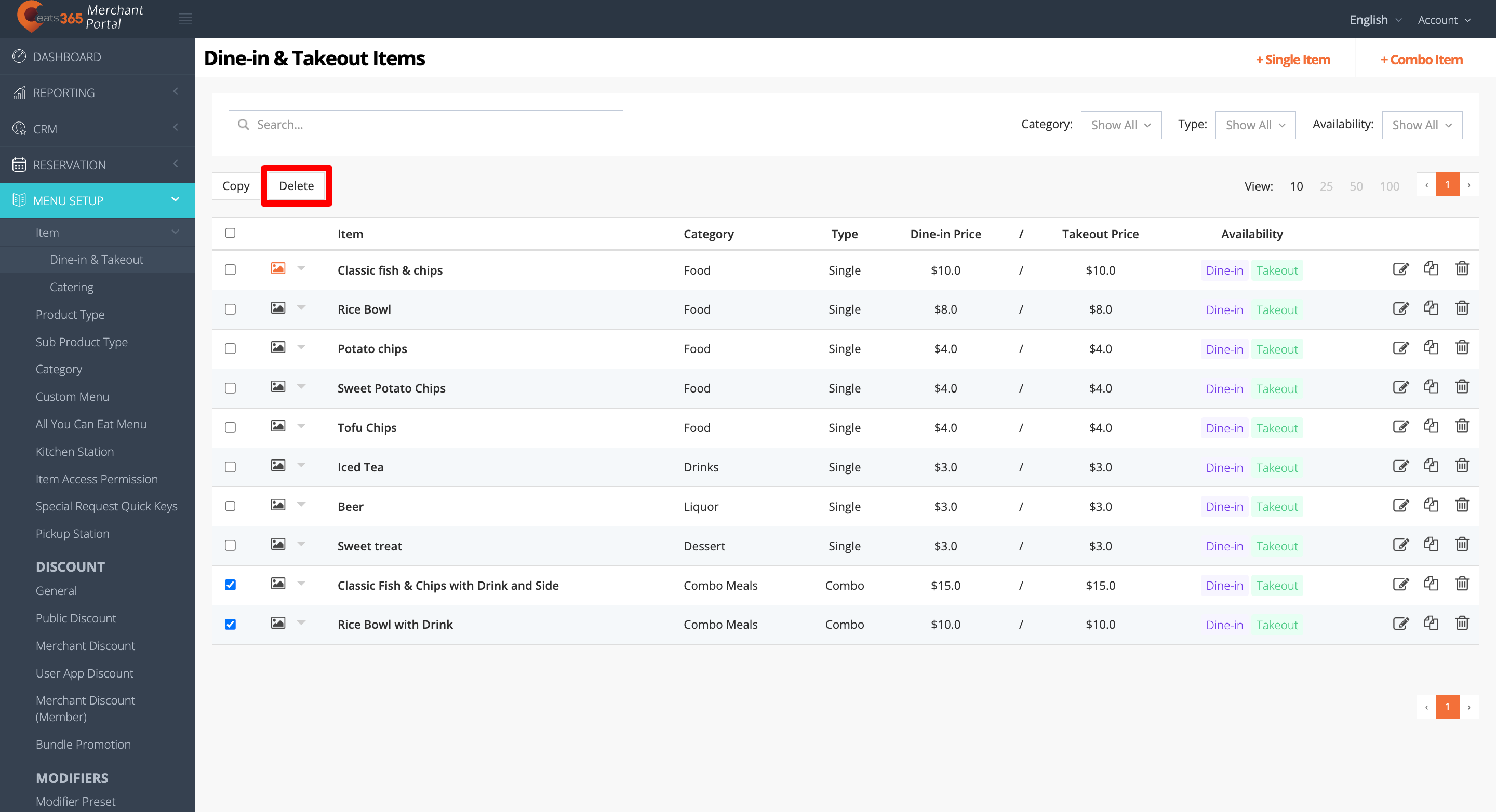
    5. Click on Confirm to delete.
    Delete

    Reorder items

    To rearrange your menu items’ sequence, follow the steps below: 

    Eats365 POS

    1. Log in to the Eats365 POS. 
    2. At the top left, tap Settings .
    3. Under "General," tap Menu Setup, then select Item.
    4. Tap the "Category" filter and select the category with the items that you want to reorder.

    5. Next to the item that you want to move, tap and hold Reorder . Then, drag the item in the order that you want it to appear.

    Delete

    Merchant Portal 2.0

    Delete

    Tip: To switch themes, at the top right, click on the account name. Then, select Back to Classic Theme.

    1. Log in to the Merchant Portal. 
    2. On the left panel, click on Menu Setup, then select Item.
    3. Click on the "Category" filter and select the category with the items that you want to reorder.

    4. Next to the item that you want to move, click and hold Reorder . Then, drag the item in the order that you want it to appear.

    Delete

    Merchant Portal (Classic Theme)

    Delete

    Tip: To switch themes, at the top right, click on the account name. Then, select Experience Merchant Portal 2.0.

    1. Log in to the Merchant Portal. 
    2. On the left panel, click on Menu Setup, then select Item.
    3. Click on the "Category" filter and select the category with the items that you want to reorder.
    4. Next to the item that you want to move, click and hold Reorder . Then, drag the item in the order that you want it to appear.
    Delete

    Create a copy of an item

    Duplicating an item is necessary in order to move the item to a different category. You won’t be able to do so unless you create a copy of the item. Once an item has been saved under a category, you won’t be able to change it from the Item settings.

    To create a copy of an item, follow the steps below:

    Eats365 POS

    1. Log in to the Eats365 POS. 
    2. At the top left, tap Settings .
    3. Under "General," tap Menu Setup, then select Item.
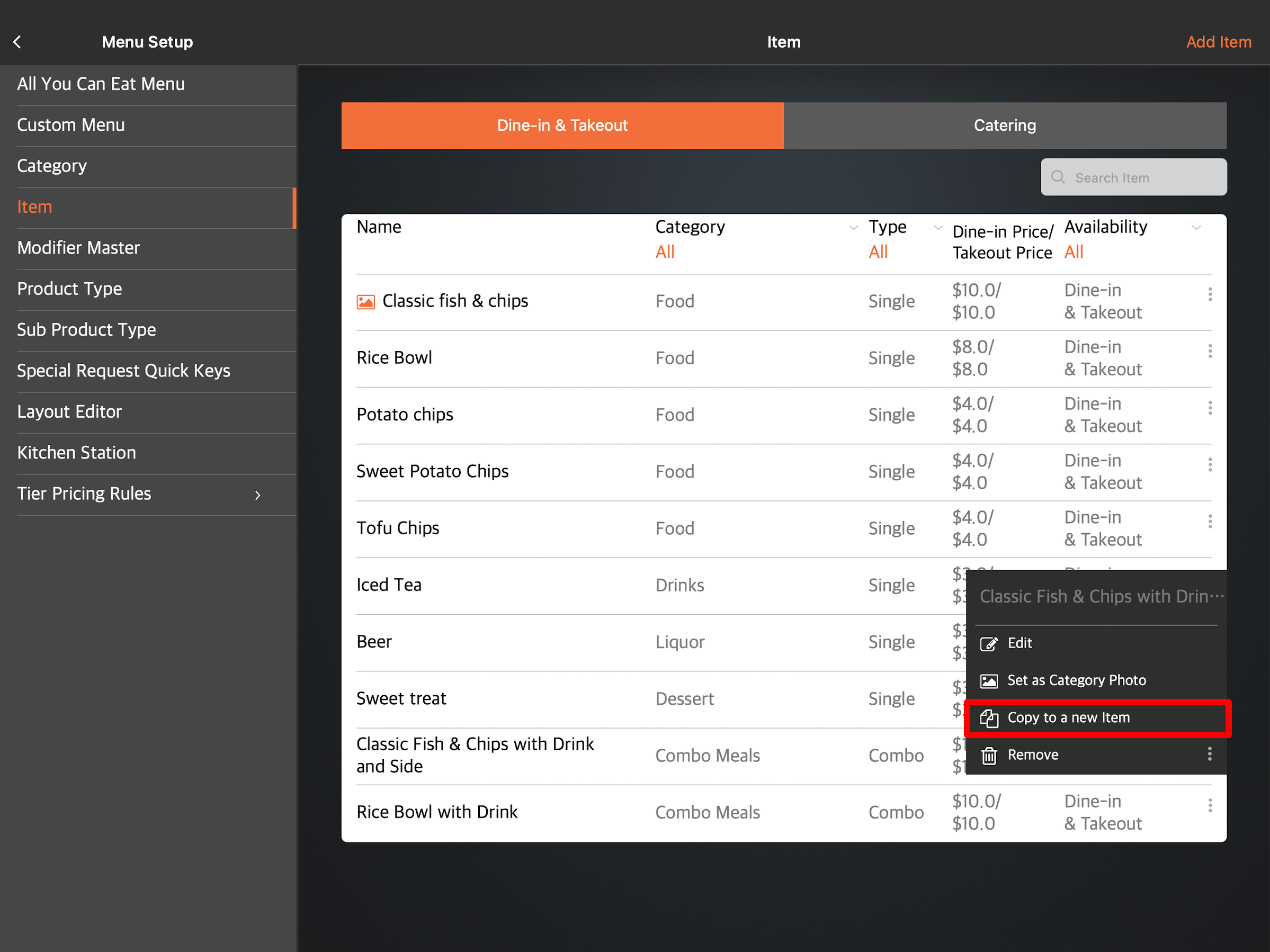
    4. Next to the item that you want to copy, tap the three-dot menu . Then, tap Copy to a new item .
    5. At the top right, tap Save to confirm.
    Delete

    Note: Make sure to update the item’s “Product Code” and “Item Code.” An item’s product code and item code should be unique and should not have any duplicates.

    Delete

    Merchant Portal 2.0

    Delete

    Tip: To switch themes, at the top right, click on the account name. Then, select Back to Classic Theme.

    1. Log in to the Merchant Portal. 
    2. On the left panel, click on Menu Setup, then select Item.
    3. Select the item that you want to copy. Then, click on Copy.
    4. Make your changes, if you have any.
    5. At the top right, click on Save to confirm.
    Delete

    Note: Make sure to update the item’s “Product Code” and “Item Code.” An item’s product code and item code should be unique and should not have any duplicates.

    Delete

    Merchant Portal (Classic Theme)

    Delete

    Tip: To switch themes, at the top right, click on the account name. Then, select Experience Merchant Portal 2.0.

    1. Log in to the Merchant Portal.
    2. On the left panel, click on Menu Setup, then select Item.
    3. Select the item that you want to edit. Then, click on Copy.
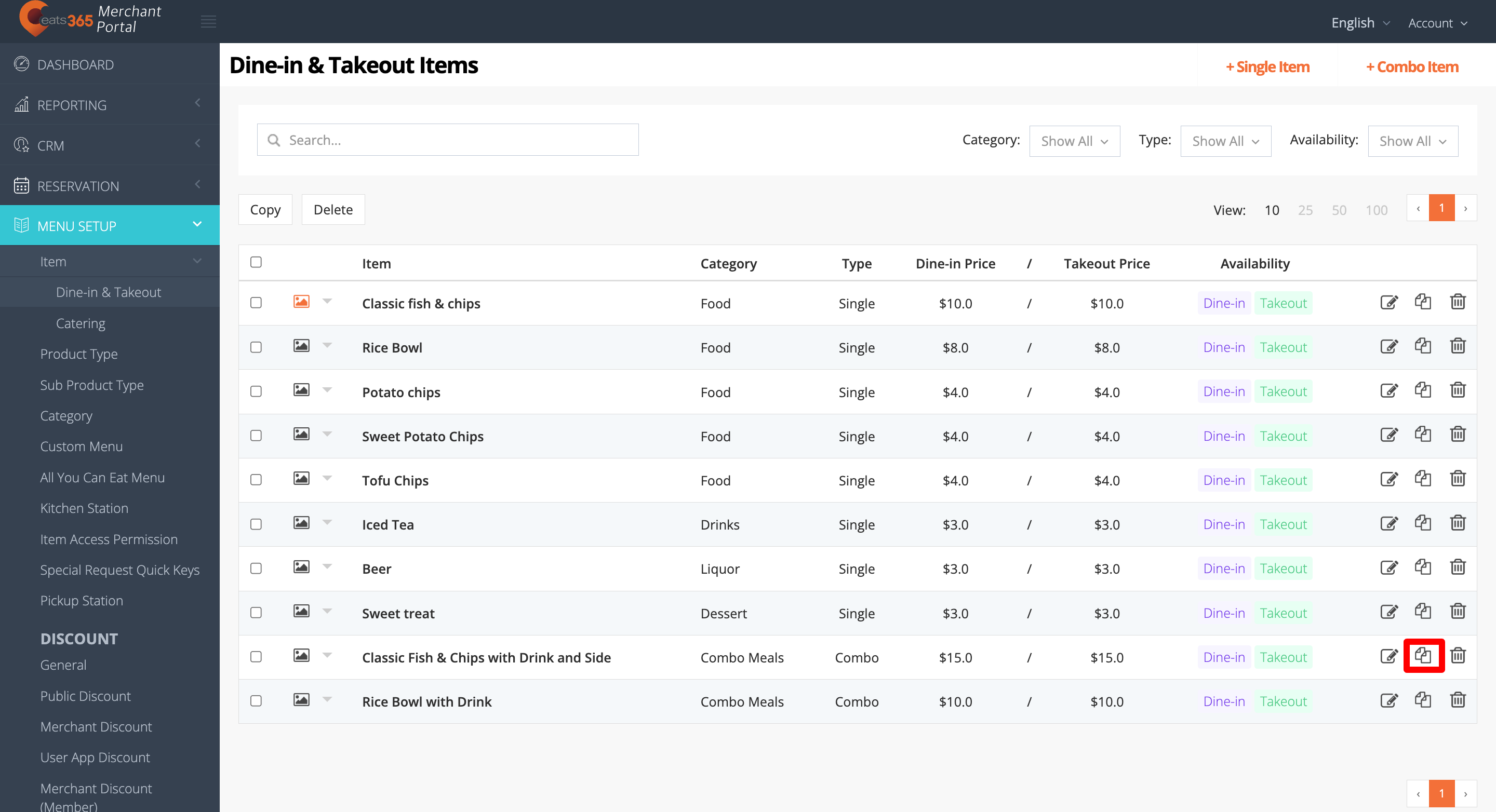
    4. Make your changes, if you have any.
    5. At the top right, click on Save to confirm.
    Delete

    Note: Make sure to update the item’s Product Code and Item Code. An Item’s Product Code and Item Code should be unique and should not have any duplicates.

    Delete

    Create a copy of multiple Items

    When you create a copy of multiple items, you’ll be able to change multiple settings on different items simultaneously. These settings include item “Category,” “Availability,” and “Roles and Permissions.”

    Delete

    Note: “Product Code,” “Item Code,” and “Item Barcode” won’t be copied when you create a copy of multiple items. You’ll need to update each one manually on its individual settings.

    To create a copy of multiple items, follow the steps below:

    Merchant Portal 2.0

    Delete

    Tip: To switch themes, at the top right, click on the account name. Then, select Back to Classic Theme.

    1. Log in to the Merchant Portal. 
    2. On the left panel, click on Menu Setup, then select Item.
    3. Next to the items that you want to copy, click on the check box.
    4. From the bulk action drop-down list, click on Copy.
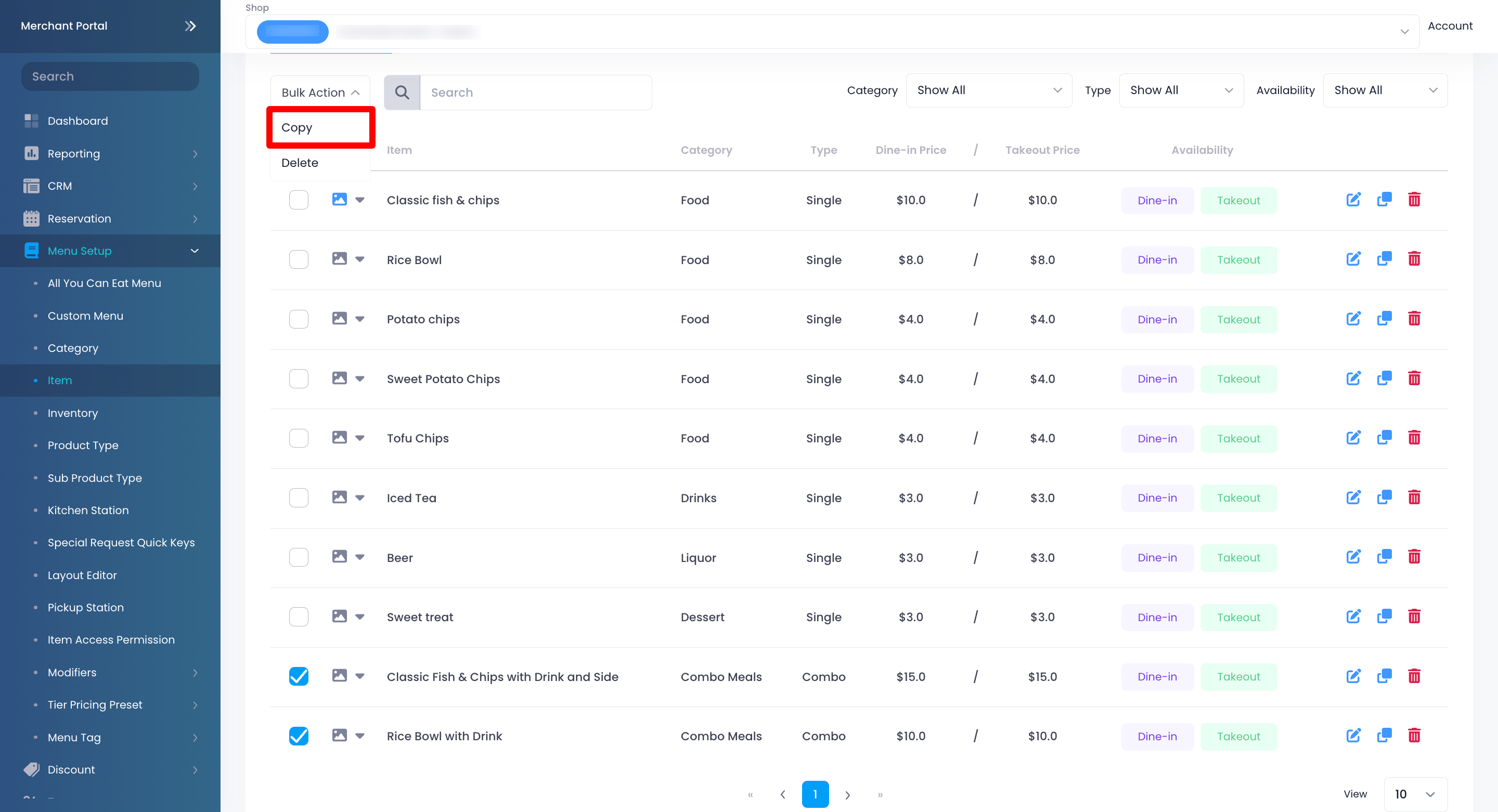
    5. Make your changes, if you have any.
    6. At the top right, click on Copy to confirm.
    Delete

    Merchant Portal (Classic Theme)

    Delete

    Tip: To switch themes, at the top right, click on the account name. Then, select Experience Merchant Portal 2.0.

    1. Log in to the Merchant Portal.
    2. On the left panel, click on Menu Setup, then select Item.
    3. Next to the items that you want to copy, click on the check box.
    4. At the top of the items, click on Copy.
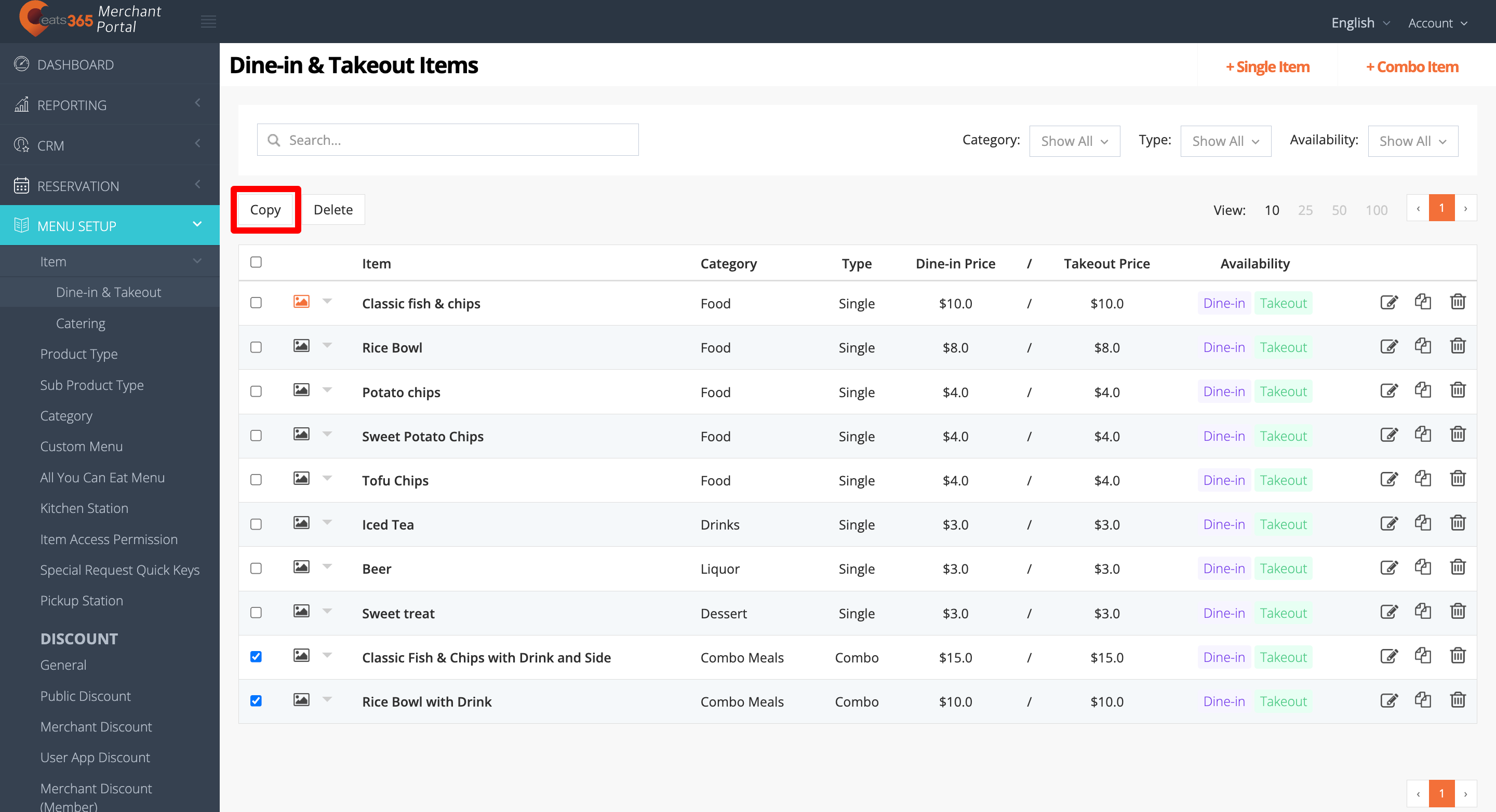
    5. Make your changes, if you have any.
    6. At the top right, click on Copy to confirm.
    Delete
    edit items delete items reorder items move items copy items manage items menu items combo items single items catering items

    Was this article helpful?

    Yes
    No
    Give feedback about this article

    Related Articles

    • Set up and manage a Custom Menu
    • Set up and manage a Category (Full Service)
    • Set up a Single Item (Full Service)
              • Products
                • POS
                • mPOS
                • Eats365 Biz
                • Eats365 Marketplace
                • Branded Online Store
                • Kitchen Display System
                • Expedite Display
                • Scan-to-Order (BYOD)
                • Self-Service Kiosk
                • PhotoMenu
                • Queue Kiosk
                • Dynamic Digital Menu
                • Queue Display
                • Pickup Display
                • Customer Facing Display
              • Solutions
                • Online Ordering
                • Contactless Dining
                • Front of House
                • Guest Retention
                • Back of House
                • Back Office (Store End)
                • Multi-brand/Location Management (Enterprise)
                • Paperless Operation Experience
                • Payment
              • Restaurant Types
                • Quick Service Restaurant
                • Full Service Restaurant
                • Bars
                • Food Court
                • Cloud Kitchen
                • Food Retail
                • Self-service Restaurant
                • Enterprise
                • All-You-Can Eat (Buffet)
              • Resources
                • Eats365 Knowledge Base
                • Blog
                • Supported Hardware
              • Company
                • About Us
                • Success Stories
                • Referrals
              • Get In Touch
              • Contact Us
                • Eats365, Inc.
                • Sales info@eats365.com
                • Support support@eats365.com
          • Contact Us
            • Eats365, Inc.
            • info@eats365.com
            • www.eats365pos.com
          • Get In Touch
            • Apple Mobility Partner
              twitter facebook eats365 linkedin
          • eats365
            © 2023 Eats365 Incorporated. All rights reserved.

    Knowledge Base Software powered by Helpjuice

    Expand