 Eats365 Products
 Merchant Guide
 Modules
 Membership
 Integrations
 Hardware
 Staff Operations
 Roles & Permissions
 Payments
 Reports
 What’s New
 Release Notes
 Troubleshooting
 Simulators
 Glossary
 Troubleshooter
 System Status
Menu Setup
Table of Contents
Set up a Single Item (Food Court)
Learn how to create single items for Food Court restaurants on the Eats365 POS or on the Merchant Portal.
“Single Items” refer to the individual items that you offer on your menu. These single items can be listed on the menu as “à la carte” items, or can be combined with other single items to create combo options.
In this article, you’ll learn how to create single items for dine-in and takeout orders on the Eats365 POS and the Merchant Portal. For information on how to manage existing menu items, refer to Manage menu items.
Add a single item
To create an item, follow the steps below:
Eats365 POS
- Log in to the Eats365 POS.
-
At the top left, tap Settings
 .
.
- Under "General," tap Menu Setup, then select Item.
-
At the top right, tap Add Item.

-
Select Single Item as the "Item Type."

- Enter the single item’s information and configure your preferred settings.
- At the top right, tap Save to confirm.
You can add the single item’s information or change these settings on the POS:
General
Upload image
Upload an image of the item.
Language
Set the language for the menu item.
Type
Select the type of item that you want to create. To create a single item, select Single Item.
Name
Enter the item name.
Description (Optional)
Add a description of the item.
Simplified Name
Create a simplified name for the item. Simplified names are used when printing kitchen tickets.
Product Type
Select the product type to which the item belongs.
Sub Product Type
Select the sub product type to which the item belongs.
Tax Group
Add a tax group to the item.
Category
Select the category to which the item belongs.
Product Code (SKU)
Assign a specific product code to the item. The product code is generally used for system integrations such as for ERP and Inventory System integrations. System reports can also group items from different restaurant branches with the same product code as the same item for consolidated analysis.
Item Code
Assign a specific item code to the item. The item code can be used to add the item to an order.
Item Barcode
Add the item’s barcode. When an item has a Global Trade Item Number (GTIN) item barcode on its packaging, input the value of that barcode in this setting.
Reporting ID
Assign a specific reporting ID to the item. This allows the system to group items with same reporting ID as the same item for consolidated analysis.
Excluded from Discount
Enable this setting to restrict applying any discount to this item.
Apply Discount to Item's Base Price Only
Enable this setting to apply discounts to the item's base price only. Combo options and modifiers with an add-on price won't be included in the discount.
Exempt Order Surcharge
Enable this setting to restrict applying surcharge to this item by default.
Non Sales Item
Enable this setting to include non-sales items in various reports under the “Non Sales Summary” section.
Available Date
Select the start and end date for the availability of the item.
Dining Type
Select the dining type where the item becomes available.
Available for
Select if you want the item to be available for dine-in, takeout, or both.
Next Operation Period Pre-Order
Enable this setting to make the item available for next operation period pre-order.
Pricing Method
Choose how you want the item to be priced. You can choose from the following pricing methods:
| Pricing method | Best used for |
|
Fixed Price The most common pricing method. This allows you to set a specific price for an item, which is displayed directly on the ordering screen. Tip: If you are using barcodes for fixed price items, input the item's GTIN barcode on the "Item Barcode" field. |
Suitable for items with standard pricing Example:
|
|
Priced in Shop This method offers greater flexibility by enabling staff to manually enter the price of an item at the time of ordering. |
Suitable for items with variable pricing, such as seasonal items or market price items, which may change per day. Example:
|
|
Priced by embedded barcode (weight) The embedded barcode contains the weight information instead of the price. When scanned, the POS system extracts the product code and calculates the final cost by multiplying the item's pre-set unit price by the scanned weight. For example, if a deli meat is priced at $15 per kilogram, the system automatically calculates the price based on the weight encoded in the barcode. To configure the setting, enter the following values:
Note: The base price you set determines the rate used to calculate the final price of an item based on its weight. For example, if you set the price to $10 per 1kg, an item weighing 2kg will automatically be priced at $20 upon scanning. |
Suitable for items sold by weight, such as meats, cheeses, or bulk goods. Example: 1 kg of cheese - $5 per kg If a customer orders 2kg of cheese, the total price becomes $10. |
|
Priced by embedded barcode (price) The embedded barcode shows the final price information instead of the weight. When scanned, the POS reads the final price from the barcode and charges that amount directly. Depending on your preferred setup, you can choose to add the unit price and weight of the item or display the price embedded in the barcode upon scanning. To add the unit price and weight, enable Unit Price
Note: The price you set determines the base price to calculate the final price of an item based on its weight. |
Suitable for pre-weighed items. Example: Pre-wrapped meat - $5, 1kg The item is already priced at $5. Once the barcode is scanned, the POS will add the amount to the order. |
 . Then, enter the following values:
 List Price
Set how much you want to sell the item. You can set different prices for dine-in and takeout.
Tier Prices
Adjust the price of your menu items depending on set conditions such as the time, day, membership plans, or third-party delivery integrations. For more information, refer to Set up and manage Tier Pricing Rules.
Include in Combo Items
Select the combo option where you want the item to be included.
DeleteAdditional Details
Cost
Add the cost of the item’s raw materials.
Recommended
Select Yes to make the item appear as a promoted item on various Eats365 modules.
Inventory Tracking
Enable this setting to limit the number of items to be sold. The item appears as “Sold Out” in the POS when the item quantity reaches zero.
Print to Kitchen
Select Yes to print the item on the printer located in the kitchen station you set.
Kitchen Station
Assign the item to a kitchen station. This setting determines which kitchen printer the item gets printed on.
Category’s Permission
View the permissions set on the category where the item is assigned.
Access Permission
Enable or disable access from applications.
Website Permission
Enable or disable access to the following service types from the Branded Online Store.
- Dine-In
- Takeout
- Delivery
Role Access Permission
Enable or disable item access for different staff roles.
DeleteMerchant Portal
- Log in to the Merchant Portal.
- On the left panel, click on Menu Setup, then select Item.
- At the top right, click on +Single Item.

- Enter the single item’s information and configure your preferred settings.
- At the top right, click on Save to confirm.
You can add the single item’s information or change these settings on the Merchant Portal:
General
Item image
Upload an image of the item.
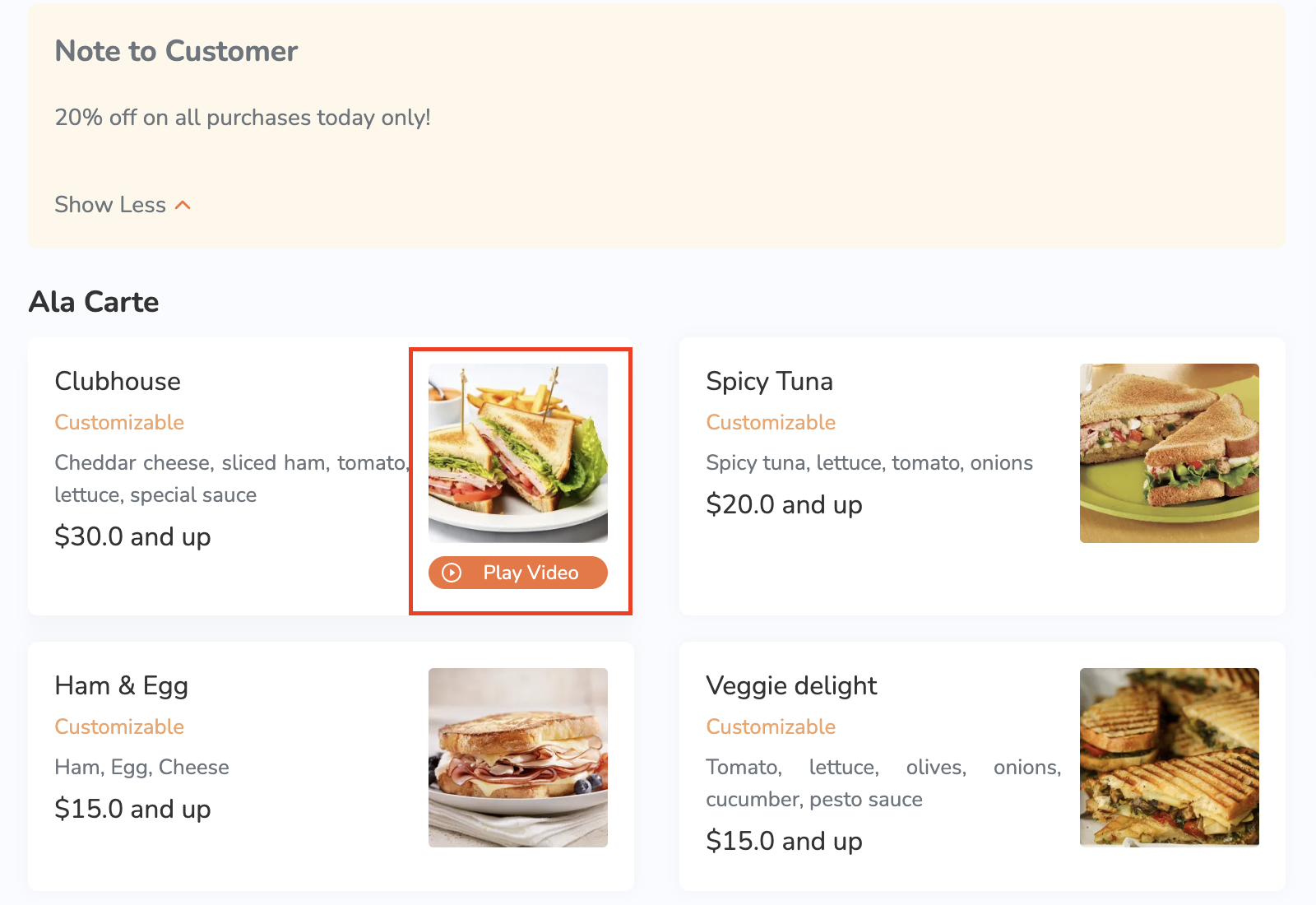
Item Details Page Media
Upload multiple images or a video that will appear on the branded online store.
Type
Select the type of item that you want to create. To create a single item, select Single Item.
Name
Enter the item name per language.
Description
Enter the item description per language.
Simplified Name
Create a simplified name for the Item. Simplified names are used when printing kitchen tickets.
Product Type
Select the product type to which the item belongs.
Sub Product Type
Select the sub product type to which the item belongs.
Tax Group
Add a tax group to the item.
Category
Select the category to which the item belongs.
Product Code (SKU)
Assign a specific product code to the item. The product code is generally used for system integrations such as for ERP and Inventory System integrations. System reports can also group items from different restaurant branches with the same product code as the same item for consolidated analysis.
Item Barcode
Add the item’s barcode. When an item has a Global Trade Item Number (GTIN) item barcode on its packaging, input the value of that barcode in this setting.
Item Code
Assign a specific item code to the item. The item code can be used to add the item to an order.
Item Code (Reporting)
Assign a specific reporting ID to the item. This allows the system to group items with same reporting ID as the same item for consolidated analysis.
Exclude from Discount
Enable this setting to restrict applying any discounts to this item.
Apply Discount to Item's Base Price Only
Enable this setting to apply discounts to the item's base price only. Combo options and modifiers with an add-on price won't be included in the discount.
Exempt Order Surcharge
Enable this setting to restrict applying surcharge to this item by default.
Available Date
Select the start and end date for the availability of the item.
Available For
Select if you want the Item to be available for dine-in, takeout, or both.
Non Sales
Enable this setting to include non-sales items in various reports under the “Non Sales Summary” section.
Next Operation Period Pre-Order
Enable this setting to make the item available for next operation period pre-order.
Pricing Method
Choose how you want the item to be priced. You can choose from the following pricing methods:
| Pricing method | Best used for |
|
Fixed Price The most common pricing method. This allows you to set a specific price for an item, which is displayed directly on the ordering screen. Tip: If you are using barcodes for fixed price items, input the item's GTIN barcode on the "Item Barcode" field. |
Suitable for items with standard pricing Example:
|
|
Priced in Shop This method offers greater flexibility by enabling staff to manually enter the price of an item at the time of ordering. |
Suitable for items with variable pricing, such as seasonal items or market price items, which may change per day. Example:
|
|
By barcode (weight) The embedded barcode contains the weight information instead of the price. When scanned, the POS system extracts the product code and calculates the final cost by multiplying the item's preset unit price by the scanned weight. For example, if a deli meat is priced at $15 per kilogram, the system automatically calculates the price based on the weight encoded in the barcode. To configure the setting, enter the following values:
Note: The base price you set determines the rate used to calculate the final price of an item based on its weight. For example, if you set the price to $10 per 1kg, an item weighing 2kg will automatically be priced at $20 upon scanning. |
Suitable for items sold by weight, such as meats, cheeses, or bulk goods. Example: 1 kg of cheese - $5 per kg If a customer orders 2kg of cheese, the total price becomes $10. |
|
By barcode (price) The embedded barcode shows the final price information instead of the weight. When scanned, the POS reads the final price from the barcode and charges that amount directly. Depending on your preferred setup, you can choose to add the unit price and weight of the item or display the price embedded in the barcode upon scanning. To add the unit price and weight, enable Unit Price
Note: The price you set determines the base price to calculate the final price of an item based on its weight. |
Suitable for pre-weighed items. Example: Pre-wrapped meat - $5, 1kg The item is already priced at $5. Once the barcode is scanned, the POS will add the amount to the order. |
List Price
Set how much you want to sell the item. You can set different prices for dine-in and takeout.
Tier Pricing
Adjust the price of your menu items depending on set conditions such as the time, day, membership plan, or third-party delivery integrations. For more information, refer to Set up and manage Tier Pricing Rules.
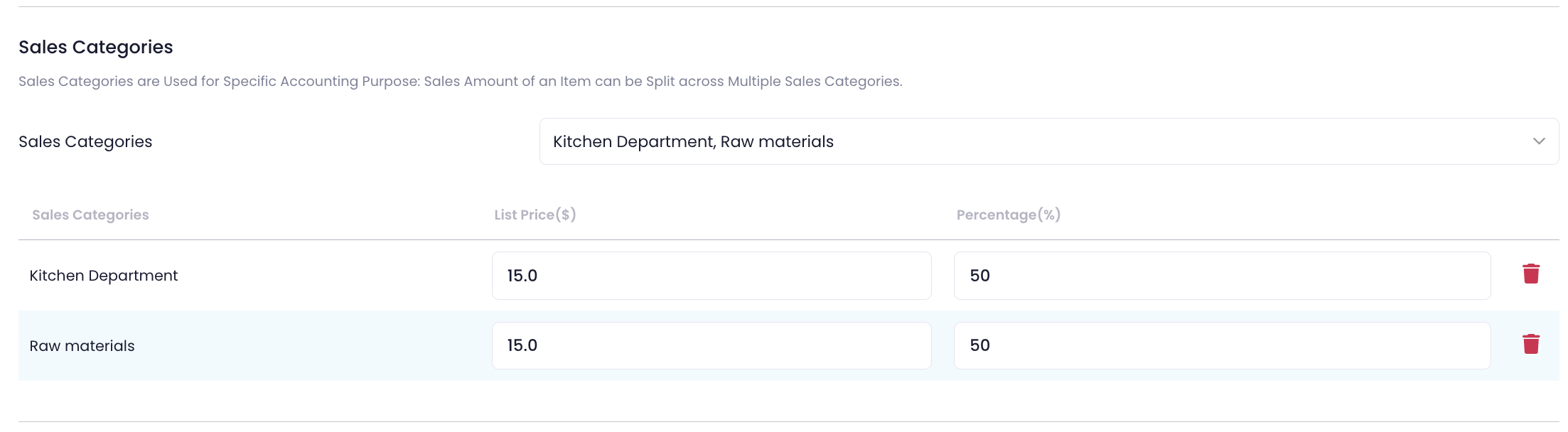
Sales Categories
Allocate an item's sales amount to different sales categories. Enter the "List Price" or the "Percentage" that you want to allocate to the selected sales category. The sum of the percentages should total to 100%.
Include in Combo Items
Select the combo option where you want the item to be included.
DeleteAdditional Details
Cost
Add the cost of the item’s raw materials.
Recommended
Select Yes to make the item appear as a promoted item on various Eats365 modules.
Inventory Tracking
Select Yes to limit the number of items sold. The item appears as "Sold Out" in the POS when the quantity of the item reaches zero.
Print to Kitchen
Select Yes to print the item on the printer located in the kitchen station you set.
Kitchen Station
Assign the item to a kitchen station. This setting determines which kitchen printer the item gets printed on.
Print Item Ticket
Select Yes to print an item ticket on the Self Order Kiosk (Android).
Tag
Add a menu tag to the item to label menu Items and highlight specific attributes.
Application Access Permission
Enable or disable access from applications.
Online Ordering Permissions
Enable or disable access to the following service types from the Branded Online Store.
- Dine-In
- Pickup
- Delivery
Role Access Permission
Enable or disable item access for different staff roles.
Member Plan Exclusive
Enable this setting to make the item available exclusively to customers who are members of a specific plan.
To do this, turn on Exclusive to Specific Member Plans  and select the member plan required to purchase the item. For third-party CRM setups, click on Add New and enter the "3rd Party CRM Member Plan Code."
Modifier
To add modifiers to the item, refer to the article on how to Set up and manage Modifiers.
Delete