Eats365 Products
 Merchant Guide
 Modules
 Membership
 Integrations
 Hardware
 Staff Operations
 Roles & Permissions
 Payments
 Reports
 What’s New
 Release Notes
 Troubleshooting
 Simulators
 Glossary
 Troubleshooter
 System Status
Order Handling
Table of Contents
Search for orders (Full Service)
Learn how to search for current and previous orders on the Eats365 POS.
The "Order List" screen logs all parked and confirmed orders processed through various sources including the Eats365 POS, the PhotoMenu, Branded Online Store, and more. You can easily retrieve past and pending orders manually or use different filter options to view and manage the order, or settle payments.
In this article, you’ll learn about the different ways to search for an order placed on the POS.
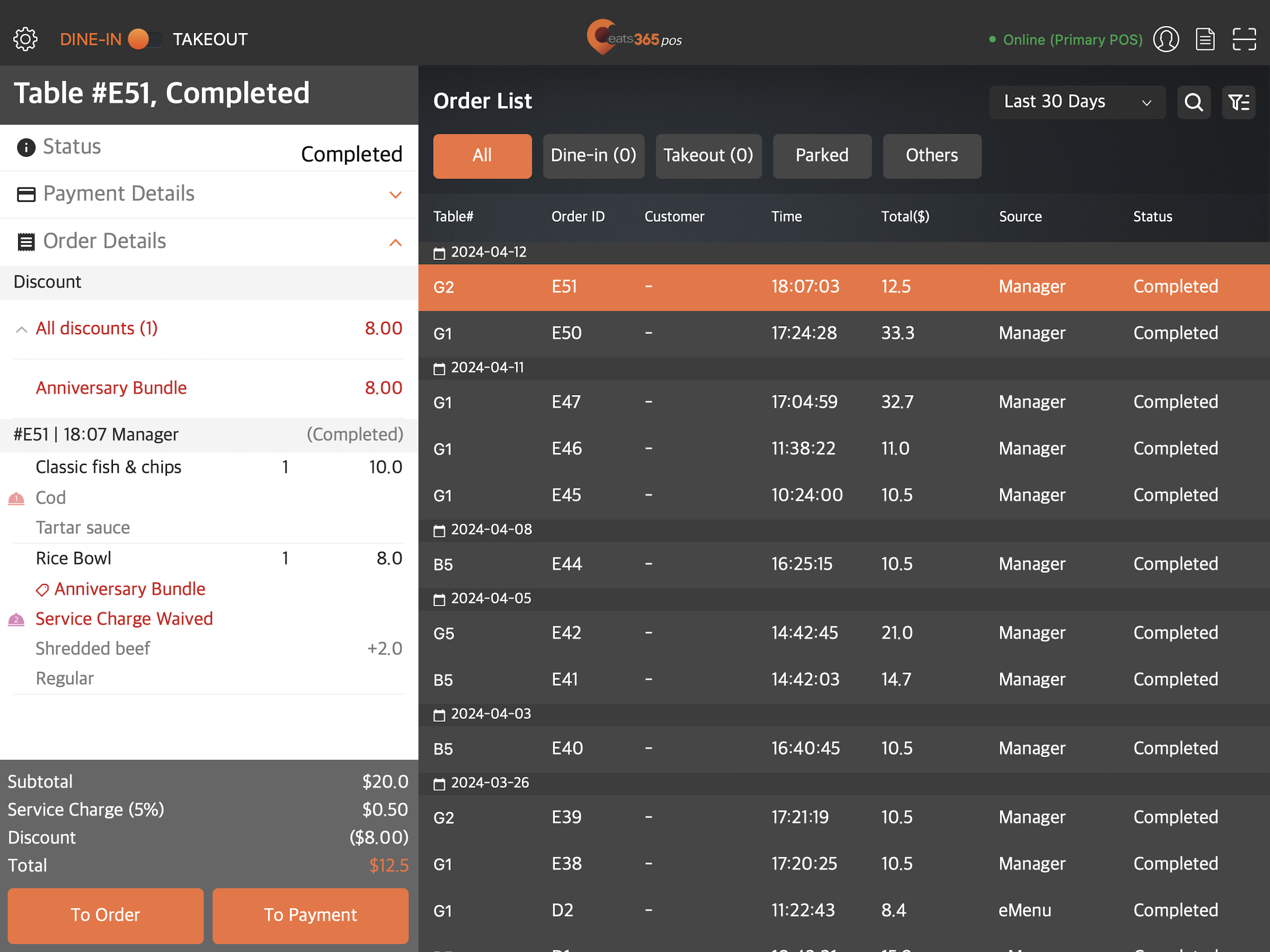
Search for an order using a keyword
When an order is placed, the POS assigns unique identifiers that you can use to locate orders and narrow down searches when needed. These keywords include:
- Contains - Returns a general search based on the entered information in the search box.
-
Order ID - Returns search results based on the order ID.
Note:- The Order ID can be found at the top of the order list from the order-taking screen.
- The Order ID is generated only after the order has been confirmed.
- Receipt Number - Returns search results based on the receipt number.
- Table Number - Returns search results based on the table number.
- Check Name - Returns search results based on the check's name.
- Source - Returns search results based on the staff who processed the order.
- Customer Name - Returns search results based on the name of the customer who placed the order.
- Contact Phone Number - Returns search results based on the phone number associated with the order.
- External Transaction ID - Returns search results based on the reference number generated by a third-party ordering platform.
To search for an order with a keyword, follow the steps below:
- At the top right of the Table Map or the order-taking screen, tap Order List
 . Then, select Find Order.
- Enter the keyword that you want to check. To get specific results, select the applicable keyword filter from the Search by drop-down list.

- To confirm the search, tap the Return key on the iPad’s virtual keyboard.
The POS searches for orders that contain the keyword you entered.

If your order was successfully found, tap the order to open the order details.

Search for an order by status
If you don’t know the order ID of the order that you’re looking for, you can search for an order by its status.
To search for an order by status, at the top right of the Table Map or the order-taking screen, tap Order List . Then, select from the list of available options. For more information about the different order statuses, refer to Check order status (Full Service).
Search for an order using a receipt barcode
Scan a receipt barcode using the “Scan” function
To scan a receipt barcode using the scan function, follow the steps below:
- At the top right of the Table Map or order-taking screen, tap Scan
 .
. - Select Order.
- Position the camera to frame the entire barcode area. The POS automatically scans the receipt.
Scan a receipt barcode through the Order List page
To scan a receipt barcode through the Order List page, follow the steps below:
- At the top right, tap Order List .
- Tap Scan Barcode.
- Position the camera to frame the entire barcode area. The POS automatically scans the receipt.
The order automatically appears if the receipt scans successfully. This search method allows you to access orders quickly to settle payments for customers.
Search for an order using the search button
You can also get targeted search results by tapping Search  and using keywords to locate an order or narrow down your search. Tap the Search by drop-down list and select your preferred keyword filter. You can set how the search returns results based on the following criteria:
- Contains - Returns a general search based on the entered information in the search box.
- Order ID - Returns search results based on the order ID.
- Pre-Order ID - Returns search results based on the pre-order ID.
- Receipt Number - Returns search results based on the receipt number.
- Table # - Returns search results based on the table number.
- Check Name - Returns search results based on the check’s name.
- Source - Returns search results based on the staff who processed the order.
-
Customer Name - Returns search results based on the name of the customer who placed the order.
Note: If the order you’re looking for doesn’t have a customer name associated with it, the order doesn’t appear in the search results. - Contact Phone Number - Returns search results based on the phone number associated with the order.
- External Transaction ID - Returns search results based on the reference number generated by a third-party ordering platform.

Filter search results
To narrow down your search, you can use the available filter options on the Order List screen.
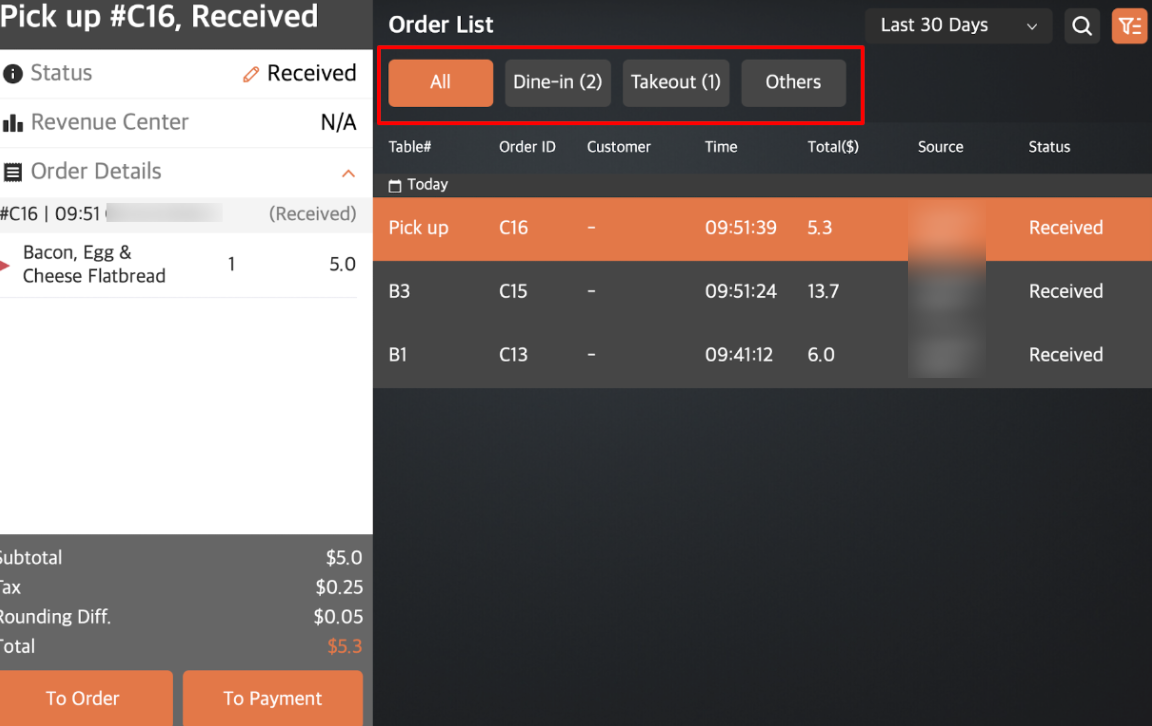
Service type
Select a service type filter to display orders based on the service type. For example, if you want to check all dine-In orders, deselect the "Takeout" tab and all other options except for "Dine-in."
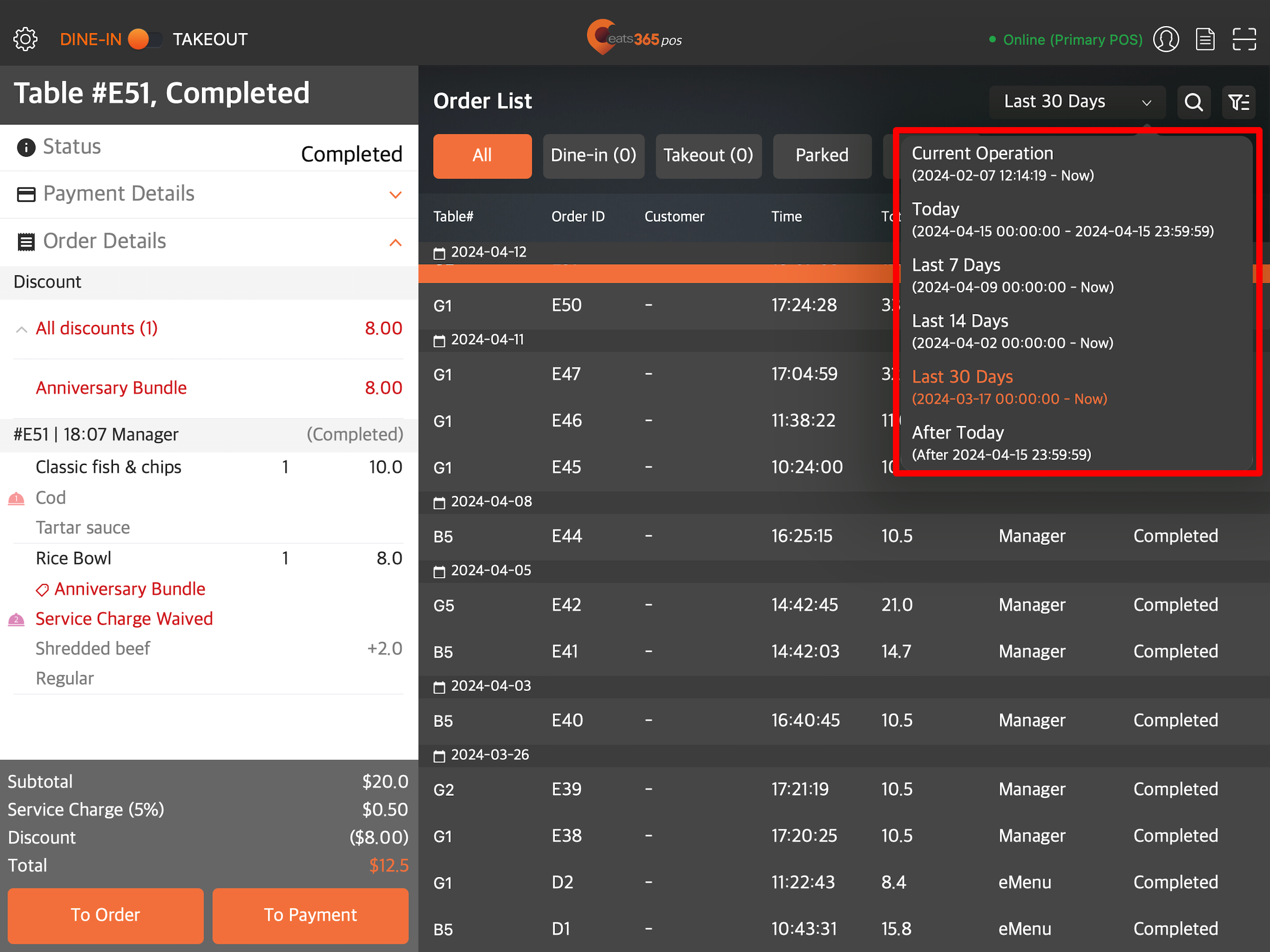
Time range
Display search results from different time ranges.- Current Operation - Displays all orders starting from the time the restaurant has begun operations.
- Today - Displays orders from the day, from 00:00:00 to 23:59:59.
- Yesterday - Displays orders from the previous day.
- Last 7 Days - Displays all orders made for the past 7 days.
- Last 14 Days - Displays all orders made for the past 14 days.
- Last 30 Days - Displays all orders made for the past 30 days.
-
After Today - Displays all pre-orders scheduled after the current date.
Filter button
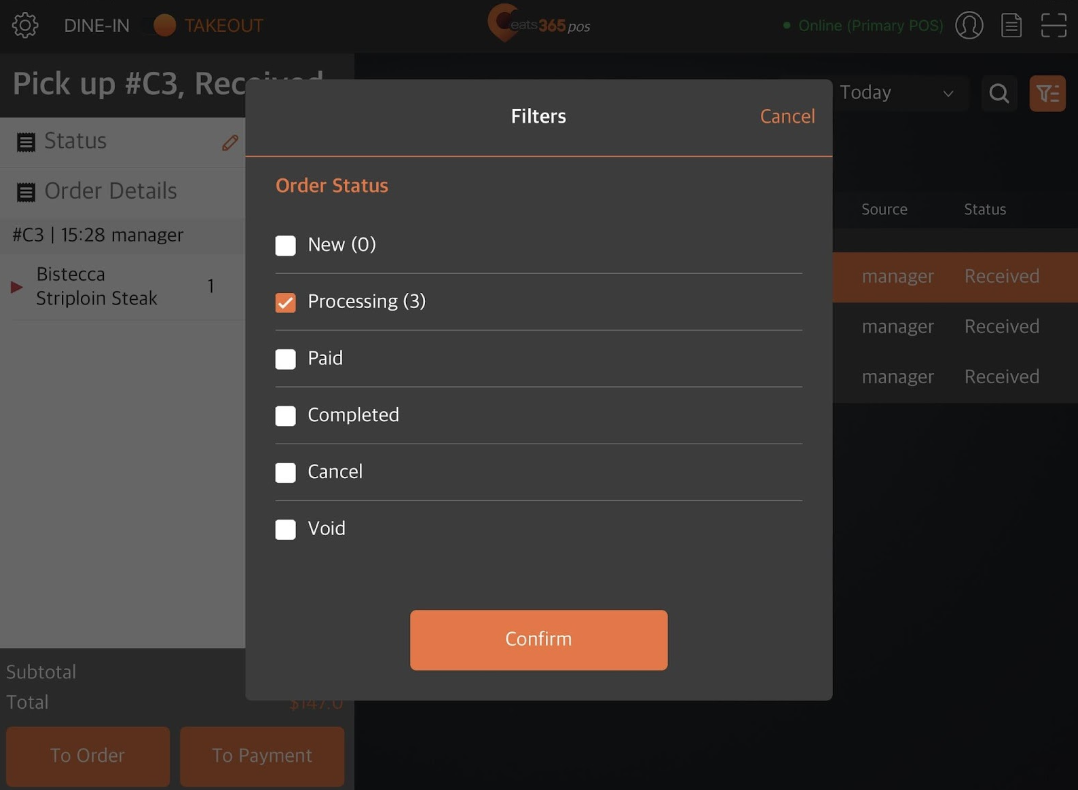
The filter button  allows you to narrow down search results by displaying results by “Order Status,” “Takeout Mode,” “Mode,” or “Source.”
Search for an order on the Merchant Portal
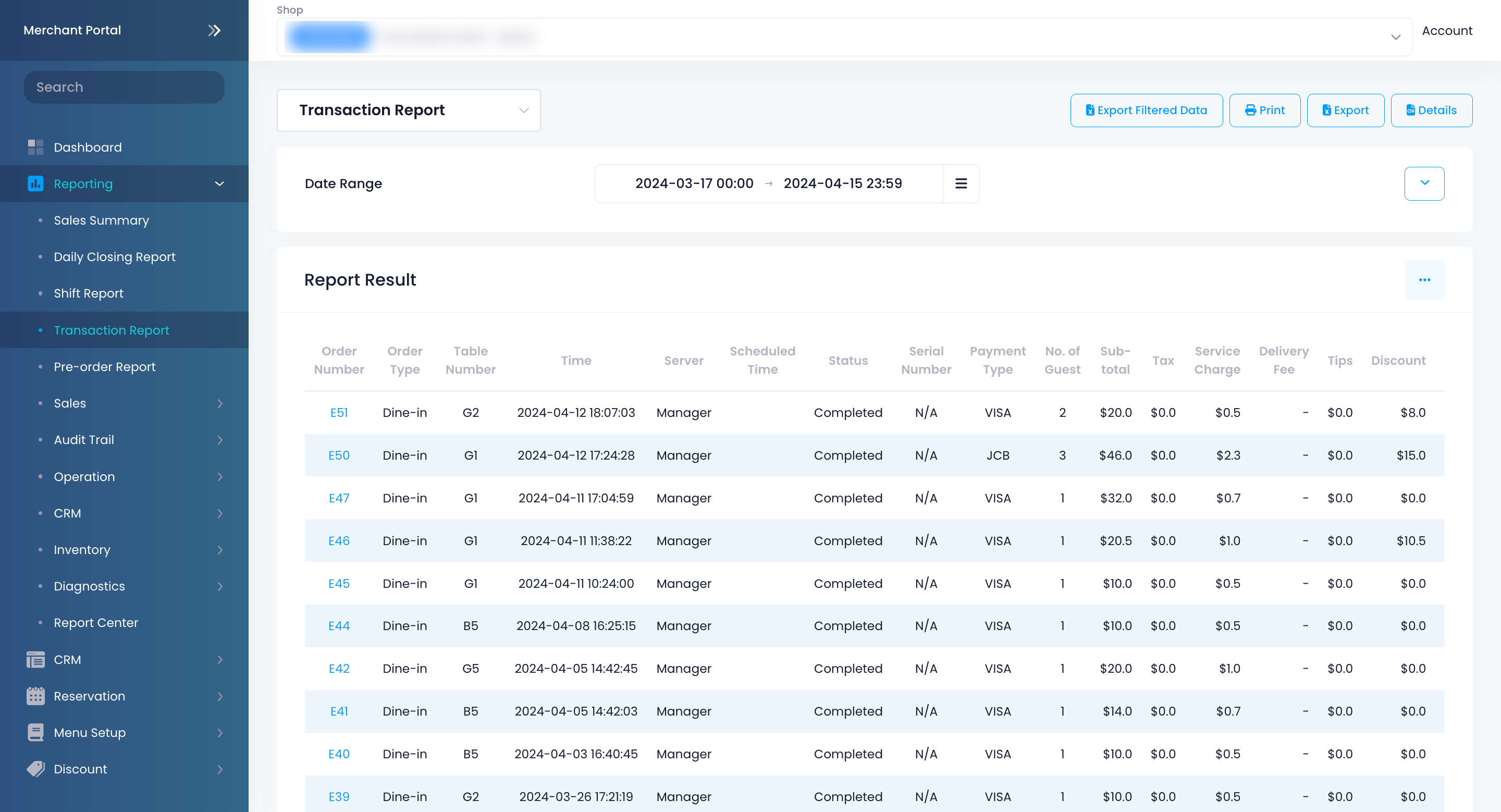
If you want to search for all orders placed on the POS, you can do so from the Merchant Portal.
To search for an order on the Merchant Portal, follow the steps below:
Merchant Portal (Classic Theme)
- Log in to the Merchant Portal.
- On the left panel, click on Reporting, then select Transaction Report.
- Select the date range of the orders that you want to check. Then, click on Submit.
Tip: You can filter your search further by clicking on Advanced Filtering. Then, enter the "Order Number" or select the relevant "Service Type."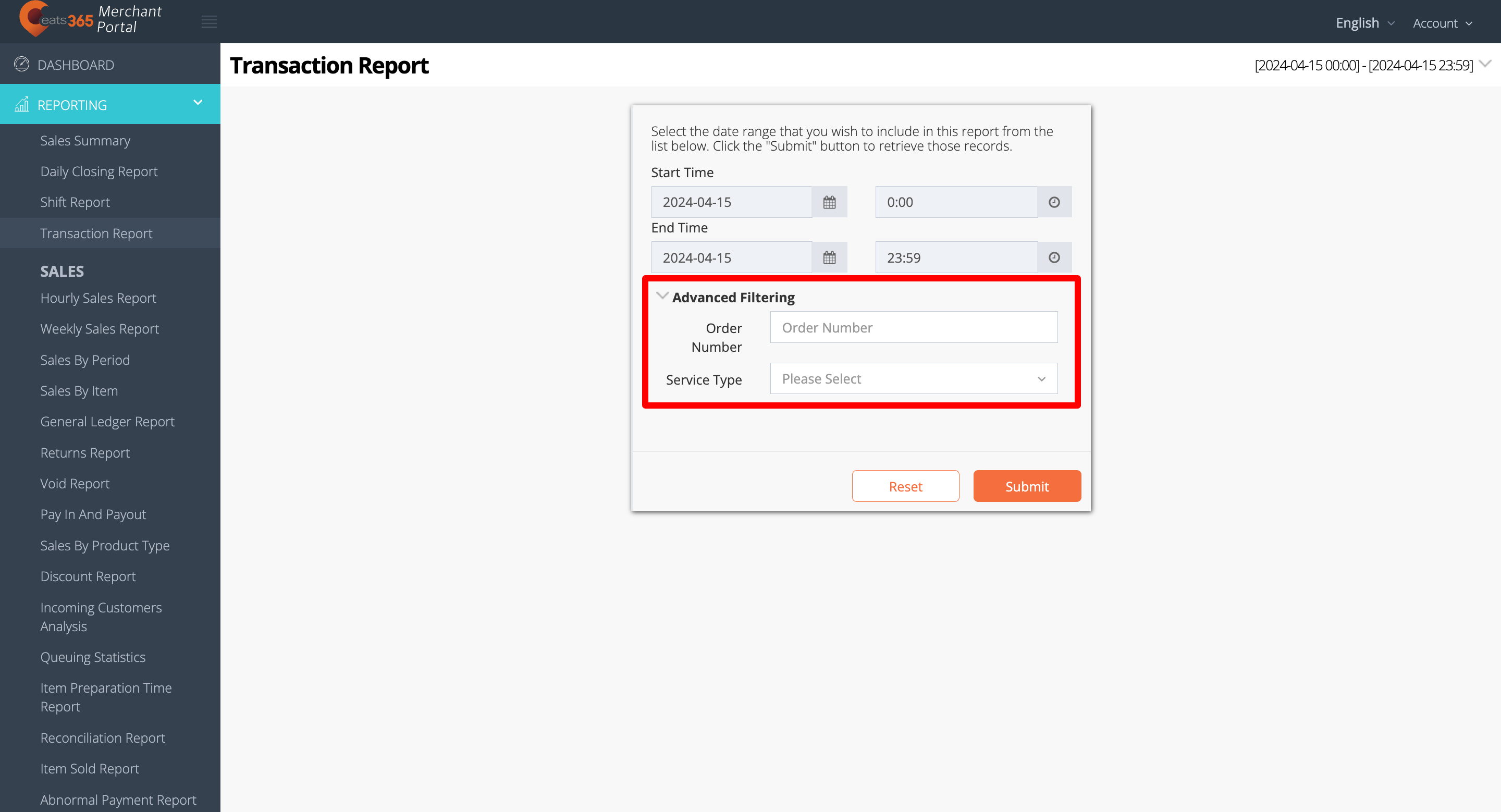
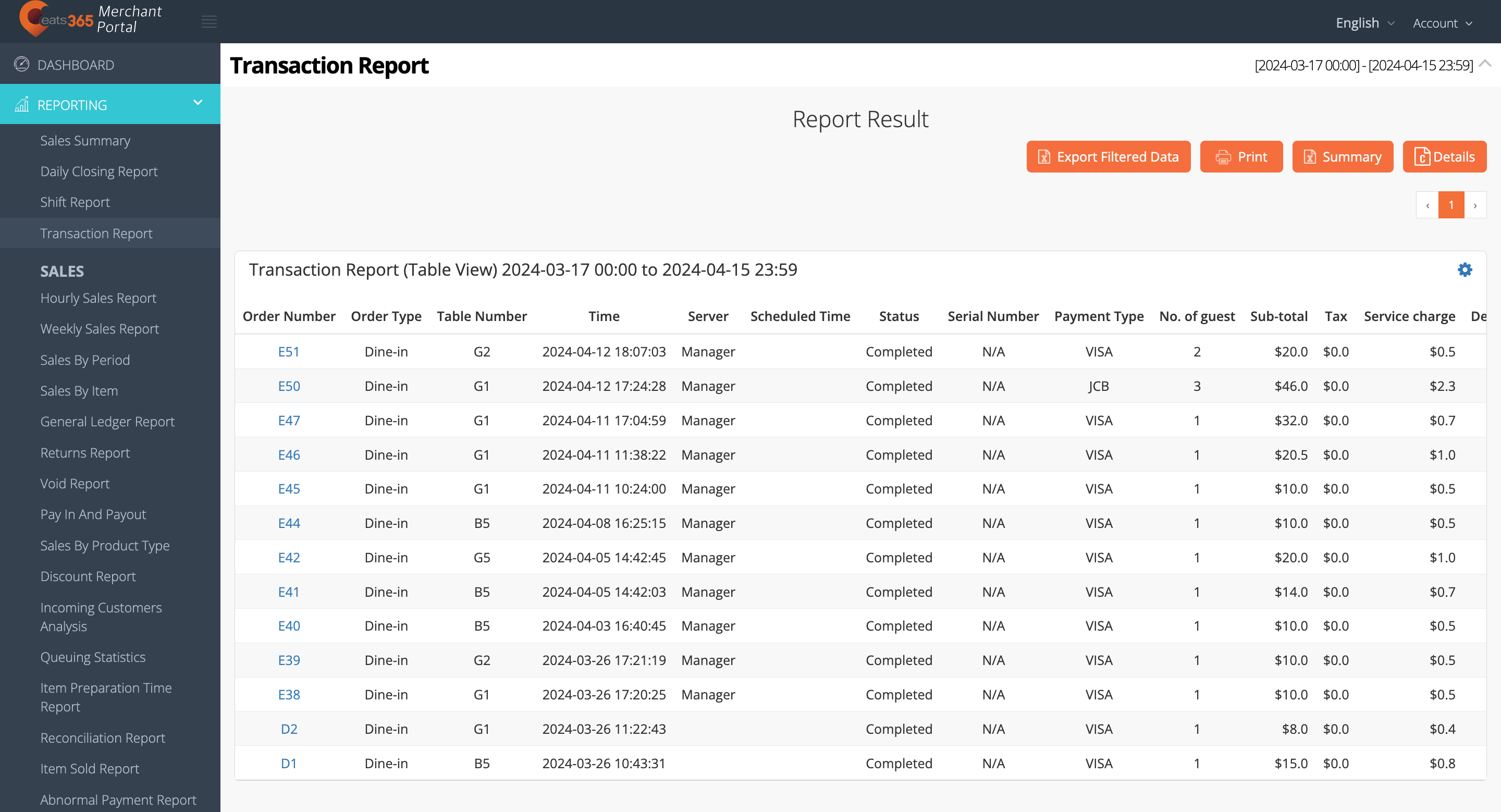
A detailed report of the selected orders appears on the screen. For more information about Transaction Reports, refer to View and manage Transaction Report.
Merchant Portal 2.0
- Log in to the Merchant Portal.
- On the left panel, click on Reporting, then select Transaction Report.
- Select the date range of the orders that you want to check. Then, click on Submit.
Tip: You can filter your search further by entering the "Order Number" or selecting the relevant "Dining Type."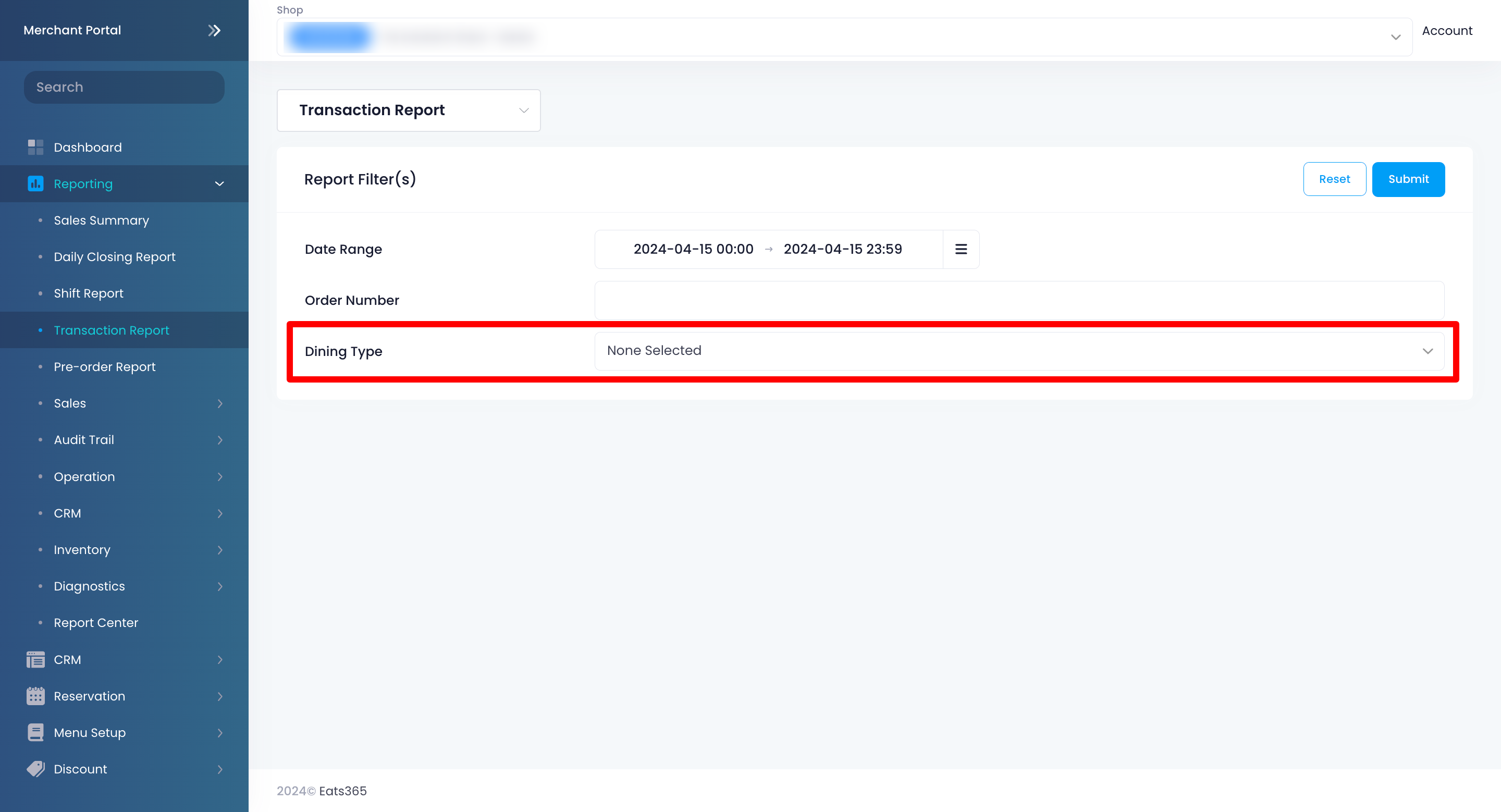
A detailed report of the selected orders appears on the screen. For more information about Transaction Reports, refer to View and manage Transaction Report.