Eats365 Products
 Merchant Guide
 Modules
 Membership
 Integrations
 Hardware
 Staff Operations
 Roles & Permissions
 Payments
 Reports
 What’s New
 Release Notes
 Troubleshooting
 Simulators
 Glossary
 Troubleshooter
 System Status
Order Handling
Table of Contents
Manage courses
Learn how to manage Courses on the Eats365 POS.
"Coursing" allows you to assign items to courses so they are sent to the kitchen at specific times. Items can be preassigned to courses in advance or assigned manually during order taking.
In this article, you’ll learn how to assign items to courses during order taking and how to manage tables with coursed orders.
For information on how to pre-assign items and categories to courses, refer to Set up courses.
Assign courses while taking orders
To assign courses directly from the order-taking screen, follow the steps below:
- On the table map screen, select an available table, then enter the party size.
- Before taking an order, make sure that the seat you’re taking the order for is selected.
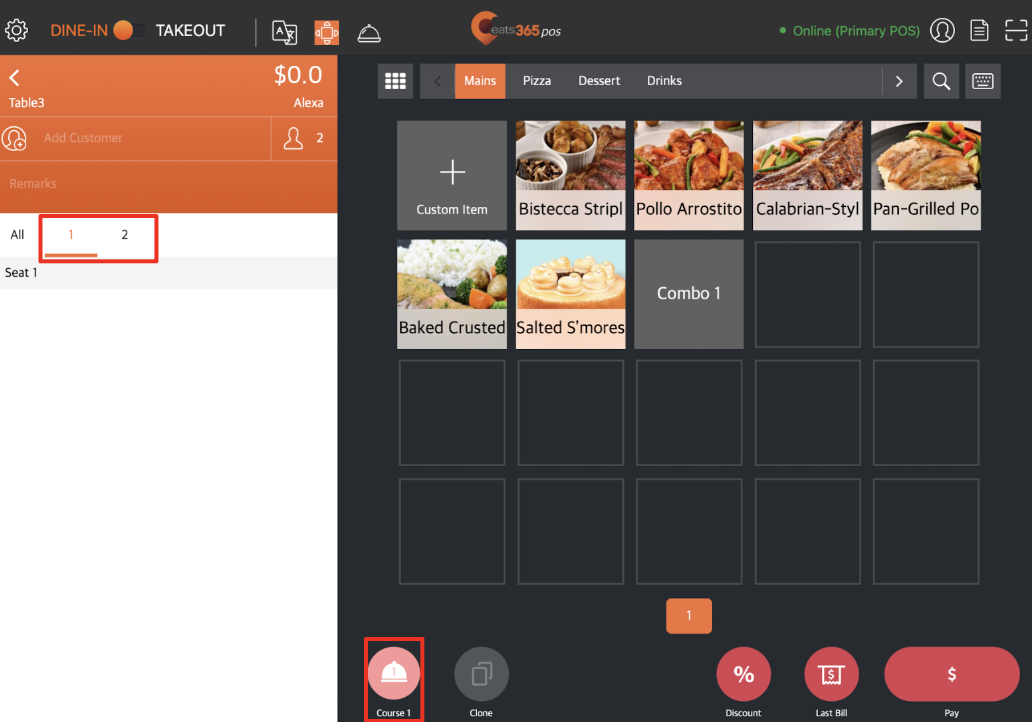
- Select the item to be added to the order.
- Assign the item to a course. You may do any of the following:
Using the Coursing button
- At the top, tap Course
 .
. - Tap the existing course to show other course options. Then, select the course you want to assign to the item.
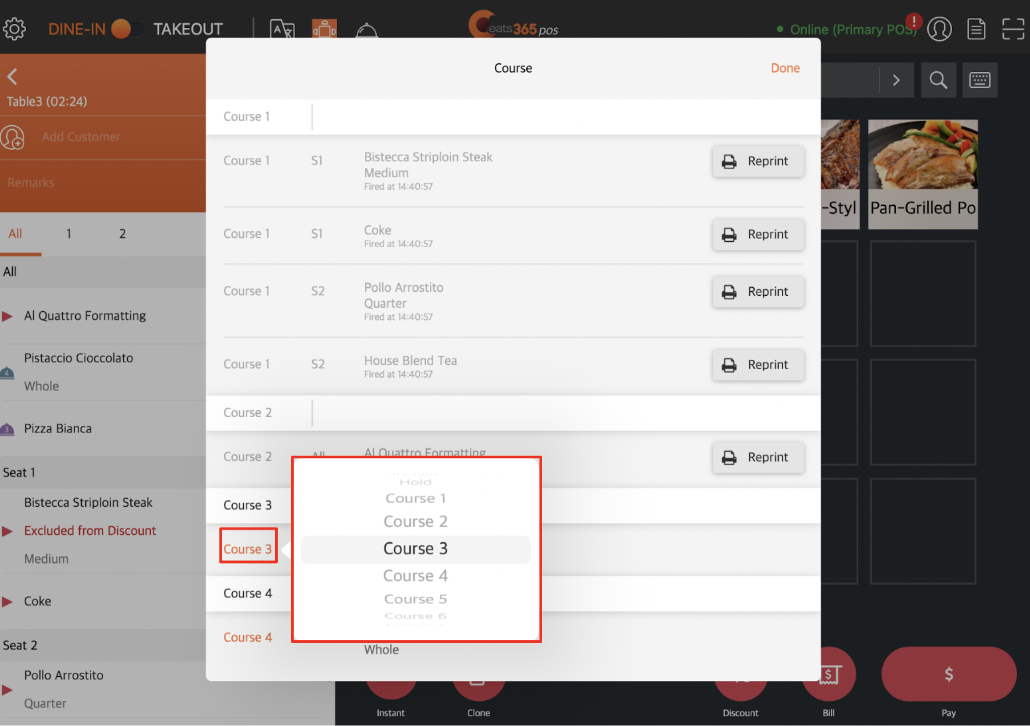
- Tap Done to confirm.
Using the Course Override Quick Key
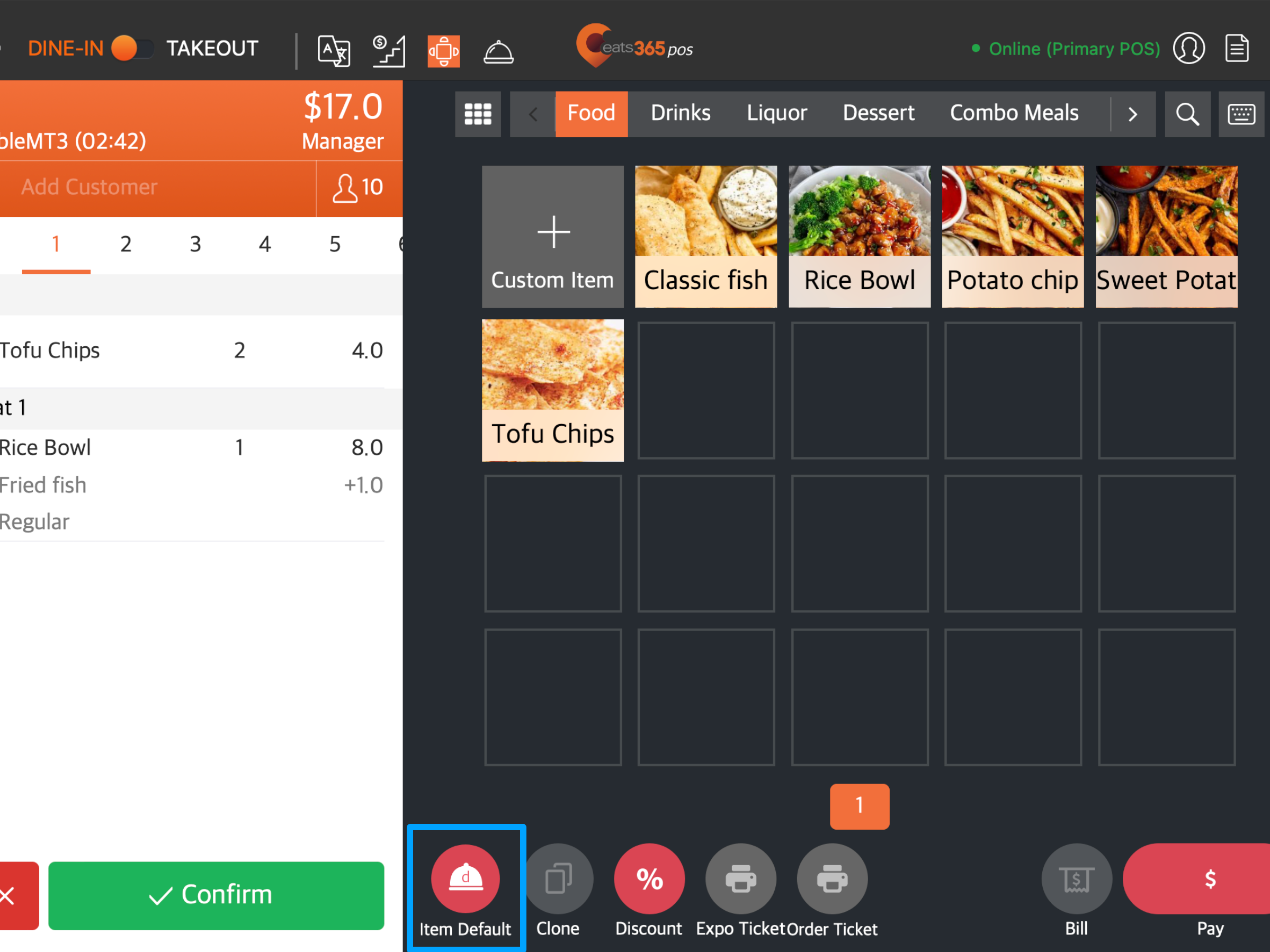
At the bottom, tap the Course Override Quick Key  to specify which course the order is going to be assigned to.
Using Action Buttons
- Tap the item to show available Action Buttons.
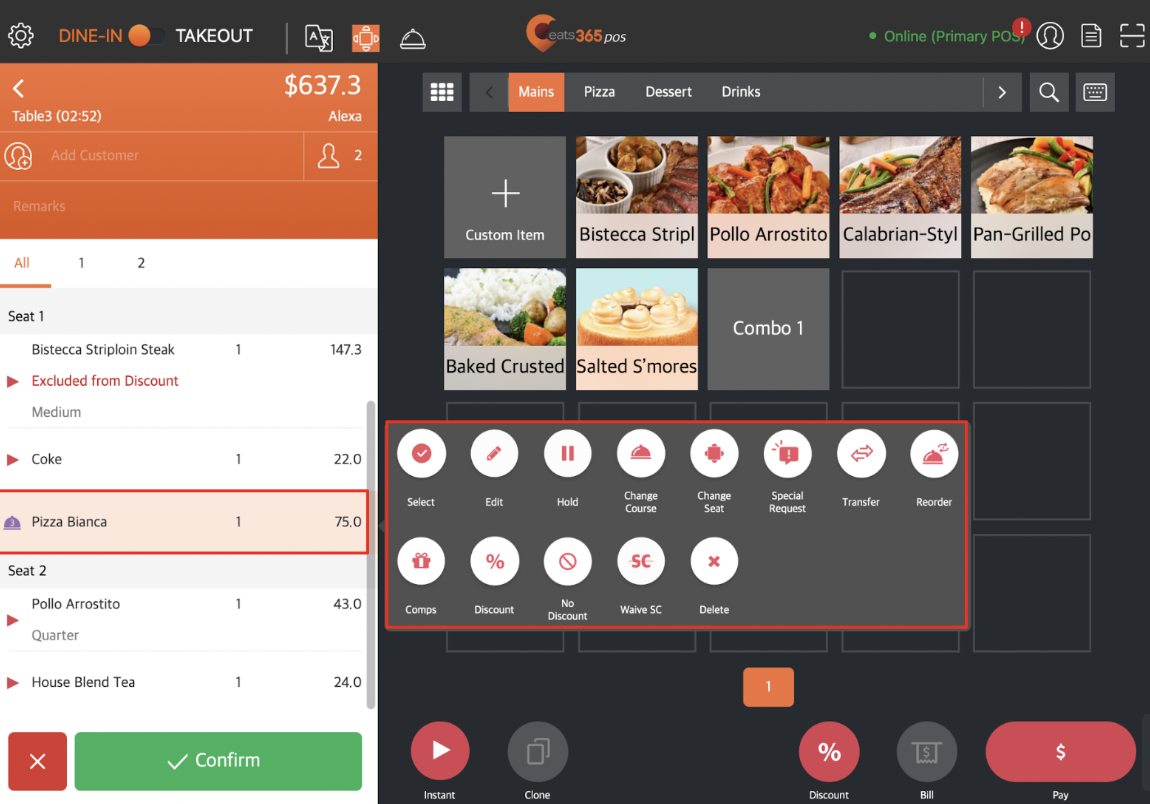
- Tap Change Course

- Select the course you want to assign to the item.
Fire a course
Using the Coursing button
- At the top, tap Course.
- Next to the course that you want to send to the kitchen, tap Fire
 .
.
- Tap Done to confirm.
Using Action Buttons
- Tap the item to show available Action Buttons.

- Tap Fire
 .
. - Select the course you want to assign to the item.
Manage tables with coursed orders
Additional actions can still be performed once a coursed meal has been confirmed. You can use the Course overview to view and manage active courses or Action Buttons to use additional functions.
Course Overview
To display all active courses, at the top of the order-taking screen, tap Course . The following options can be modified:
Reprint
Sends a reprint request to the Kitchen Printer.

Coursing
Changes the course of a confirmed order.

Seating
Changes the seat that’s associated with an order.

Fire
Fires the course.
Note: Firing a course sends a Print Fire Course Ticket request to the Kitchen Printer.
Action Button functions
To display Action Buttons on the order-taking screen, tap an ordered item. The available Action Buttons are displayed to the right of the item. For more information about Action Buttons, refer to Use Action Buttons to modify an order.

Add additional items
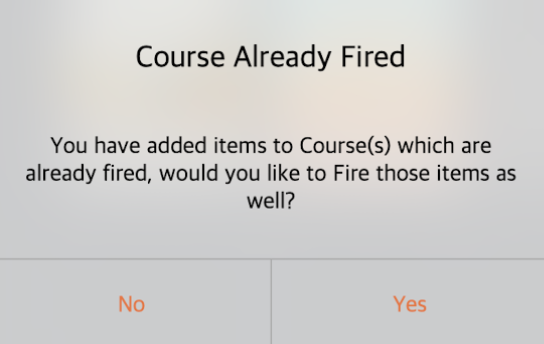
If a customer orders more items while they have an existing course underway, a prompt asks whether you’d like to fire the new order immediately or place it on hold.
If you select Yes, the order is fired immediately. Alternatively, if you choose No, the new order is placed on hold, and you can manually fire the item.