All

    Contact Us

    If you still have questions or prefer to get help directly from an agent, please submit a request.
    We'll get back to you as soon as possible.

    Please fill out the contact form below and we will reply as soon as possible.

    • Product
      • Eats365 Products
      • Merchant Guide
      • Modules
      • Membership
      • Integrations
      • Hardware
    • Operations
      • Staff Operations
      • Roles & Permissions
      • Payments
      • Reports
    • News
      • What’s New
      • Release Notes
    • Tools
      • Troubleshooting
      • Simulators
      • Glossary
      • Troubleshooter
      • System Status
    • Login
    English (US)
    English (US)
    Mandarin
    Cantonese
    • Product
      • Eats365 Products
      • Merchant Guide
      • Modules
      • Membership
      • Integrations
      • Hardware
    • Operations
      • Staff Operations
      • Roles & Permissions
      • Payments
      • Reports
    • News
      • What’s New
      • Release Notes
    • Tools
      • Troubleshooting
      • Simulators
      • Glossary
      • Troubleshooter
    Login
    • Home
    • Staff Operations

    Order Handling

    All Product

    Contact Us

    If you still have questions or prefer to get help directly from an agent, please submit a request.
    We’ll get back to you as soon as possible.

    Please fill out the contact form below and we will reply as soon as possible.

      • Basic Operations
          • Sign in and sign out of the Eats365 POS
          • Perform Start of Day and Open Shift
          • Perform End of Day and other end of day activities
          • Clock in and clock out of the Eats365 POS
          • Manage cash in the cash drawer for non-payment transactions
          • Log in to the Eats365 Merchant Portal
      • Order Handling
          • Perform seating
          • Manage table statuses
          • Switch order view (Full Service)
          • Switch order view (Quick Serve)
          • Switch order view (Food Court)
          • Add items to an order (Full Service)
          • Add items to an order (Quick Serve)
          • Add items to an order (Food Court)
          • Add combo items to an order
          • Apply modifiers to an order
          • Change order quantities
          • Lock an order
          • Clone an order (Full Service)
          • Clone an order (Quick Serve)
          • Clone an order (Food Court)
          • Join multiple tables together
          • Share a table between different party groups
          • Split a table for different party groups
          • Fire and Hold items
          • Clear a table
          • Remove items from an order
          • Check order status (Full Service)
          • Check order status (Quick Serve)
          • Check order status (Food Court)
          • Use member order history to reorder
          • Create pickup and delivery orders
          • Use Action Buttons to modify an order
          • Manage new orders
          • Search for orders (Full Service)
          • Search for orders (Quick Serve)
          • Search for orders (Food Court)
          • Create a Custom Item
          • Transfer order to another table
          • Park and Retrieve orders
          • Manage orders from Delivery Integrations
          • Perform self-checkout for dine-in orders
          • Manage self-checkout orders
          • Manage pre-orders
          • Apply tier pricing to an order
          • Place All You Can Eat orders
          • Manage online ordering status on the Eats365 POS
          • Manage online ordering status on the Eats365 POS (Food Court)
          • Update item or modifier inventory during order-taking
          • Manage courses
      • Reservation Management
          • Manage reservations
      • Queuing Management
          • Issue Queuing Tickets from the POS
          • Manage queuing tickets
          • Suspend and resume issuing Queuing Tickets
          • Manage online queuing tickets
          • Manage queuing tickets during service interruptions
      • Handling Payments
          • Process a payment for an order (Full Service)
          • Process a payment for an order (Quick Serve)
          • Process a payment for an order (Food Court)
          • Process a 365pay payment on the POS
          • Process a QR code payment on the POS
          • Apply discounts to an order
          • Make an item complimentary
          • Apply taxes and service charges
          • Add tip to an order
          • Perform a Split Bill by Item or Split Bill by Amount
          • Payment returns
          • Apply surcharge to an order
          • Use membership points for payments and discounts
          • Use coupons and gift cards for payments
          • Forfeit a pre-paid order
          • Add restrictions to discount usage (Discount 1.0)
          • Use points, discounts, or coupons for third-party CRM orders
          • Cancel or void gift cards, vouchers, and coupons
          • Refund gift card value
          • Change payment to a different currency
          • Use member credits for payments
          • Top up Octopus card with the Eats365 POS
          • Process Fiuu payments on the Eats365 POS

    Table of Contents

    Manage courses

    Learn how to manage Courses on the Eats365 POS.

    "Coursing" allows you to assign items to courses so they are sent to the kitchen at specific times. Items can be preassigned to courses in advance or assigned manually during order taking. 

    In this article, you’ll learn how to assign items to courses during order taking and how to manage tables with coursed orders.

    For information on how to pre-assign items and categories to courses, refer to Set up courses.

    Assign courses while taking orders

    To assign courses directly from the order-taking screen, follow the steps below: 

    1. On the table map screen, select an available table, then enter the party size.
    2. Before taking an order, make sure that the seat you’re taking the order for is selected. 
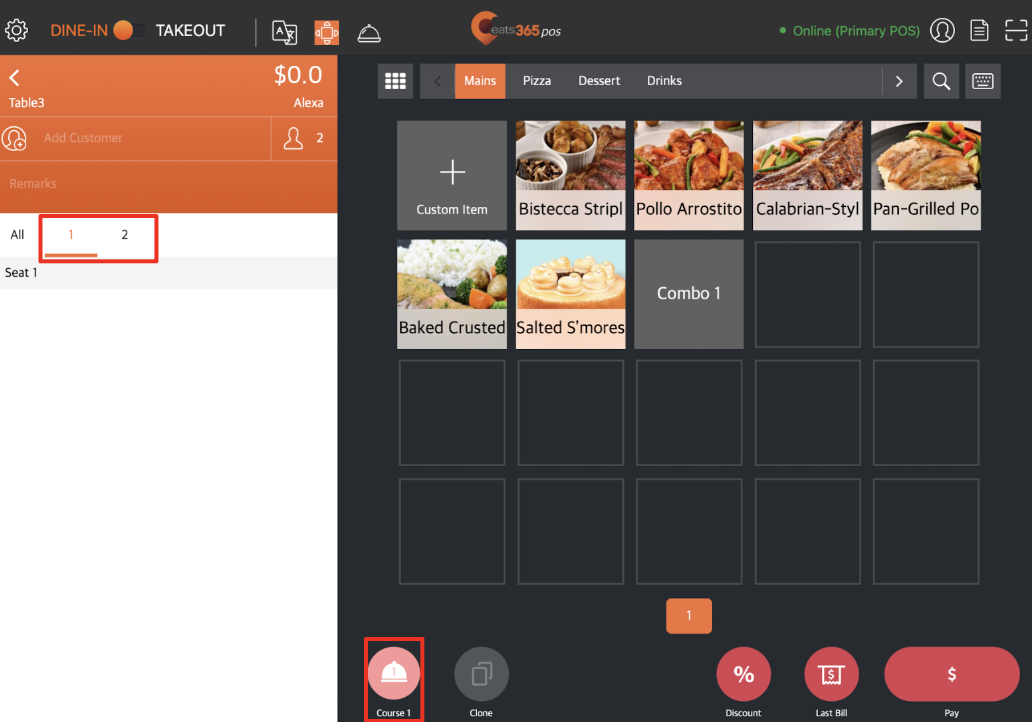
    3. Select the item to be added to the order.
    4. Assign the item to a course. You may do any of the following: 

    Using the Coursing button

    1. At the top, tap Course.
    2. Tap the existing course to show other course options. Then, select the course you want to assign to the item.
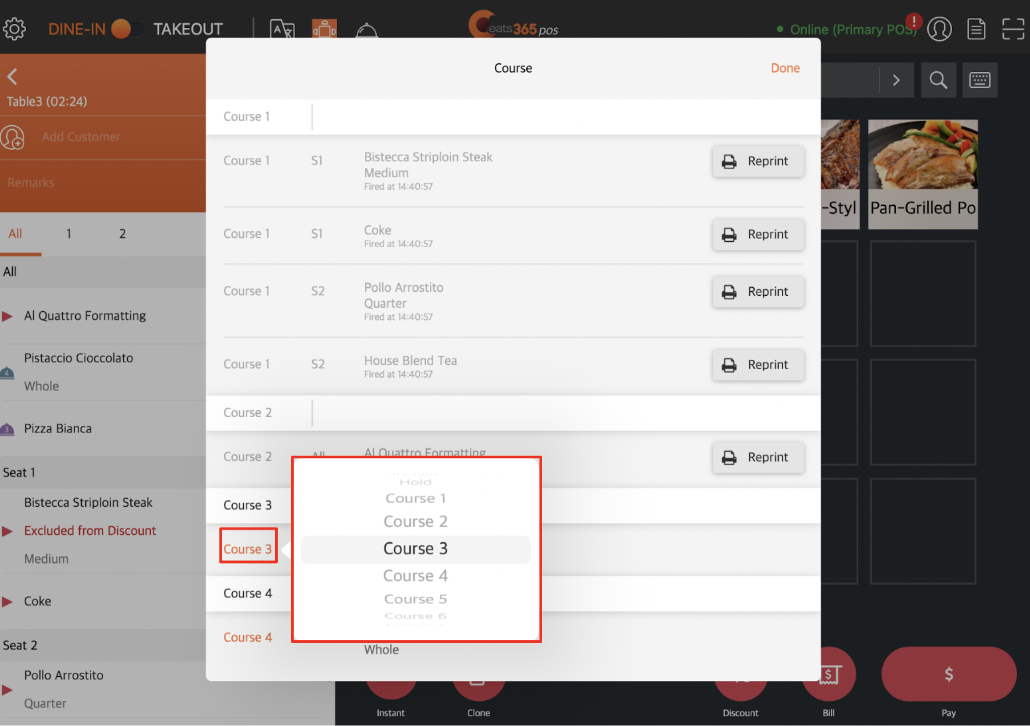
    3. Tap Done to confirm.
    Delete

    Using the Course Override Quick Key

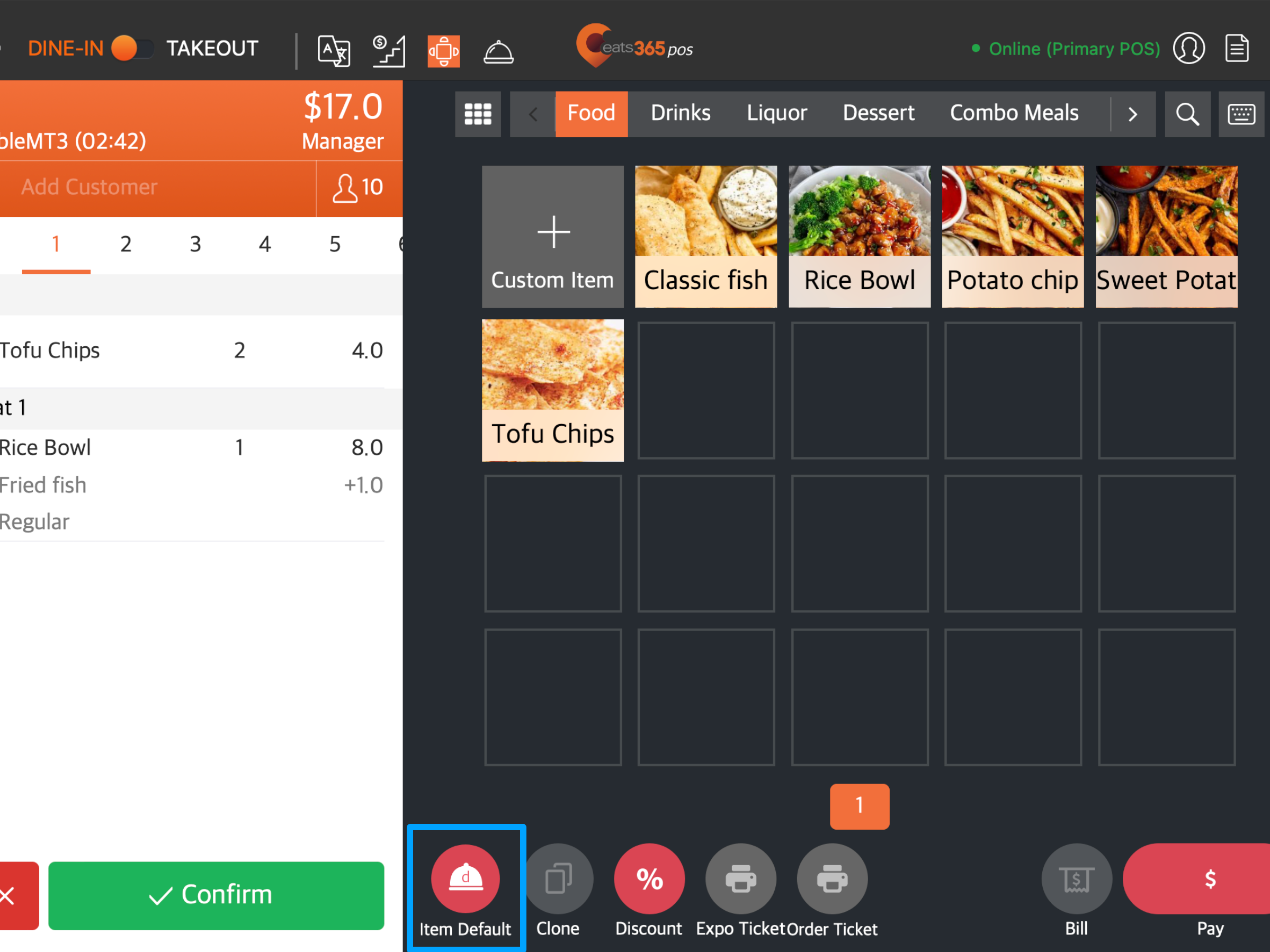
    At the bottom, tap the Course Override Quick Key  to specify which course the order is going to be assigned to.

    Delete

    Note: 

    • The Course Override Quick Key is a dynamic icon and can change depending on the currently selected course. It is generally located at the bottom of the order-taking screen.
    • Tapping the Course Override Quick Key changes the course to the next course in the sequence. Press and hold the Course Override Quick Key to display all available course options.
    Delete

    Using Action Buttons

    1. Tap the item to show available Action Buttons.
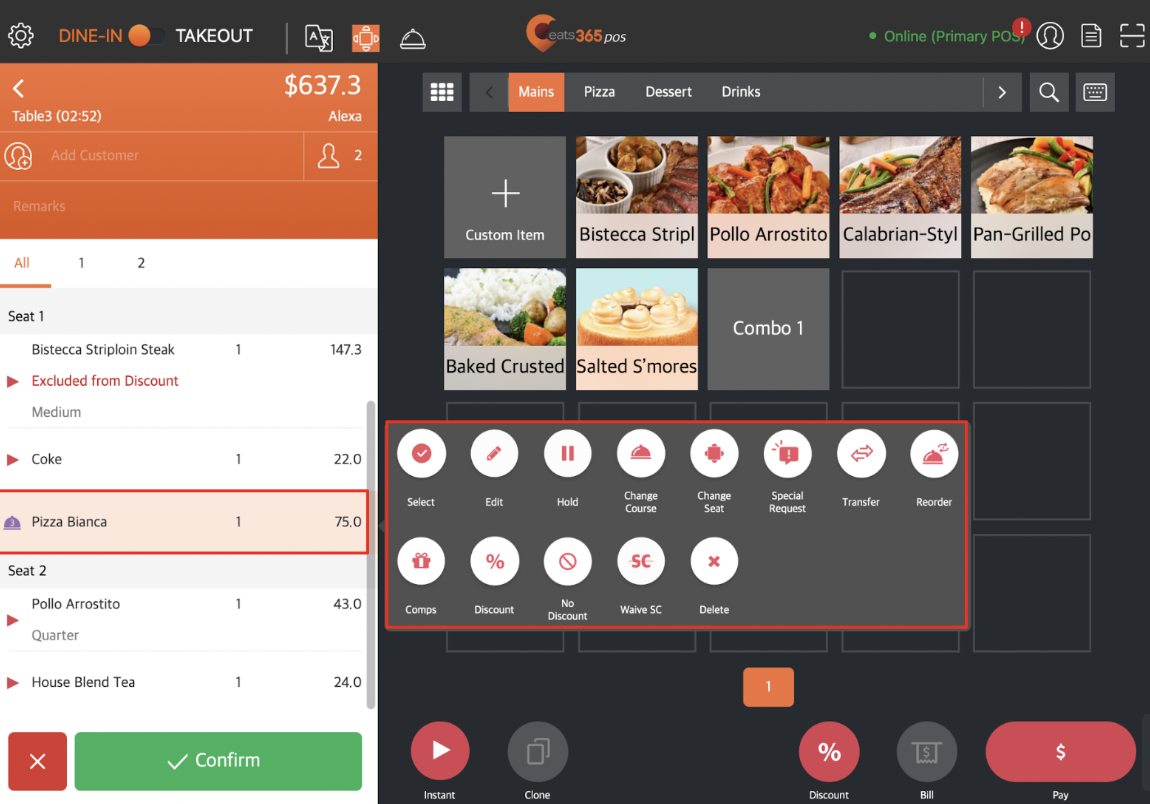
    2. Tap Change Course
    3. Select the course you want to assign to the item.
    Delete

    Fire a course

    Delete

    Note: If Auto Fire course is enabled, orders will be automatically sent to the kitchen after a set amount of time. This applies to system-default courses. If you've created customized courses, you must manually fire the course to send items to the kitchen.

    Using the Coursing button

    1. At the top, tap Course.
    2. Next to the course that you want to send to the kitchen, tap Fire.
    3. Tap Done to confirm.
    Delete

    Using Action Buttons

    1. Tap the item to show available Action Buttons.
    2. Tap Fire.
    3. Select the course you want to assign to the item.
    Delete

    Manage tables with coursed orders

    Additional actions can still be performed once a coursed meal has been confirmed. You can use the Course overview to view and manage active courses or Action Buttons to use additional functions.

    Course Overview

    To display all active courses, at the top of the order-taking screen, tap Course . The following options can be modified:

    Reprint

    Sends a reprint request to the Kitchen Printer.

    Coursing

    Changes the course of a confirmed order.

    Seating

    Changes the seat that’s associated with an order.

    Fire

    Fires the course.

    Note: Firing a course sends a Print Fire Course Ticket request to the Kitchen Printer.

    Action Button functions

    To display Action Buttons on the order-taking screen, tap an ordered item. The available Action Buttons are displayed to the right of the item. For more information about Action Buttons, refer to Use Action Buttons to modify an order.


    Add additional items

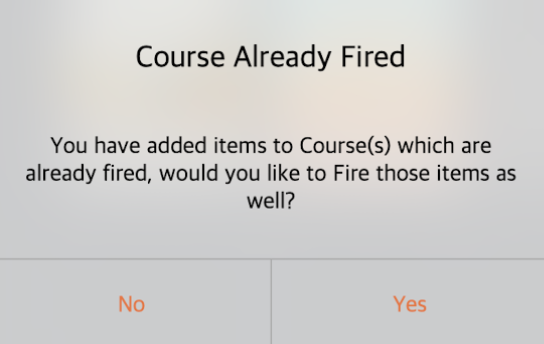
    If a customer orders more items while they have an existing course underway, a prompt asks whether you’d like to fire the new order immediately or place it on hold.

    If you select Yes, the order is fired immediately. Alternatively, if you choose No, the new order is placed on hold, and you can manually fire the item.
    manage courses fire a course reassign a course course override quick key change course assign a course course management

    Was this article helpful?

    Yes
    No
    Give feedback about this article

    Related Articles

    • Manage new orders
    • Park and Retrieve orders
              • Products
                • POS
                • mPOS
                • Eats365 Biz
                • Eats365 Marketplace
                • Branded Online Store
                • Kitchen Display System
                • Expedite Display
                • Scan-to-Order (BYOD)
                • Self-Service Kiosk
                • PhotoMenu
                • Queue Kiosk
                • Dynamic Digital Menu
                • Queue Display
                • Pickup Display
                • Customer Facing Display
              • Solutions
                • Online Ordering
                • Contactless Dining
                • Front of House
                • Guest Retention
                • Back of House
                • Back Office (Store End)
                • Multi-brand/Location Management (Enterprise)
                • Paperless Operation Experience
                • Payment
              • Restaurant Types
                • Quick Service Restaurant
                • Full Service Restaurant
                • Bars
                • Food Court
                • Cloud Kitchen
                • Food Retail
                • Self-service Restaurant
                • Enterprise
                • All-You-Can Eat (Buffet)
              • Resources
                • Eats365 Knowledge Base
                • Blog
                • Supported Hardware
              • Company
                • About Us
                • Success Stories
                • Referrals
              • Get In Touch
              • Contact Us
                • Eats365, Inc.
                • Sales info@eats365.com
                • Support support@eats365.com
          • Contact Us
            • Eats365, Inc.
            • info@eats365.com
            • www.eats365pos.com
          • Get In Touch
            • Apple Mobility Partner
              twitter facebook eats365 linkedin
          • eats365
            © 2023 Eats365 Incorporated. All rights reserved.

    Knowledge Base Software powered by Helpjuice

    Expand